
Chip-Tools
Running the AVDI in a virtual machine (VMware): installation, USB redirection and shutdown
Strumenti
Interface Classic
Configuration / MMI
Medium
⏱ 30-60 min
9 steps
If you run the Abrites software inside a virtual machine, the AVDI has to be installed in the VM and the USB port has to be redirected from the host to the VM, otherwise the interface cannot be used.
Required licences
- —
Hardware / cables

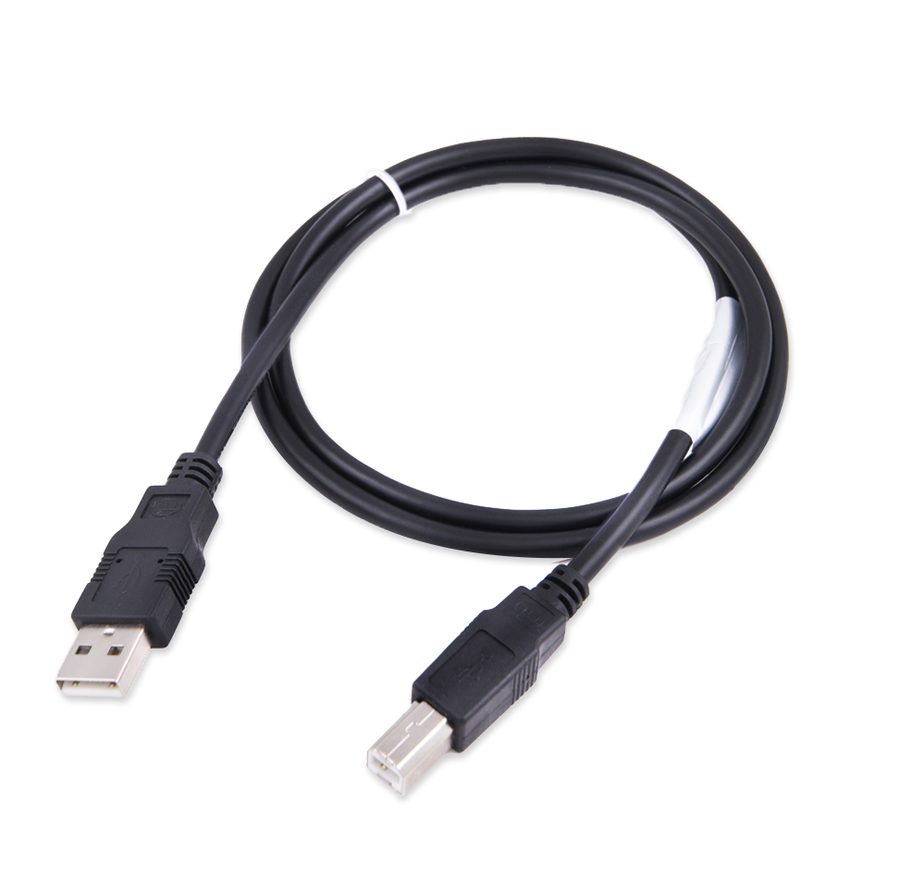
⚠ WarningIf you do not redirect the USB port to the virtual machine you cannot use the AVDI on the VM. When you are done you must perform a proper "Shut down" of the VM operating system, and this also applies when you use the J2534 Passthru driver in a virtual machine.
Procedure
- Start the virtual machine you want to use the AVDI on and install the ABRITES software for your interface inside it, exactly as you would on the host PC (same sequence of installation files).
- During installation make sure the box for installing the interface USB drivers is ticked, especially if this is the first time you install Abrites diagnostic software on that machine. Wait for the drivers to be installed.
- Connect the AVDI to a USB port on the host PC.
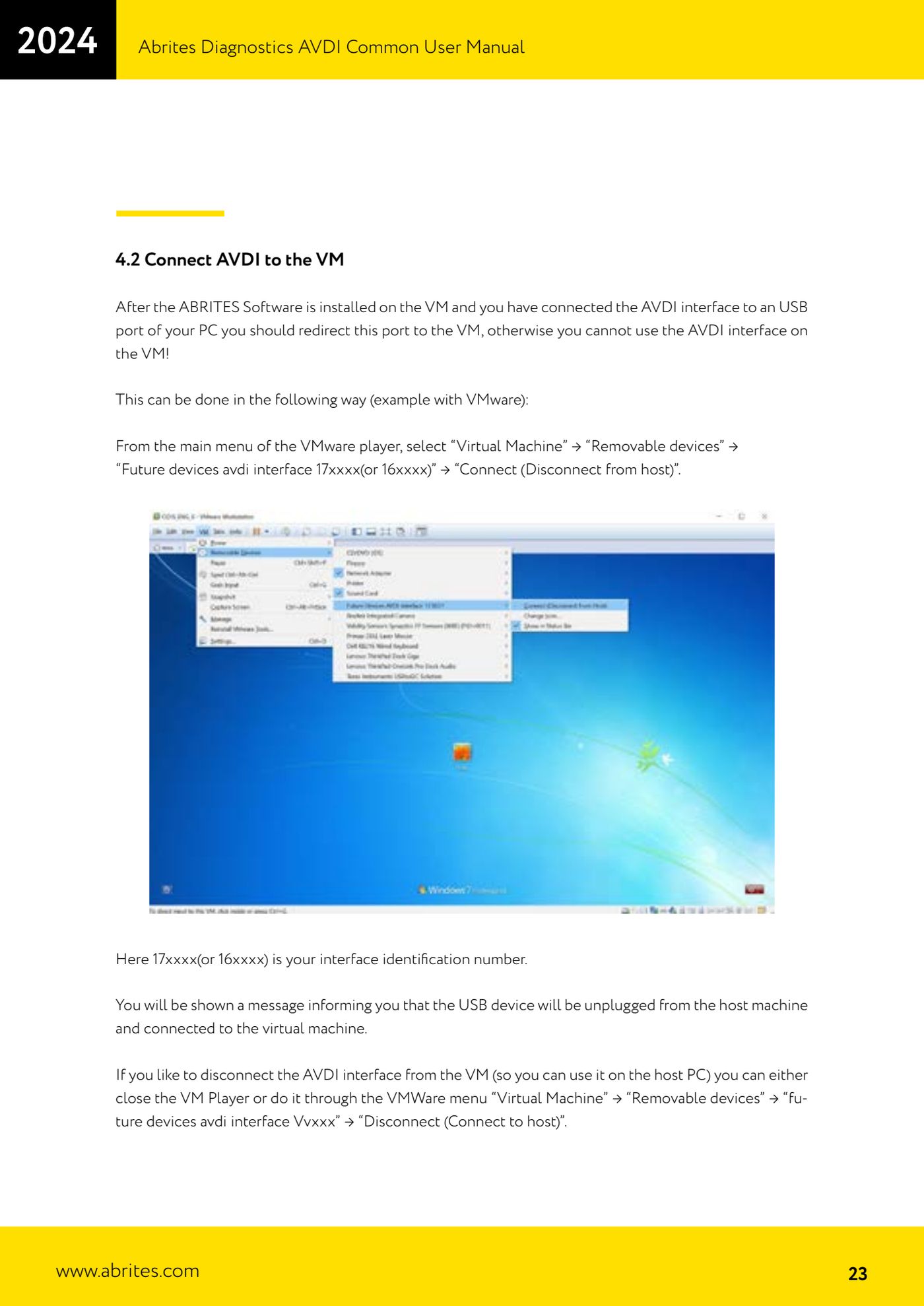
- In VMware Player open the menu "Virtual Machine" -> "Removable devices" -> "Future devices avdi interface 17xxxx" (or 16xxxx, where 17xxxx is your interface ID number) -> "Connect (Disconnect from host)".
- Confirm the message warning you that the USB device will be disconnected from the host machine and connected to the virtual machine.
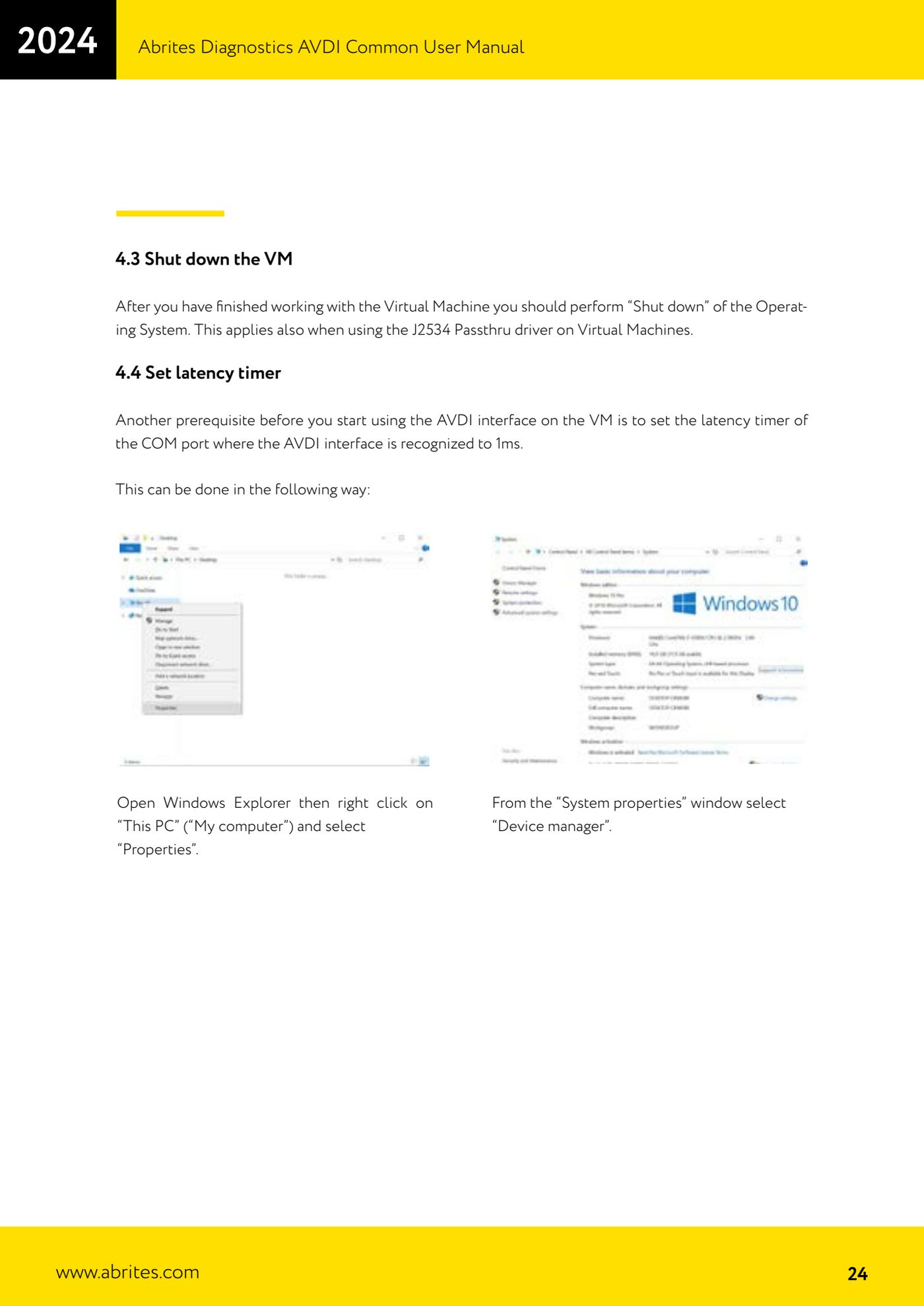
- Set the Latency Timer to 1 ms on the COM port where the AVDI is detected: this is a prerequisite for use in a virtual machine.
- Work normally with the Abrites software inside the VM.
- To hand the AVDI back to the host PC: close VM Player, or use the menu "Virtual Machine" -> "Removable devices" -> the AVDI interface entry -> "Disconnect (Connect to host)".
- When you are finished always perform a proper "Shut down" of the virtual machine operating system, never force it closed.
Reference screenshots
Source: Manuale AVDI - manuale comune, parte 1 di 2, cap. 4.1-4.4 (p.22-25) · ⏱ estimated time 30-60 min
← All Abrites guides Hardware catalogue
More guides Strumenti
- ABPROG ZN030: what's in the set, hooking it up to the AVDI and starting the Classic software
- Reading and writing SPI, I2C and Microwire EEPROMs with ABPROG and the ZN031/ZN035 adapter
- Erasing and reprogramming M35080VP / M35080V6 incremental EEPROMs with ABPROG
- Wiring an SPI EEPROM straight to the ABPROG DB25 without the ZN031 adapter
- Mercedes-Benz IR keys: reading the SSID, erasing and programming the NEC with ZN032 / ZN033
- Renewing used keys (HITAG/PCF) with the ZN046 adapter and ABPROG
- Solder points on key PCBs for the ZN046 and list of keys supported for renewal
- Reading the EWS3 dump on BMW E46/E39/E53 and others with the ZN055 adapter
- Reading the EEPROM on BMW F-Series FEM/BDC without desoldering, using the ZN057 extension
- Reading and writing NEC V850ES MCUs with the ZN078 adapter and ABPROG
- ABPROG DB25 pinout: building your own ZN046, ZN058, ZN078 and ZN086 adapters
- Reading the immobiliser from a Renault X95 BCM (and Audi BCM) with ABPROG and direct wiring