
Chip-Tools
Abrites software errors: System Error, 0x17022, error 174, graphics, server and Windows 7
Strumenti
Interface Classic
Appendix
Medium
⏱ varies
8 steps
A round-up of the most common software problems with the Abrites package and the fixes given by the manufacturer: system errors, installation errors, graphics problems on the Online versions and server connection failures.
Required licences
- —
Hardware / cables

⚠ WarningIf you disable Windows Defender or Smart Screen to complete the installation, turn them back on immediately after reinstalling: otherwise the PC is left exposed to real threats.
Procedure
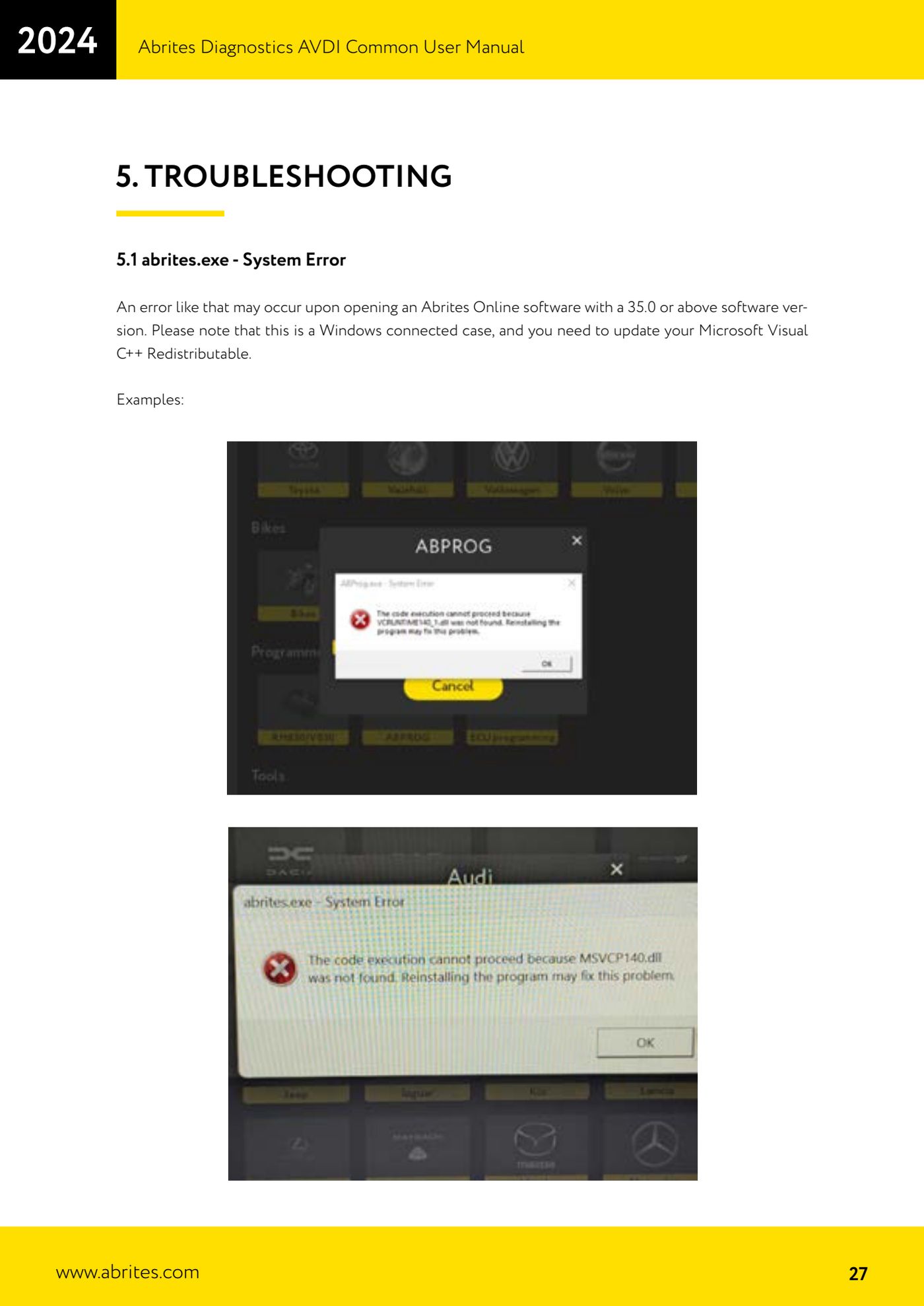
- "abrites.exe - System Error" when opening an Abrites Online software version 35.0 or later: this is a Windows issue, update the Microsoft Visual C++ Redistributable.
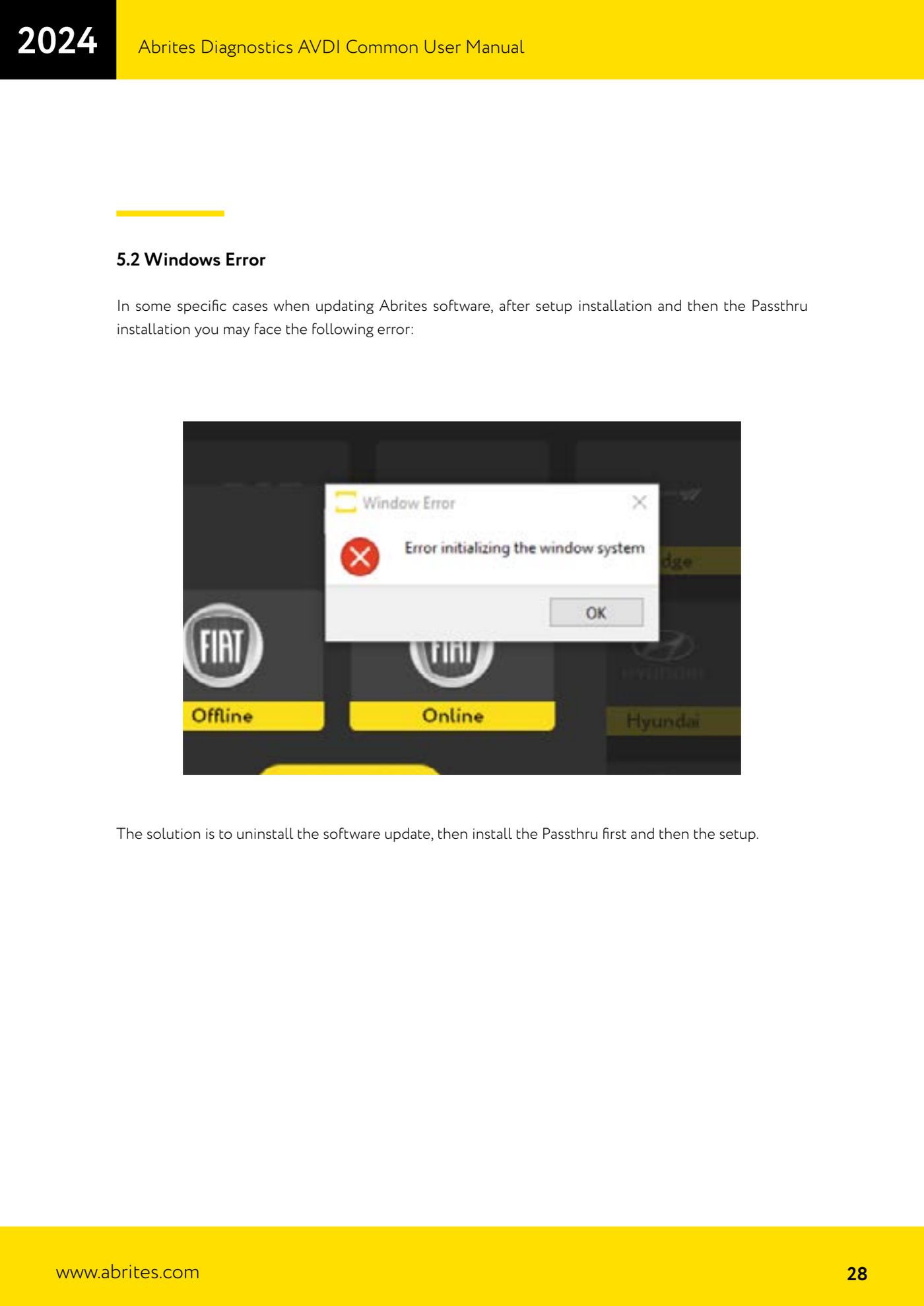
- Windows error while updating the software (setup installed first and Passthru afterwards): uninstall the update, install the Passthru file FIRST and ONLY THEN the setup.
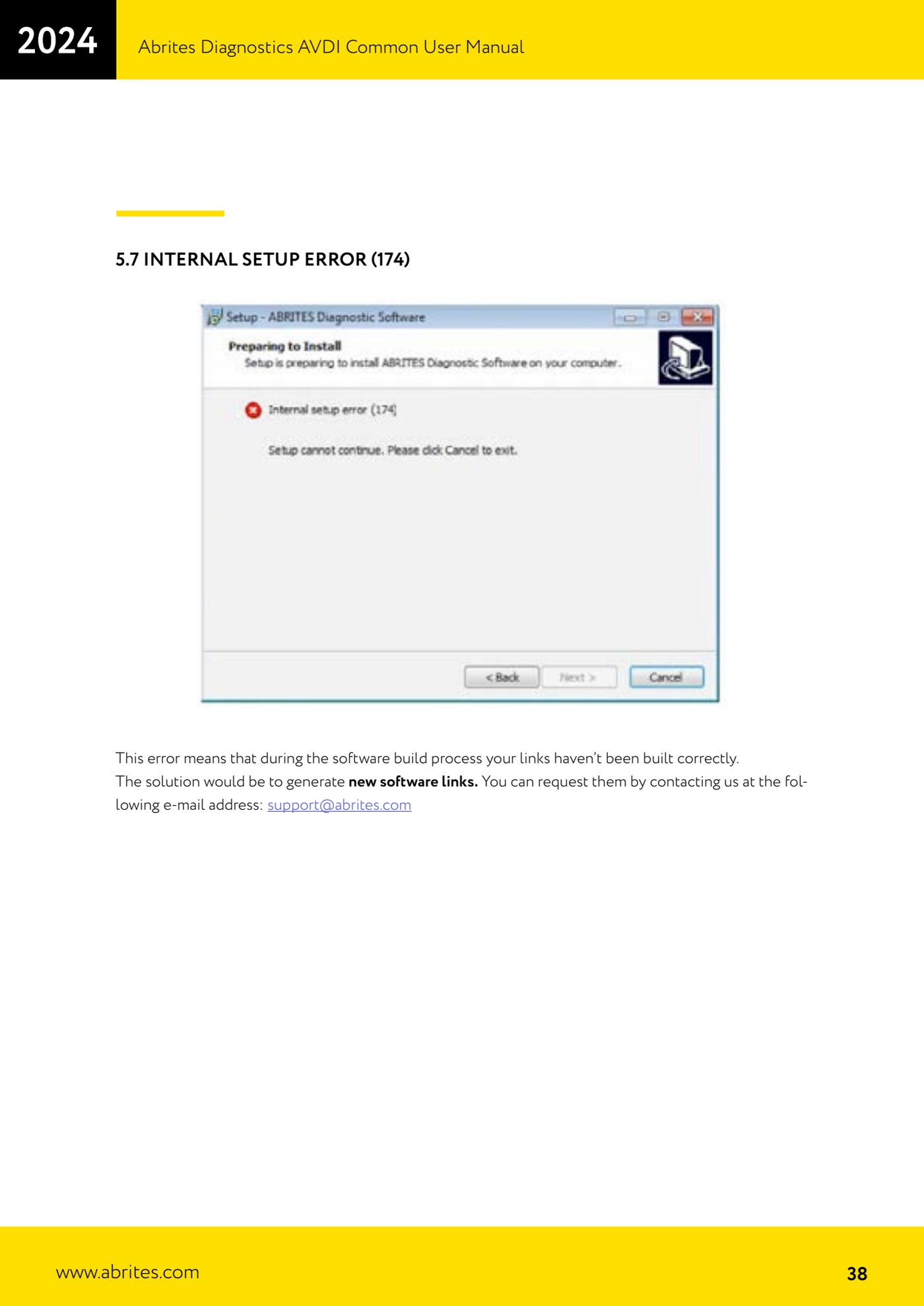
- "Internal setup error (174)": the installation links were not generated correctly during the software build. Request new links by writing to support@abrites.com.
- "0x17022" error: two versions of the same software are installed on the PC. Uninstall the Abrites software and reinstall it using only the most recent links.
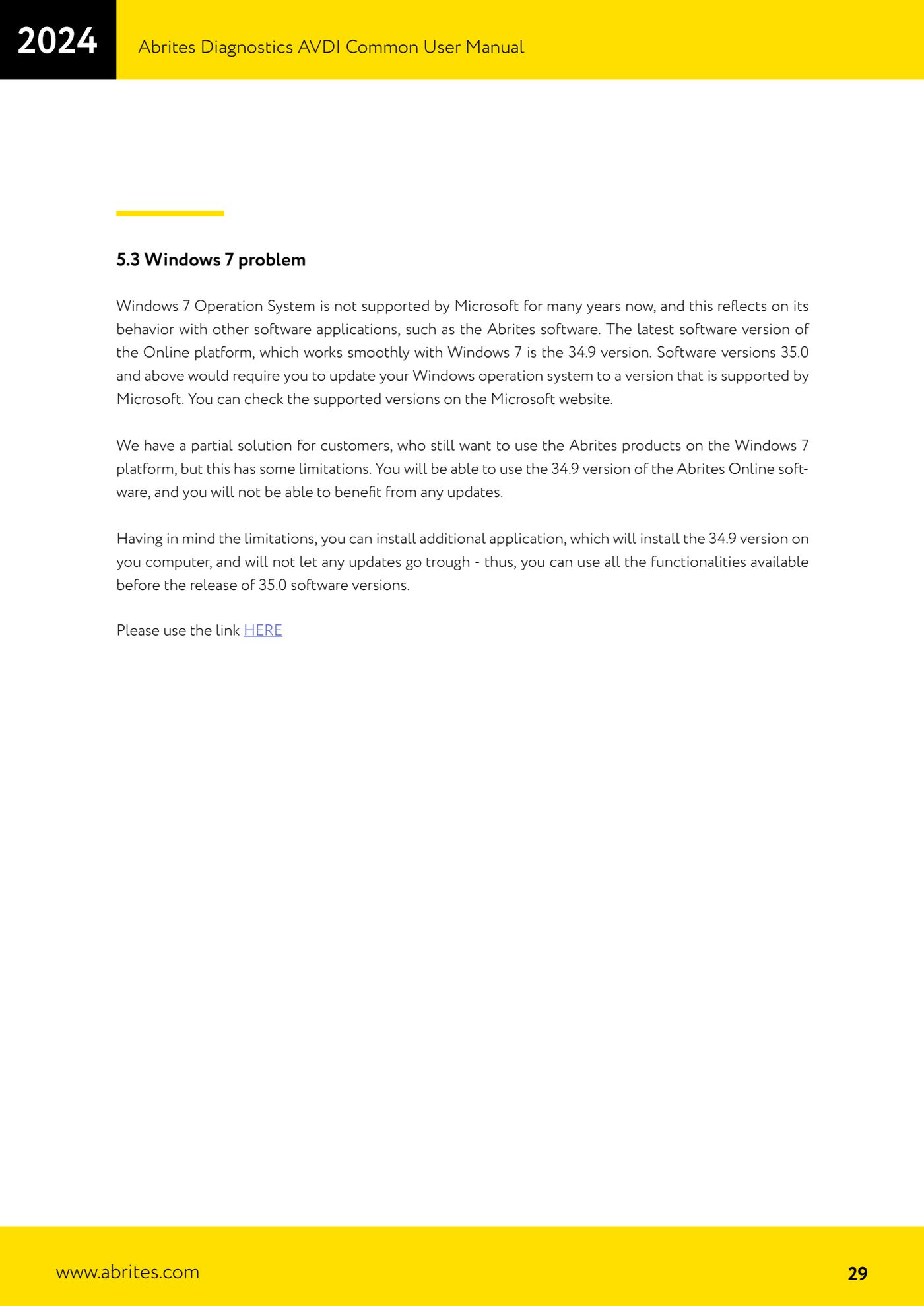
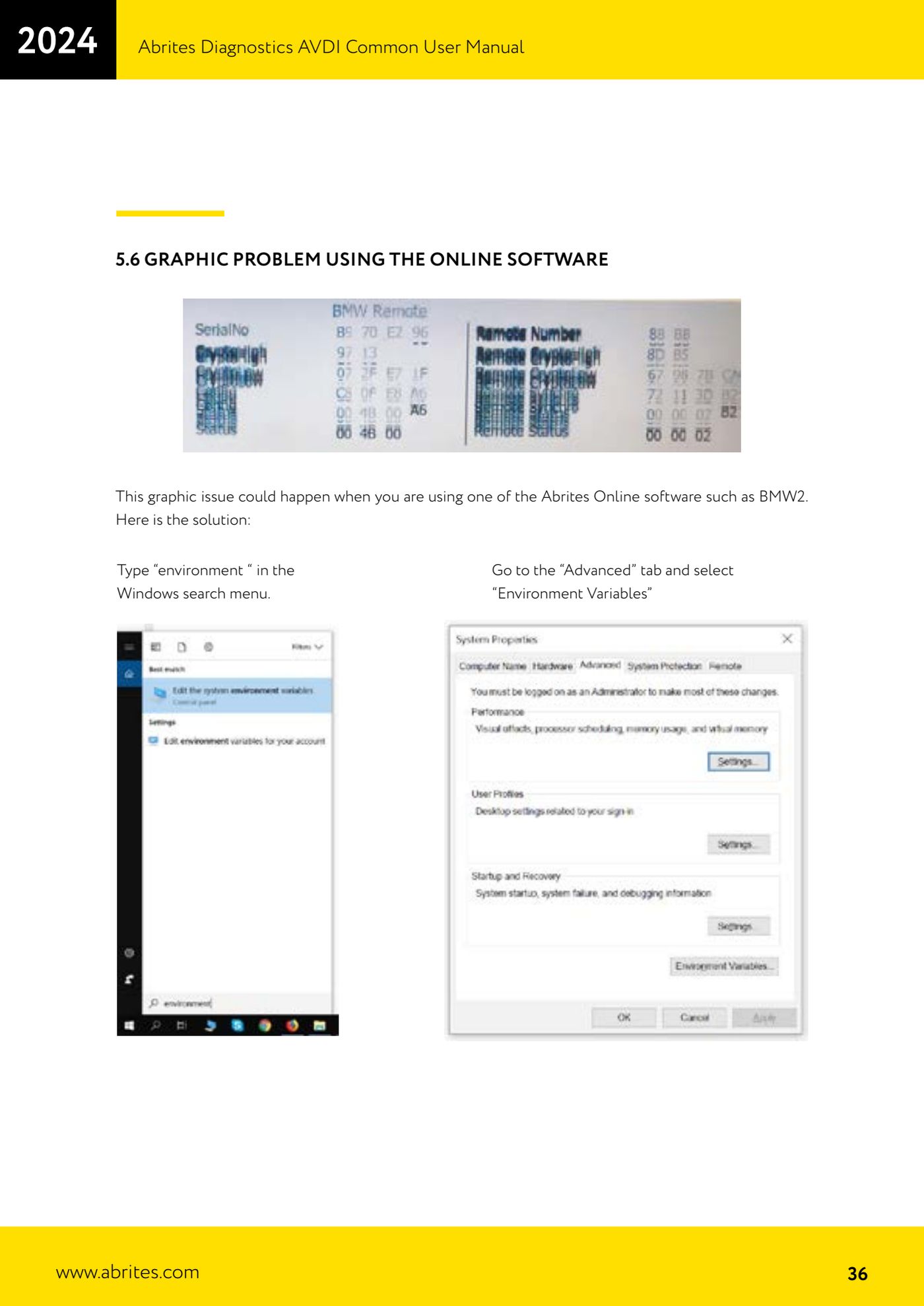
- Graphics problem when using an Online software (for example BMW2): type "environment" in the Windows search, go to the "Advanced" tab and select "Environment Variables". Press "New" under "User variables" and create the variable "QT_OPENGL" with the value "desktop" (if that is not enough try "angle" or "software"), press "OK" and restart the PC.
- "Connecting to Server Failed. Check Internet Connection!!!": two typical causes. 1) Your ISP is blocking the ports used for the Abrites server: try a different connection, for example 3G/4G. 2) You are running an old version of the Online software: Abrites only keeps the last two versions live, so update the software to the latest version available from the most recent links.
- Windows 7: it is no longer supported by Microsoft and the last version of the Online platform that runs properly on it is 34.9. From 35.0 onwards you need an operating system that Microsoft still supports. There is a partial workaround that installs 34.9 and blocks updates, but you are left without every function introduced from 35.0 onwards.
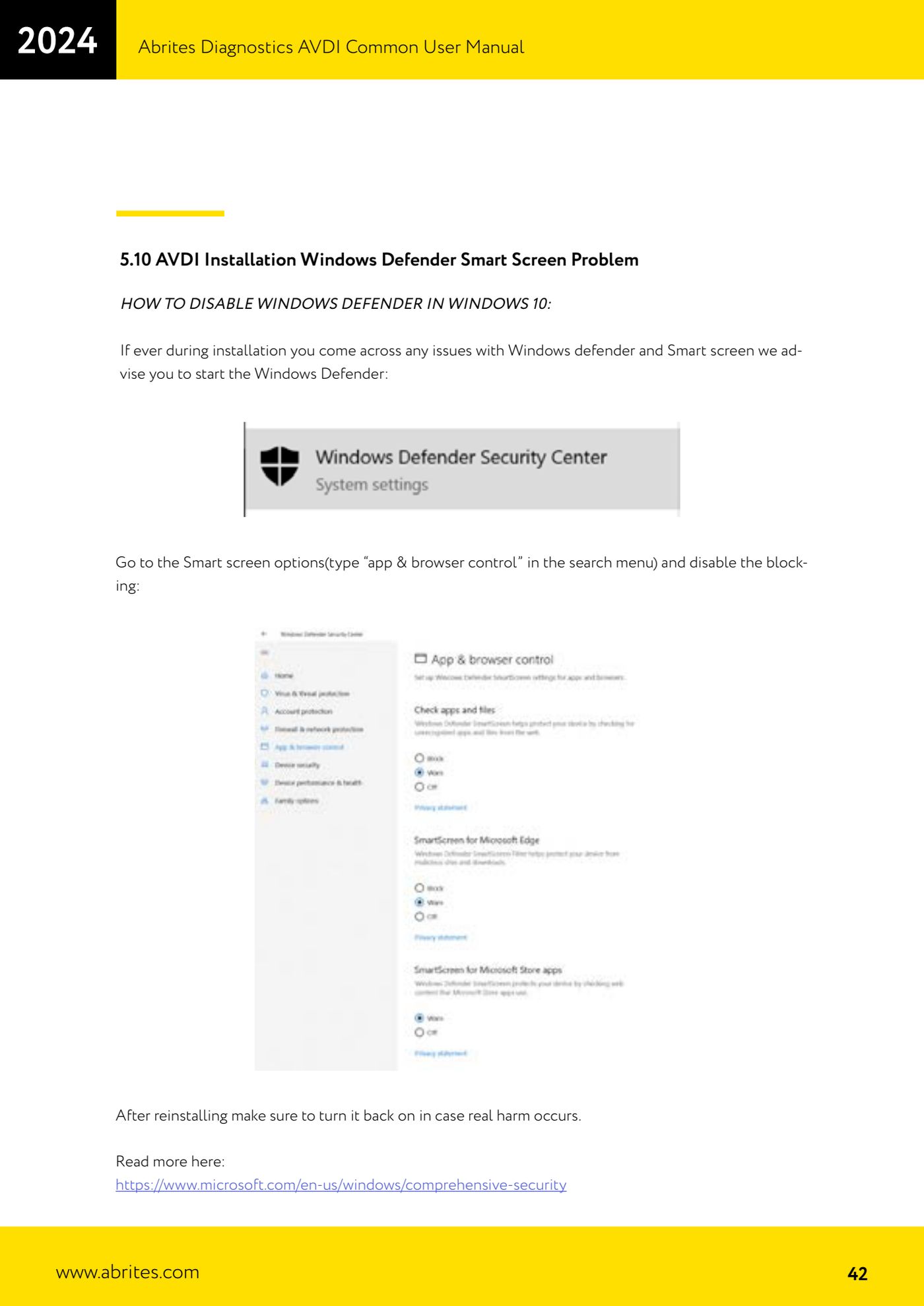
- Windows Defender / Smart Screen blocking the installation: type "app & browser control" in the Windows search and disable Smart Screen blocking; on Windows 7 open "Windows defender", go to "Tools" -> "Options", select "Administrator", untick "Use this program" and press "Save". Once you have reinstalled, turn the protection back on.
Reference screenshots
Source: Manuale AVDI - manuale comune, parte 1 di 2, cap. 5.1-5.10 (p.27-43) · ⏱ estimated time varies
← All Abrites guides Hardware catalogue
More guides Strumenti
- ABPROG ZN030: what's in the set, hooking it up to the AVDI and starting the Classic software
- Reading and writing SPI, I2C and Microwire EEPROMs with ABPROG and the ZN031/ZN035 adapter
- Erasing and reprogramming M35080VP / M35080V6 incremental EEPROMs with ABPROG
- Wiring an SPI EEPROM straight to the ABPROG DB25 without the ZN031 adapter
- Mercedes-Benz IR keys: reading the SSID, erasing and programming the NEC with ZN032 / ZN033
- Renewing used keys (HITAG/PCF) with the ZN046 adapter and ABPROG
- Solder points on key PCBs for the ZN046 and list of keys supported for renewal
- Reading the EWS3 dump on BMW E46/E39/E53 and others with the ZN055 adapter
- Reading the EEPROM on BMW F-Series FEM/BDC without desoldering, using the ZN057 extension
- Reading and writing NEC V850ES MCUs with the ZN078 adapter and ABPROG
- ABPROG DB25 pinout: building your own ZN046, ZN058, ZN078 and ZN086 adapters
- Reading the immobiliser from a Renault X95 BCM (and Audi BCM) with ABPROG and direct wiring