
Chip-Tools
Key Inspector: settings, language and ProTag V2 firmware update
Strumenti
Interface Classic
Flashing / Programming
Medium
⏱ 10-15 min
9 steps
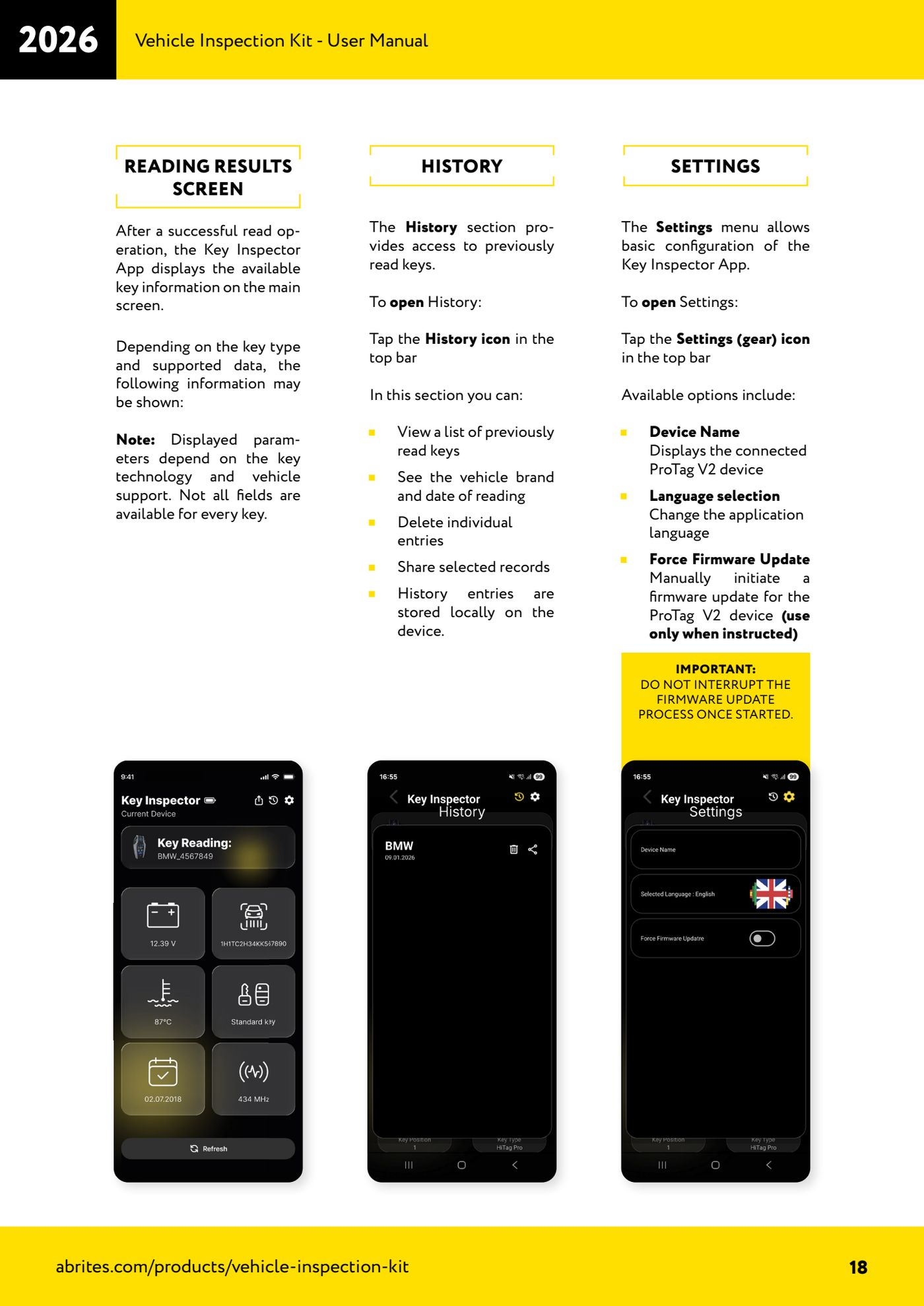
From the "Settings" menu of the Key Inspector app you can check the connected ProTag V2 device, change the application language and manually force a ProTag firmware update. The forced update should only be used when Abrites support tells you to.
Required licences
- —
Hardware / cables
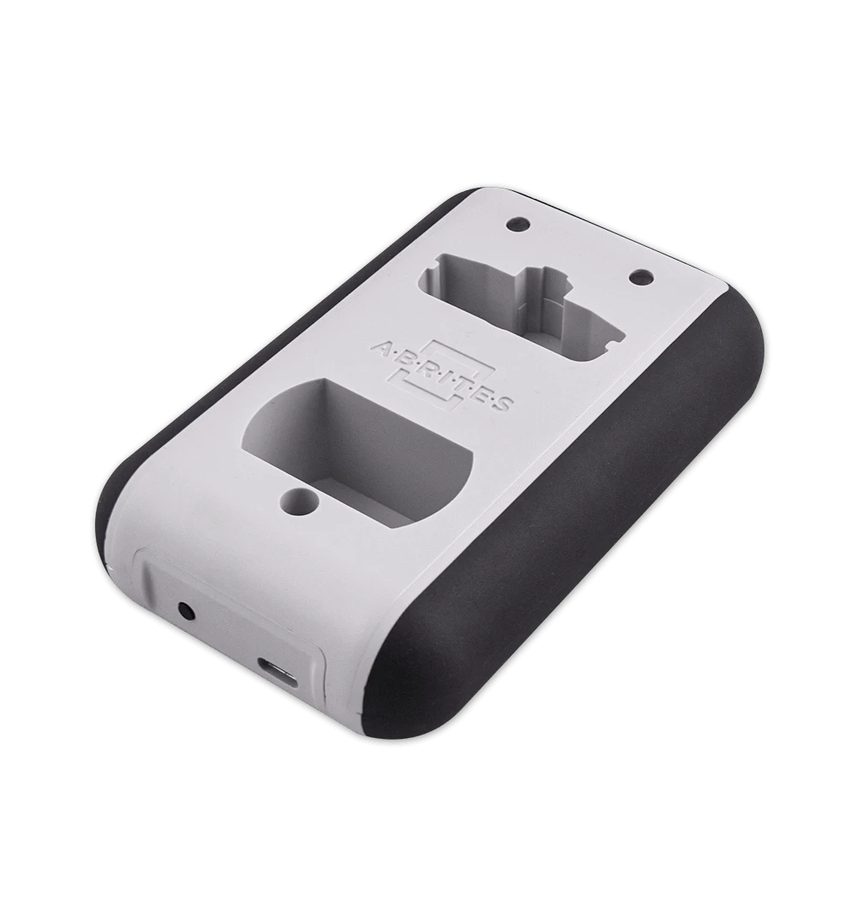 ProTag V2 (ZN003)
- cavo USB-C
- smartphone/tablet con app Key Inspector
⚠ WarningDo NOT interrupt the firmware update process once it has started. Only use the "Force Firmware Update" function when you are explicitly told to.
Procedure
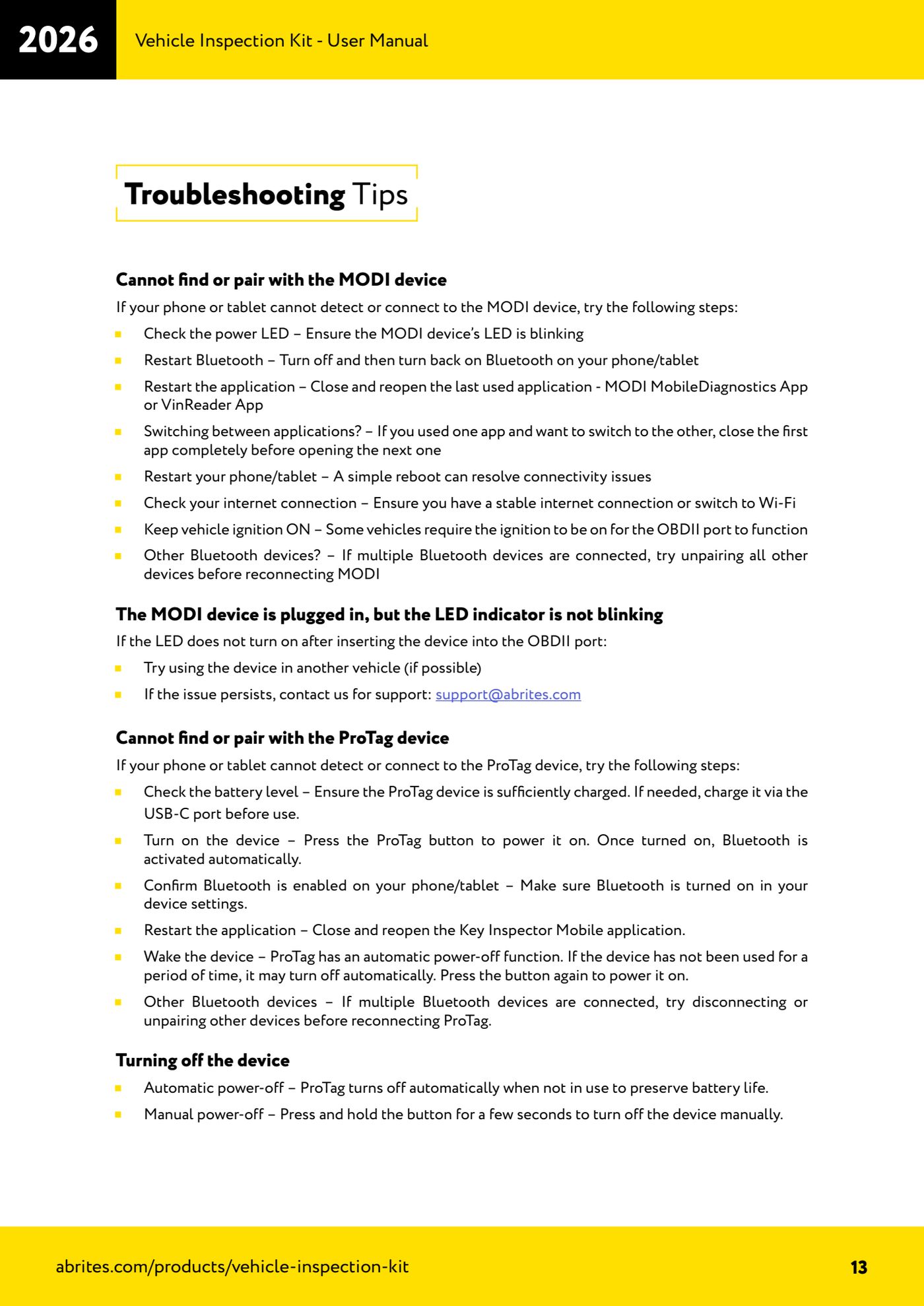
- Before touching the firmware, charge the ProTag V2 via USB-C: the battery must be charged enough to cover the whole procedure.
- Switch the ProTag V2 on with the button and check that it is connected over Bluetooth to the Key Inspector app.
- Make sure the phone has a stable internet connection (Wi-Fi recommended) and keep the phone close to the device.
- In the app tap the "Settings" icon (gear) in the top bar.
- Under "Device Name" check that the ProTag V2 actually connected is listed: that is the device the operations will act on.
- If needed, change the application language from the language selection entry.
- Only if Abrites support has told you to, select "Force Firmware Update" to manually start the ProTag V2 firmware update.
- Do not close the app, do not switch off the phone and do not switch off the ProTag until the update is complete.
- When it is finished, do a test read on a known key to confirm that the device is working properly.
Reference screenshots
Source: Manuale Vehicle Inspection Kit, Key Inspector App - Settings (p.18) e Troubleshooting Tips (p.13) · ⏱ estimated time 10-15 min
← All Abrites guides Hardware catalogue
More guides Strumenti
- ABPROG ZN030: what's in the set, hooking it up to the AVDI and starting the Classic software
- Reading and writing SPI, I2C and Microwire EEPROMs with ABPROG and the ZN031/ZN035 adapter
- Erasing and reprogramming M35080VP / M35080V6 incremental EEPROMs with ABPROG
- Wiring an SPI EEPROM straight to the ABPROG DB25 without the ZN031 adapter
- Mercedes-Benz IR keys: reading the SSID, erasing and programming the NEC with ZN032 / ZN033
- Renewing used keys (HITAG/PCF) with the ZN046 adapter and ABPROG
- Solder points on key PCBs for the ZN046 and list of keys supported for renewal
- Reading the EWS3 dump on BMW E46/E39/E53 and others with the ZN055 adapter
- Reading the EEPROM on BMW F-Series FEM/BDC without desoldering, using the ZN057 extension
- Reading and writing NEC V850ES MCUs with the ZN078 adapter and ABPROG
- ABPROG DB25 pinout: building your own ZN046, ZN058, ZN078 and ZN086 adapters
- Reading the immobiliser from a Renault X95 BCM (and Audi BCM) with ABPROG and direct wiring