
Chip-Tools
Connecting the AVDI to a VMware virtual machine to use OEM software
Strumenti
Interface Classic
Hardware / Connections
Medium
⏱ 10-15 min
8 steps
A lot of manufacturer software (BMW DIS, ISTA-D, Examiner, Xentry, ODIS) runs in virtual machines. To let them talk to the car through the AVDI, the USB interface has to be detached from the host and attached to the VM. This procedure explains how to connect it and how to hand it back to the physical PC.
Required licences
- —
Hardware / cables
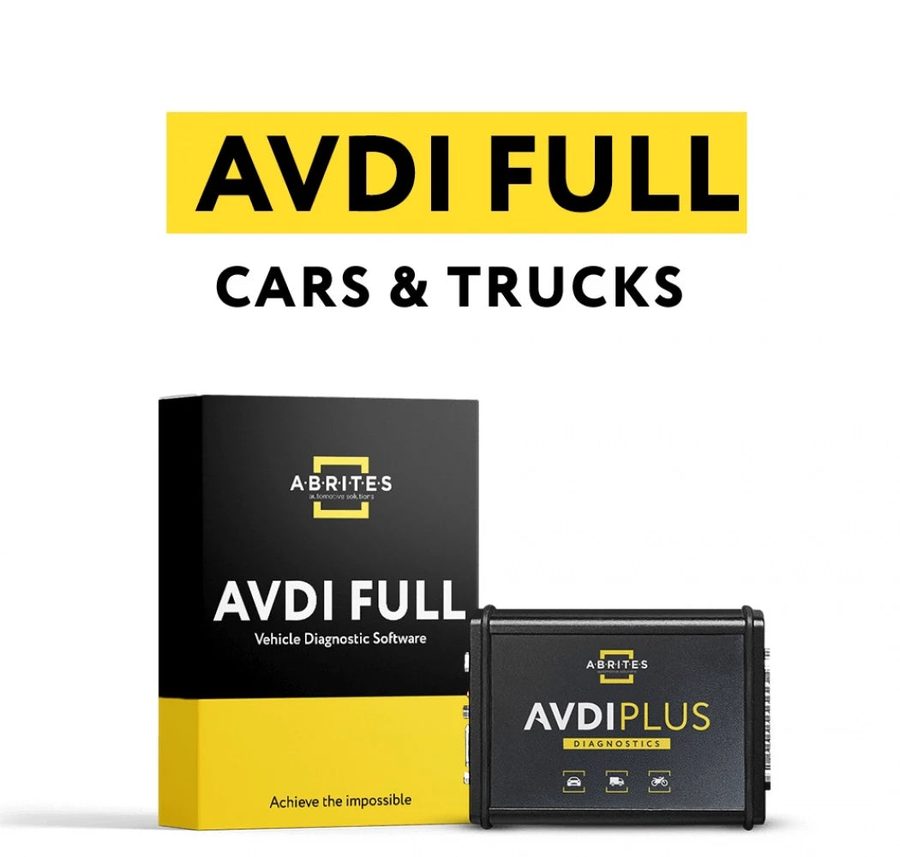 AVDI
AVDI- cavo USB
- PC Windows con VMware Player/Workstation
⚠ WarningThe AVDI can be connected either to the host or to the virtual machine, never to both: if it stays attached to the host, the software inside the VM will not see the interface. Also remember to set the latency timer to 1 ms as stated in the general AVDI manual.
Procedure
- Connect the AVDI to the host computer's USB port and start the virtual machine with the OEM software.
- From the VMware Player main menu select "Virtual Machine" -> "Removable devices" -> "future devices avdi interface Vvxxx" -> "Connect (Disconnect from host)".
- If the warning appears saying the USB device will be disconnected from the host machine and connected to the virtual machine, press "OK".
- Check in the VM that the AVDI appears among the recognised USB devices: only then can you transfer and install the passthru drivers inside the virtual machine.
- Install the passthru driver for your interface ID in the VM and then the specific settings for the software you want to use (BUDS, Subaru, Hyundai, DAS, BMW and so on).
- Check that the latency timer is set to 1 ms as per the general AVDI manual.
- To hand the AVDI back to the physical PC, close VM Player or use "Virtual Machine" -> "Removable devices" -> "future devices avdi interface Vvxxx" -> "Disconnect (Connect to host)".
- If the VM has several virtual network adapters (for example with BMW DIS), connect those as well from "Virtual Machine" -> "Removable devices" -> Network adapter -> "Connect", one at a time.
Reference screenshots
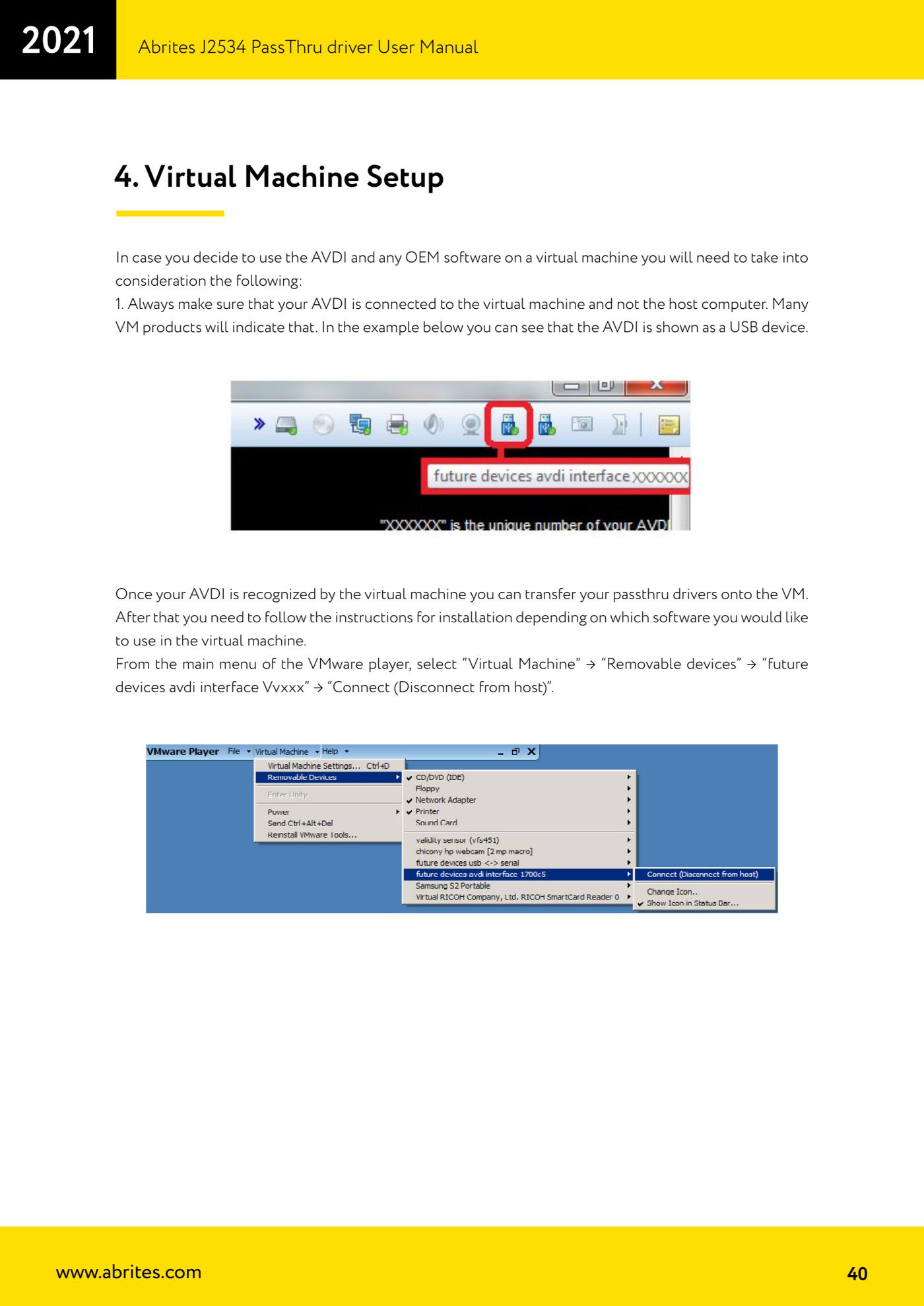
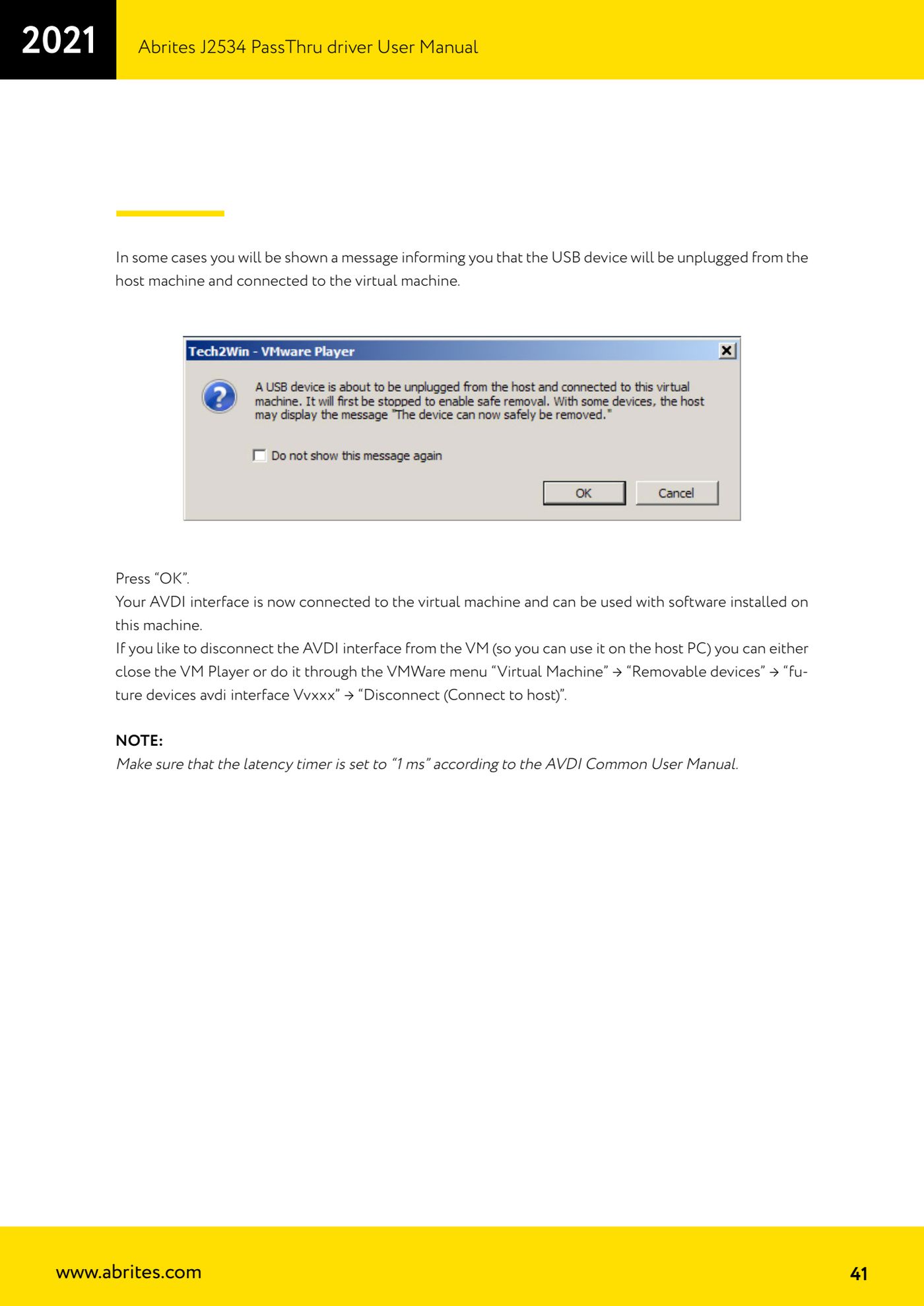
Source: Manuale Driver J2534 PassThru Abrites, cap. 4 Virtual Machine Setup (p.40-41) · ⏱ estimated time 10-15 min
← All Abrites guides Hardware catalogue
More guides Strumenti
- ABPROG ZN030: what's in the set, hooking it up to the AVDI and starting the Classic software
- Reading and writing SPI, I2C and Microwire EEPROMs with ABPROG and the ZN031/ZN035 adapter
- Erasing and reprogramming M35080VP / M35080V6 incremental EEPROMs with ABPROG
- Wiring an SPI EEPROM straight to the ABPROG DB25 without the ZN031 adapter
- Mercedes-Benz IR keys: reading the SSID, erasing and programming the NEC with ZN032 / ZN033
- Renewing used keys (HITAG/PCF) with the ZN046 adapter and ABPROG
- Solder points on key PCBs for the ZN046 and list of keys supported for renewal
- Reading the EWS3 dump on BMW E46/E39/E53 and others with the ZN055 adapter
- Reading the EEPROM on BMW F-Series FEM/BDC without desoldering, using the ZN057 extension
- Reading and writing NEC V850ES MCUs with the ZN078 adapter and ABPROG
- ABPROG DB25 pinout: building your own ZN046, ZN058, ZN078 and ZN086 adapters
- Reading the immobiliser from a Renault X95 BCM (and Audi BCM) with ABPROG and direct wiring