
Chip-Tools
BMW DIS via passthru: PassThruD configuration, IFH Server and port 6801
Strumenti
Interface Classic
Diagnostics
Advanced
⏱ 30-60 min
10 steps
A variant of the BMW DIS connection that goes through the PassThruD BMW-EDIABAS drivers and the IFH Server instead of ebridge. The initial setup is done once, after which each session only needs the usage steps.
Required licences
- —
Hardware / cables
 AVDI
AVDI- cavo USB
- PC con VMware
⚠ WarningThe initial setup is done once only: in later sessions you only repeat the usage steps. In the PassThruD configuration the 115200 baud box must be ticked and in EDIABAS.INI the "Port=" entry must be changed to "Port=6801", otherwise DIS will not find the diagnostic head.
Procedure
- Download and install the latest passthru drivers for BMW-EDIABAS (for example pttbmw_2.1.0.0.exe).
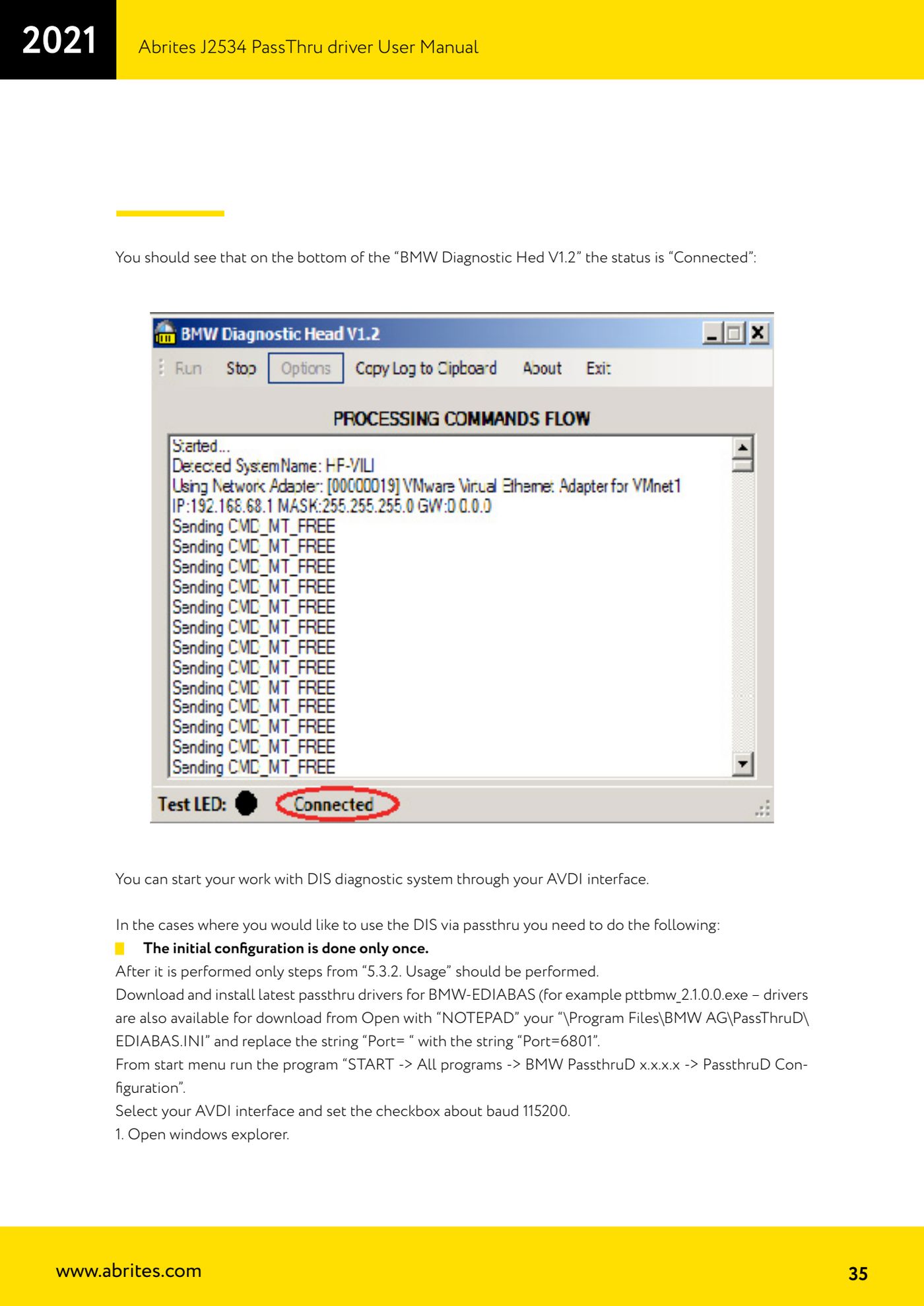
- Open the file "\Program Files\BMW AG\PassThruD\EDIABAS.INI" with "NOTEPAD" and replace the line "Port= " with "Port=6801", then save.
- Run "START -> All programs -> BMW PassthruD x.x.x.x -> PassthruD Configuration", select your AVDI interface and tick the 115200 baud box.
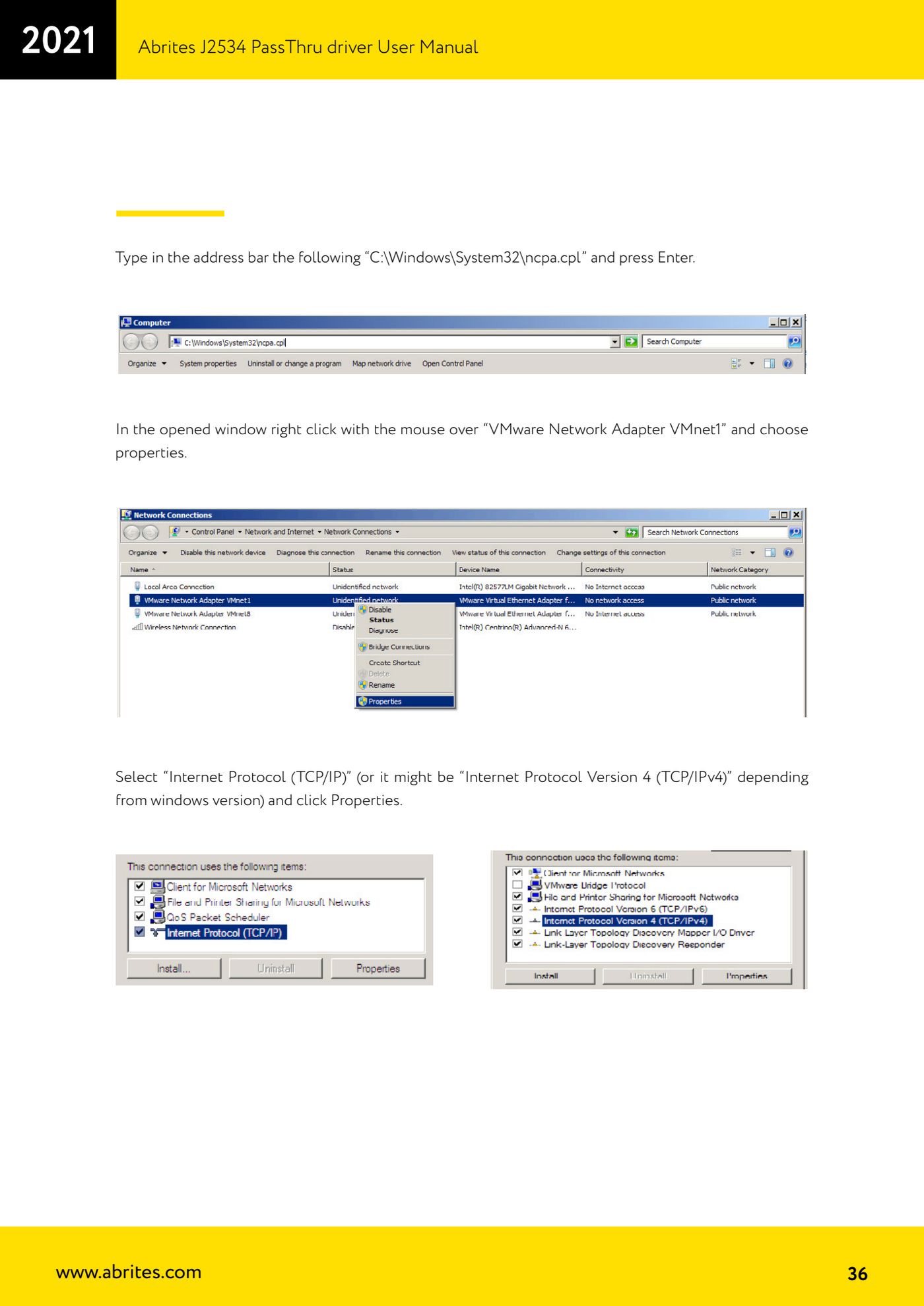
- Open File Explorer, type "C:\Windows\System32\ncpa.cpl" in the address bar and press Enter.
- Right-click on "VMware Network Adapter VMnet1", choose "Properties", select "Internet Protocol (TCP/IP)" (or "Internet Protocol Version 4 (TCP/IPv4)") and click "Properties".
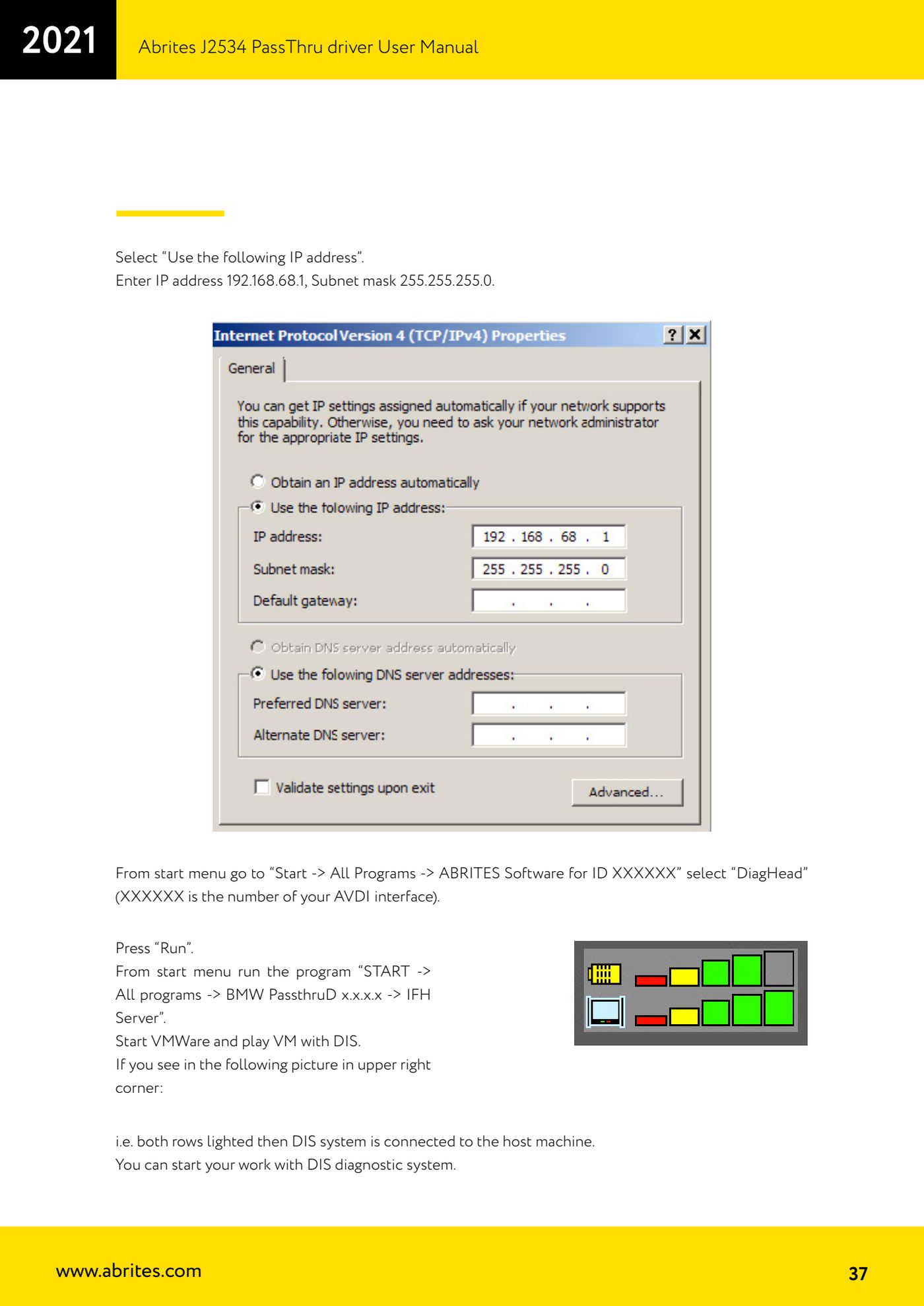
- Choose "Use the following IP address" and set IP address 192.168.68.1 and subnet mask 255.255.255.0.
- Usage: from the Start menu open "Start -> All Programs -> ABRITES Software for ID XXXXXX" and select "DiagHead" (XXXXXX is your AVDI number), then press "Run".
- Run "START -> All programs -> BMW PassthruD x.x.x.x -> IFH Server".
- Start VMWare and run the virtual machine with DIS.
- Check the indication at the top right: when both lines are lit the DIS system is connected to the host machine and you can start diagnostic work.
Reference screenshots
Source: Manuale Driver J2534 PassThru Abrites, cap. 3.15 - uso di DIS via passthru (p.35-37) · ⏱ estimated time 30-60 min
← All Abrites guides Hardware catalogue
More guides Strumenti
- ABPROG ZN030: what's in the set, hooking it up to the AVDI and starting the Classic software
- Reading and writing SPI, I2C and Microwire EEPROMs with ABPROG and the ZN031/ZN035 adapter
- Erasing and reprogramming M35080VP / M35080V6 incremental EEPROMs with ABPROG
- Wiring an SPI EEPROM straight to the ABPROG DB25 without the ZN031 adapter
- Mercedes-Benz IR keys: reading the SSID, erasing and programming the NEC with ZN032 / ZN033
- Renewing used keys (HITAG/PCF) with the ZN046 adapter and ABPROG
- Solder points on key PCBs for the ZN046 and list of keys supported for renewal
- Reading the EWS3 dump on BMW E46/E39/E53 and others with the ZN055 adapter
- Reading the EEPROM on BMW F-Series FEM/BDC without desoldering, using the ZN057 extension
- Reading and writing NEC V850ES MCUs with the ZN078 adapter and ABPROG
- ABPROG DB25 pinout: building your own ZN046, ZN058, ZN078 and ZN086 adapters
- Reading the immobiliser from a Renault X95 BCM (and Audi BCM) with ABPROG and direct wiring