
Chip-Tools
Starting Abrites Diagnostics for Hyundai/KIA Online and selecting the vehicle (VIN or model)
Hyundai/Kia
Interface New
Diagnostics
Basic
⏱ 5-10 min
9 steps
The Abrites Hyundai/KIA software is an Online application: without an Internet connection it will not work. This procedure covers starting it from Abrites Quick Start and selecting the vehicle, a mandatory step before you can access the Special Functions.
Required licences
- —
Hardware / cables
 AVDI
AVDI- PC Windows
⚠ WarningThe software requires an active Internet connection and port 8443 open at the provider: if the provider blocks it, the Online functions will not work properly. You need a Windows 7 64 bit SP1 or later PC, minimum 1024 MB of RAM and 64 GB of free disk space, with AMS active and a stable connection.
Procedure
- Check the PC requirements: Windows 7 64 bit Service Pack 1 or later, at least 1024 MB of RAM and 64 GB of free disk space. Always keep the latest software version installed and AMS active.
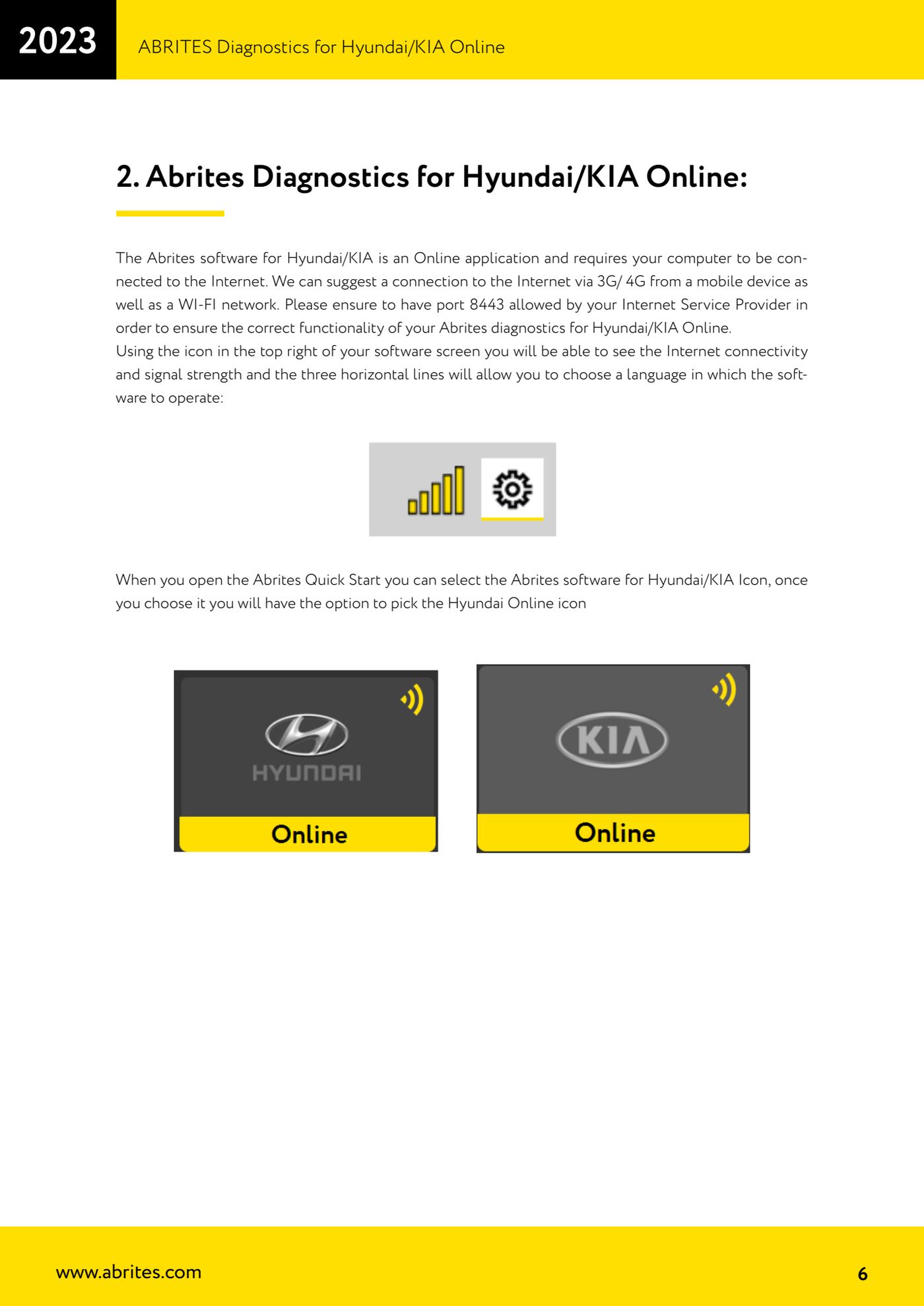
- Make sure the PC is connected to the Internet. A 3G/4G connection from a phone or a WI-FI network is fine, as long as it is stable. Check with your provider that port 8443 is allowed, otherwise Online operation is not guaranteed.
- Connect the AVDI to the vehicle and to the PC, then open Abrites Quick Start and select the Abrites software icon for Hyundai/KIA; from the next screen choose the "Hyundai Online" icon.
- Wait for it to start: the software automatically checks whether the AVDI is connected and looks for updates.
- Check the status icon at the top right of the screen: it shows Internet connectivity and signal strength. The three horizontal lines next to it open the menu where you choose the software working language.
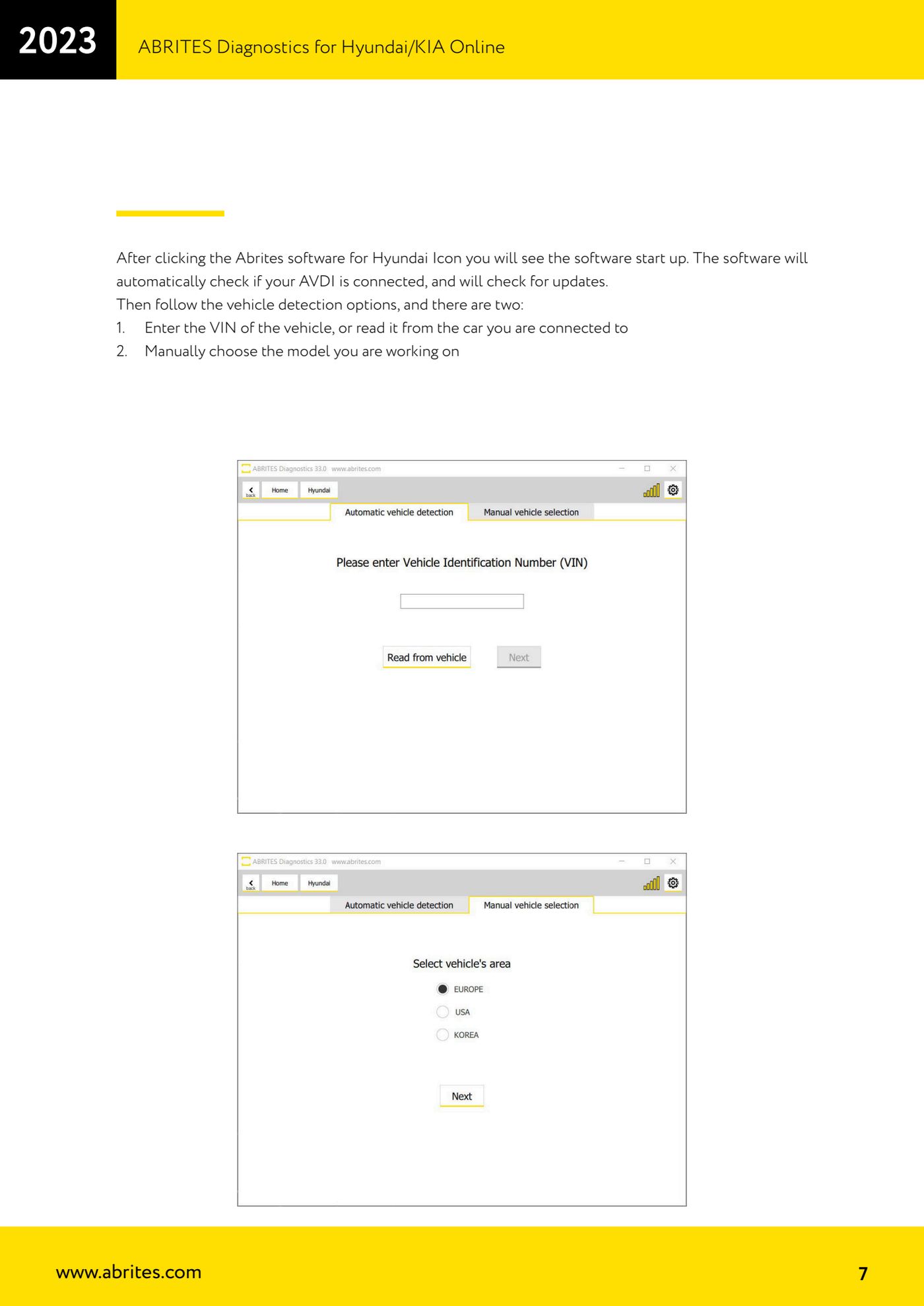
- Move on to vehicle identification. You have two routes: enter the VIN manually or have it read from the car you are connected to; alternatively select the model manually.
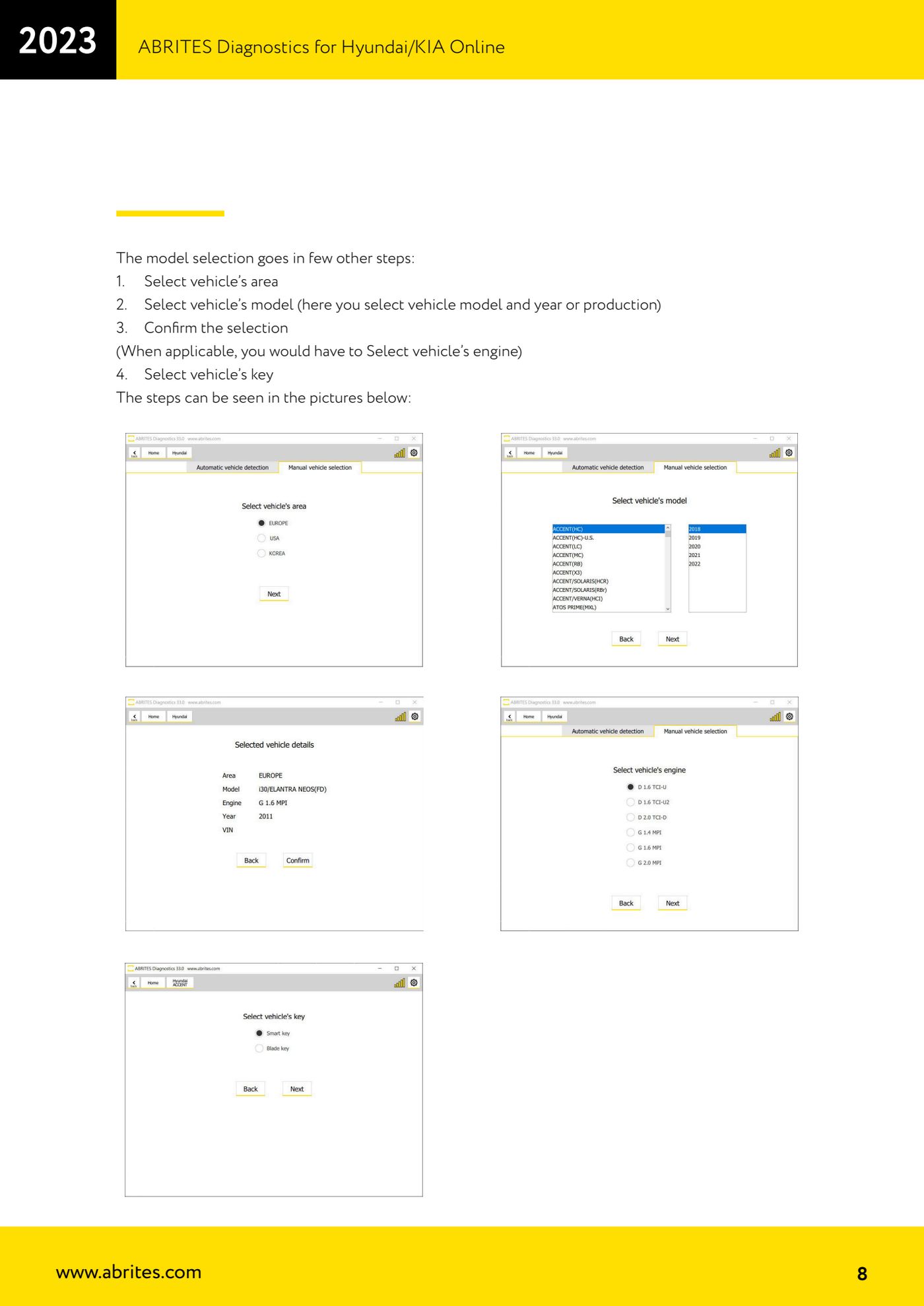
- If you choose manual selection, work in order: select the vehicle's market area, then the model and the year of production, then confirm the selection. Where applicable you will also be asked for the engine.
- As the last step select the vehicle's key type (mechanical key or smart key): the Special Functions the software makes available depend on this choice.
- Once the vehicle selection is complete the software opens the main screen, from where you can access both standard diagnostics and the Special Functions available for that model.
Reference screenshots
Source: Manuale Hyundai/KIA Online, cap. 1-2 (p.6-9) · ⏱ estimated time 5-10 min
← All Abrites guides Hardware catalogue
More guides Hyundai/Kia
- Hyundai/Kia diagnostics with the AVDI: module scan, DTC read and clear, actual values
- Obtaining the Hyundai/Kia PIN code: PIN by VIN or reading the PIN from the vehicle (Smart Key and mechanical key)
- Hyundai/Kia key programming with "Key Learning" and separate remote programming
- Reading the Hyundai/Kia PIN from a working key with PROTAG and the TA31 extractor
- Hyundai/Kia Neutralization: making used modules adaptable (smart system, ECU, ESCL, PDM, immobiliser)
- Hyundai/Kia cluster calibration: aligning the instrument cluster counters after fitting a used unit
- Hyundai/Kia ECU Flasher: reading and updating engine ECU Flash and Configuration Data
- Hyundai/Kia Configuration Data: "Dump tool" on dumps read with a programmer and "Read/Update Conf Data" over OBD
- Connecting to the internal CAN (B-CAN) on Hyundai/Kia 2017+ with ZN041 or ZN051: tap points and pins 3-11
- Hyundai/KIA standard diagnostics: module scan, DTCs, Live Data and actuator tests
- Reading the Hyundai/KIA PIN code: from the car, from a working key or calculated from the VIN
- Hyundai/KIA key programming (Learn Keys) with mechanical keys and smart keys