
Chip-Tools
Using the AVDI with DAS / Xentry (Star Diagnosis) and simulating ignition status
Strumenti
Interface Classic
Diagnostics
Medium
⏱ 20-30 min
8 steps
With the dedicated passthru driver the AVDI replaces the Star Diagnosis in the dialogue between DAS/Xentry and the Mercedes vehicle. As well as the driver you need the DASignition utility, which tells the software the ignition status.
Required licences
- —
Hardware / cables
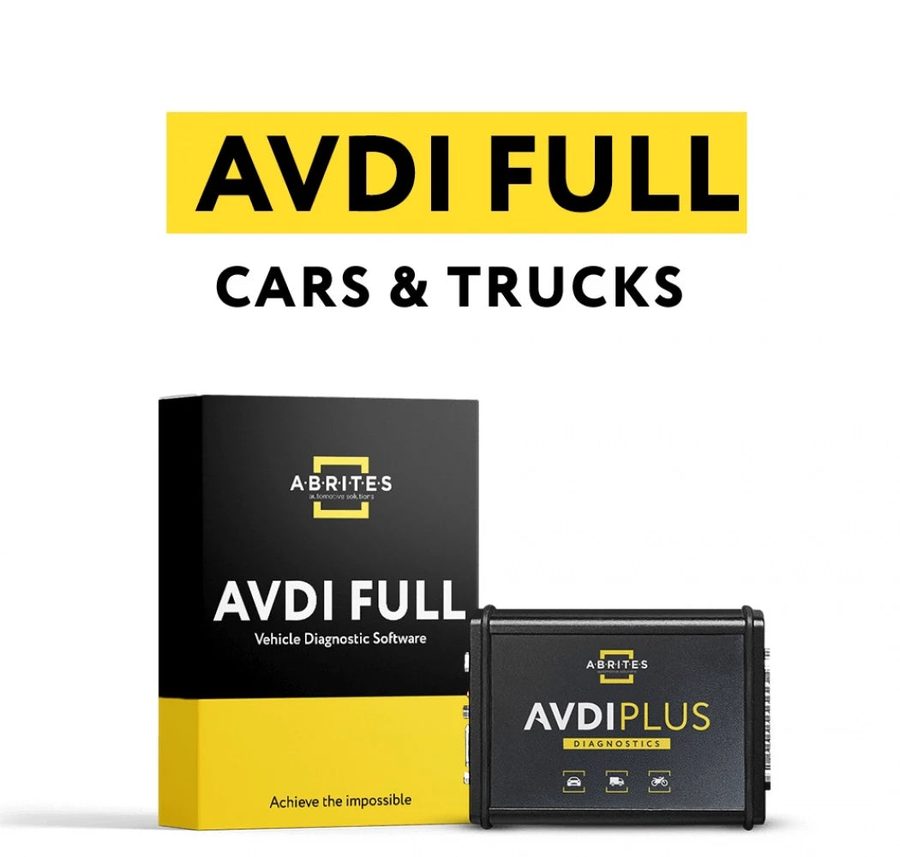 AVDI
AVDI- cavo USB
⚠ WarningWithout setting the ignition status to "ON" in the DASignition window the DAS/Xentry software cannot communicate with the vehicle. The application must be started as administrator (right-click the .exe -> "Run as administrator").
Procedure
- Install the AVDI and the passthru software on the same machine where DAS/Xentry is (virtual machine or physical computer).
- Open the passthru folder and select the passthru installer dedicated to DAS.
- Select your AVDI ID (it is normally already selected automatically) and complete the installation.
- Select and run the passthru icon that has appeared on the desktop.
- Start the DAS/Xentry application as administrator.
- Go back to the passthru folder and double-click the "DASignition" icon.
- In the window that opens set the ignition status to "ON": this lets the software communicate with the vehicle.
- Once this step is done you can use the DAS/Xentry system on the car as normal.
Reference screenshots
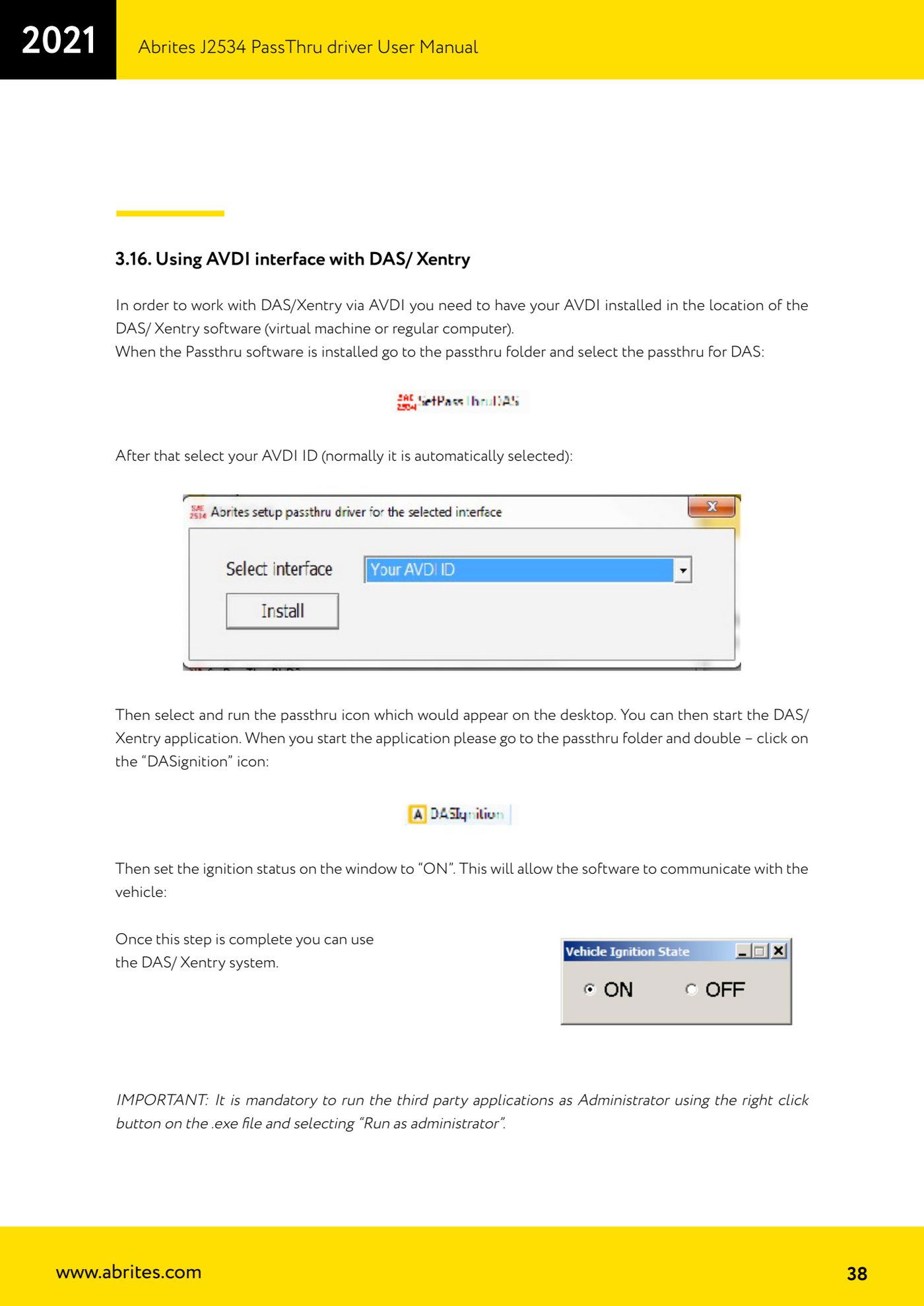
Source: Manuale Driver J2534 PassThru Abrites, cap. 3.16 (p.38) · ⏱ estimated time 20-30 min
← All Abrites guides Hardware catalogue
More guides Strumenti
- ABPROG ZN030: what's in the set, hooking it up to the AVDI and starting the Classic software
- Reading and writing SPI, I2C and Microwire EEPROMs with ABPROG and the ZN031/ZN035 adapter
- Erasing and reprogramming M35080VP / M35080V6 incremental EEPROMs with ABPROG
- Wiring an SPI EEPROM straight to the ABPROG DB25 without the ZN031 adapter
- Mercedes-Benz IR keys: reading the SSID, erasing and programming the NEC with ZN032 / ZN033
- Renewing used keys (HITAG/PCF) with the ZN046 adapter and ABPROG
- Solder points on key PCBs for the ZN046 and list of keys supported for renewal
- Reading the EWS3 dump on BMW E46/E39/E53 and others with the ZN055 adapter
- Reading the EEPROM on BMW F-Series FEM/BDC without desoldering, using the ZN057 extension
- Reading and writing NEC V850ES MCUs with the ZN078 adapter and ABPROG
- ABPROG DB25 pinout: building your own ZN046, ZN058, ZN078 and ZN086 adapters
- Reading the immobiliser from a Renault X95 BCM (and Audi BCM) with ABPROG and direct wiring