
Chip-Tools
Setting the Latency Timer to 1 ms on the AVDI COM port
Strumenti
Interface Classic
Hardware / Connections
Basic
⏱ 5-10 min
8 steps
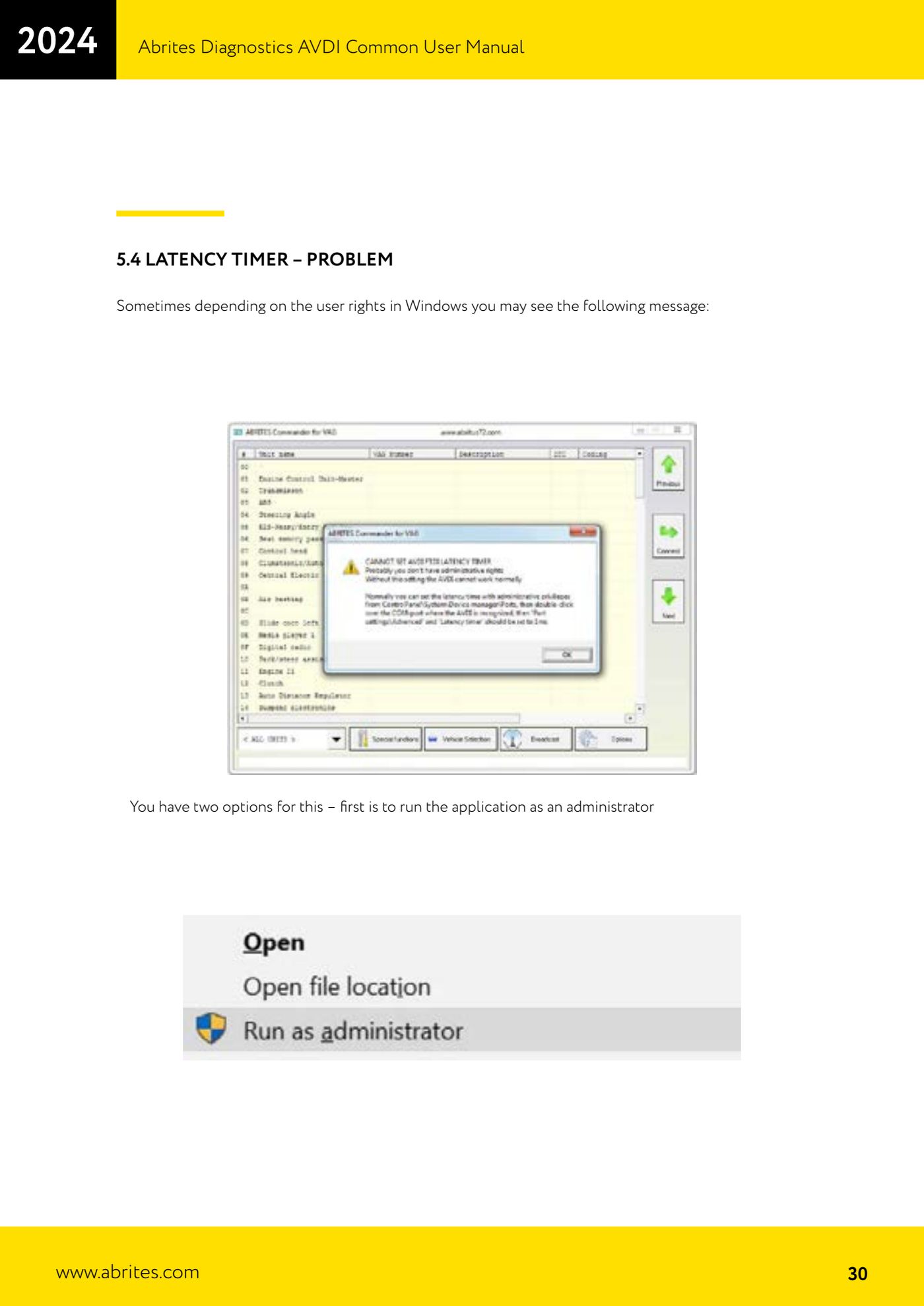
Windows sees the AVDI as a USB serial port and its latency has to be set to 1 ms. This is a mandatory prerequisite when running it in a virtual machine, and it is also the fix for the latency timer error message that shows up depending on your Windows user permissions.
Required licences
- —
Hardware / cables

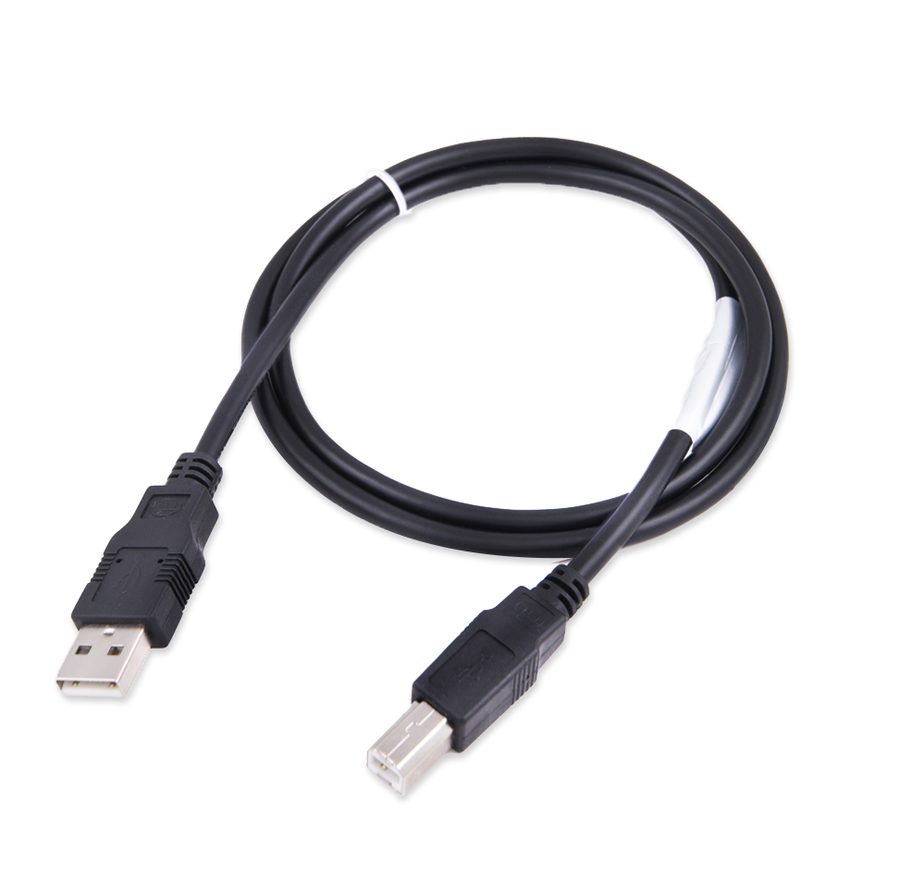
⚠ WarningThe setting belongs to the individual USB port: if you plug the AVDI into a different USB port you have to repeat the whole procedure on that port.
Procedure
- Connect the AVDI to a USB port on the PC.
- If the software reported the latency timer problem, the first thing to try is simply running the Abrites application as administrator (right-click the icon -> "Run as administrator").
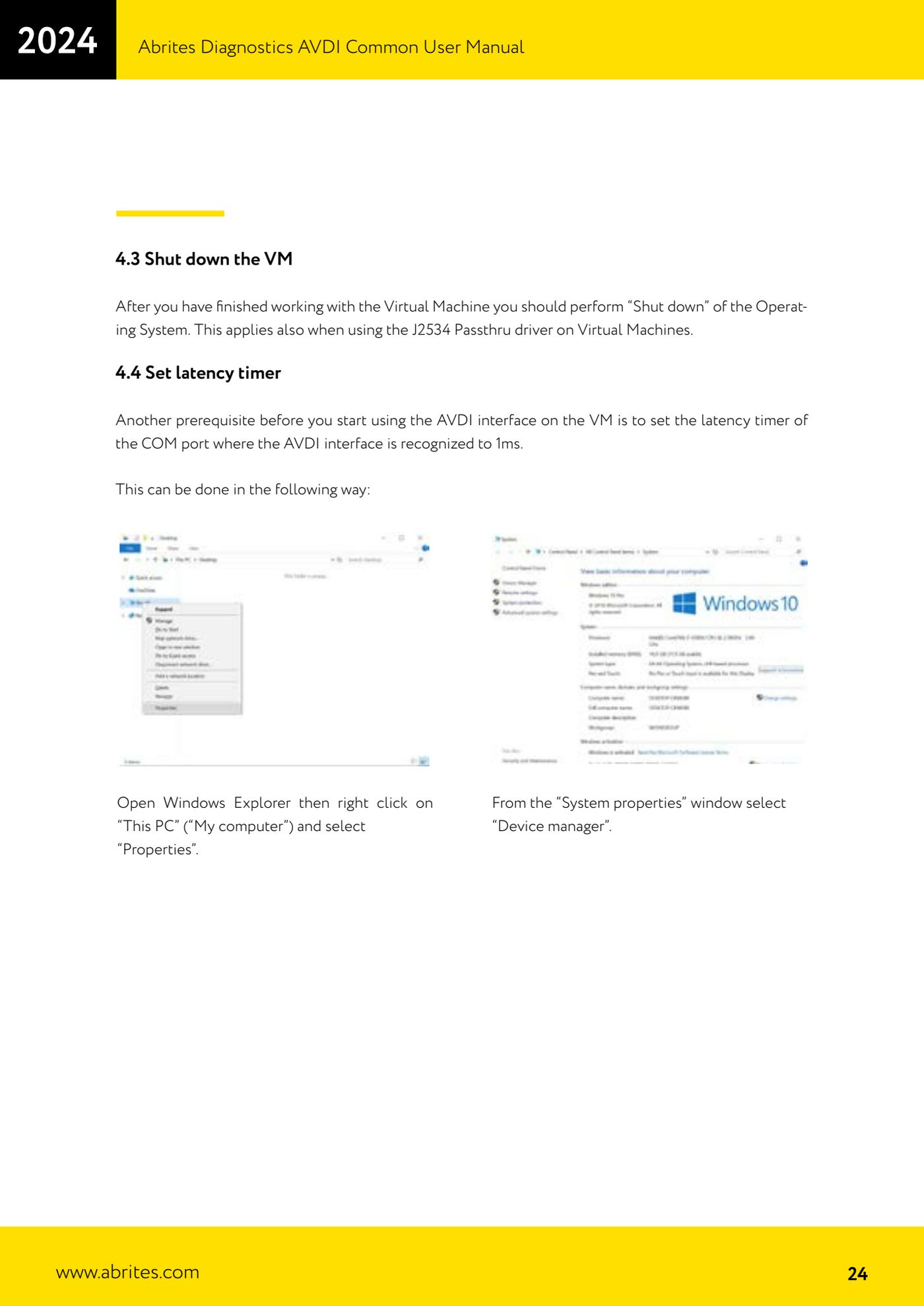
- If that does not fix it, open File Explorer, right-click "This PC" ("My computer") and select "Properties".
- In the "System properties" window select "Device manager".
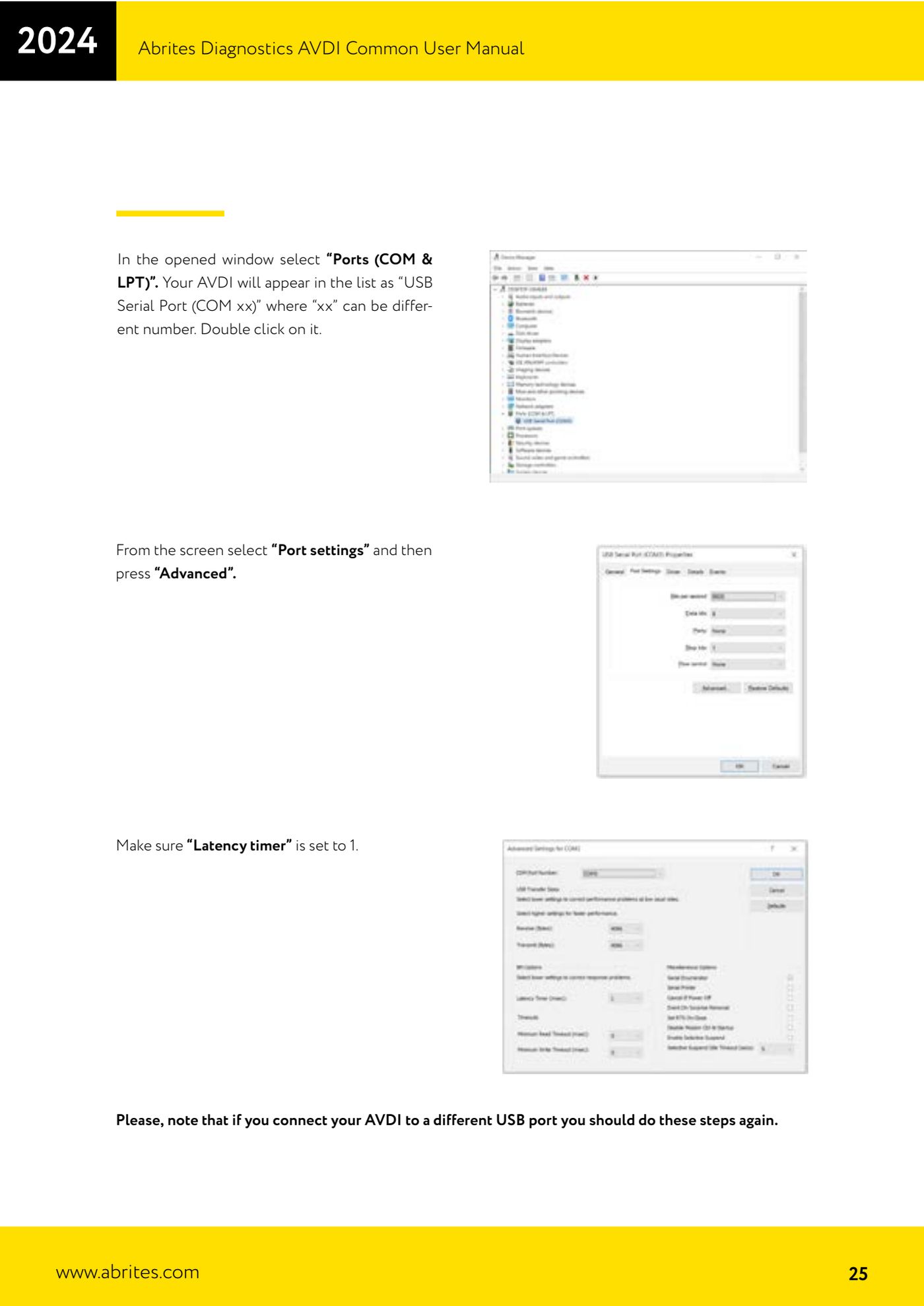
- Expand "Ports (COM & LPT)": the AVDI shows up as "USB Serial Port (COM xx)", where xx varies. Double-click it.
- Go to the "Port settings" tab and press the "Advanced" button.
- In the "Latency timer" field set the value to 1 (millisecond) and confirm with "OK" on all windows.
- Restart the Abrites software and check that the error does not come back. If you later move the AVDI to another USB port, repeat from step 3.
Reference screenshots
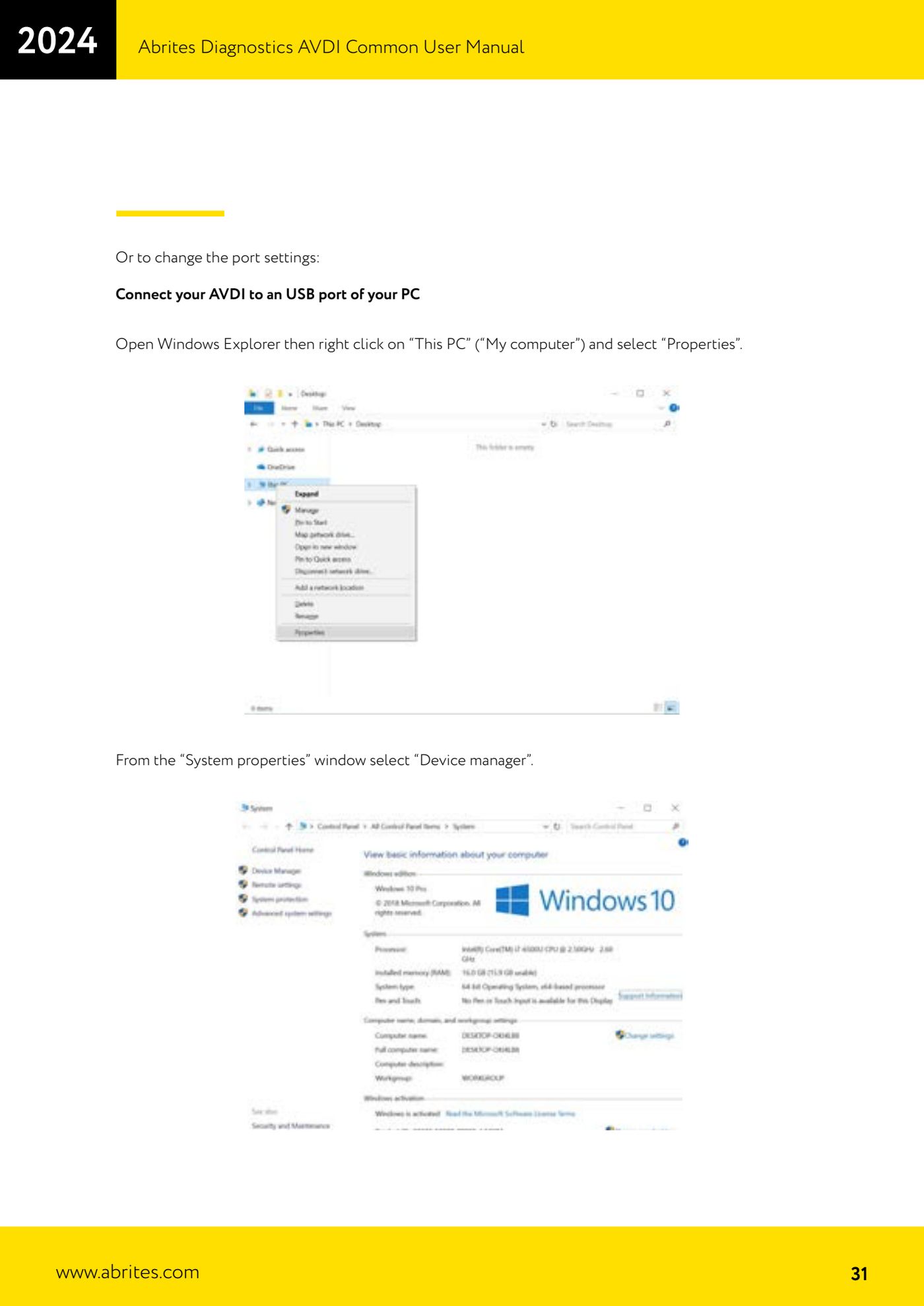
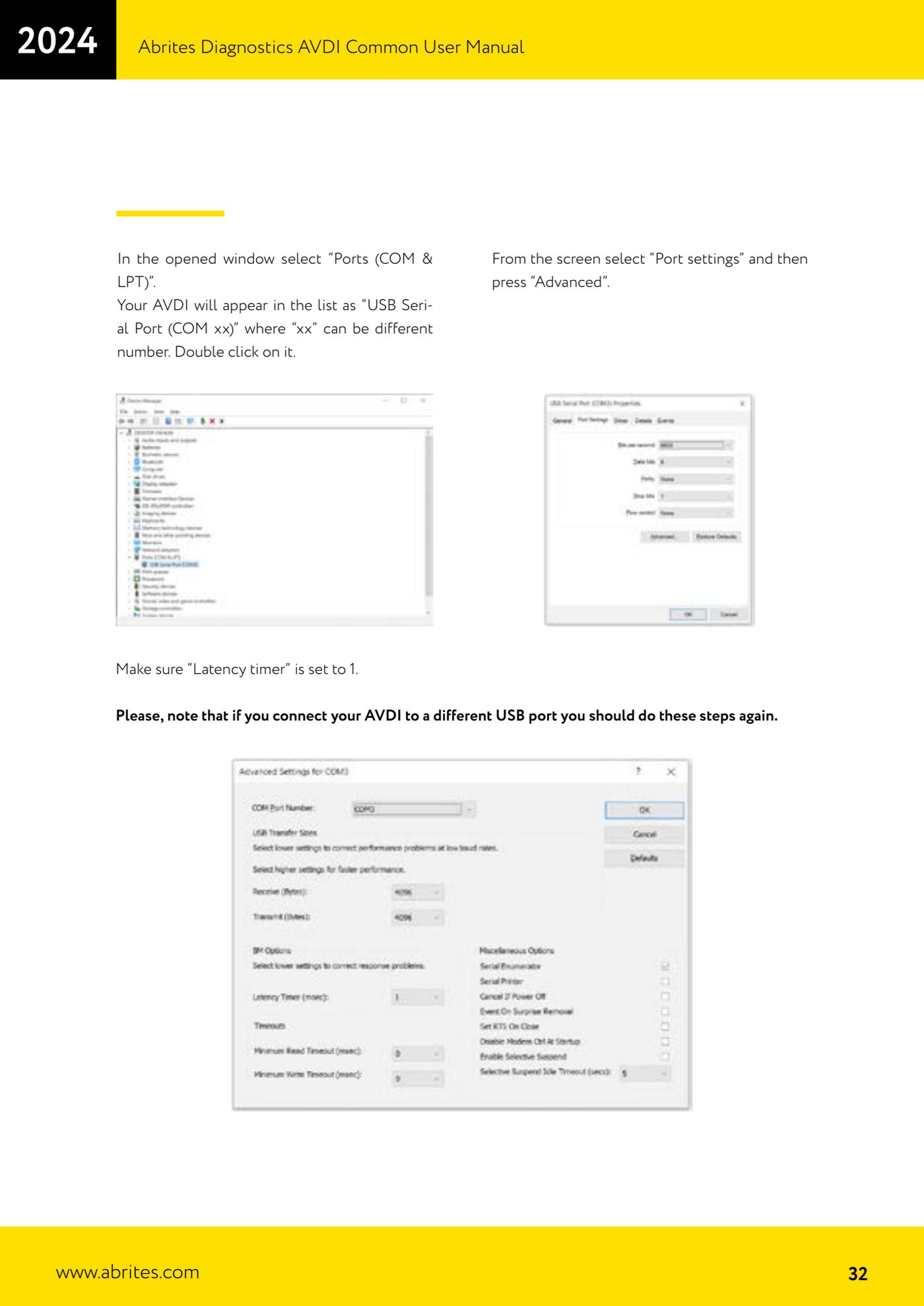
Source: Manuale AVDI - manuale comune, parte 1 di 2, cap. 4.4 e 5.4 (p.24-25, 30-32) · ⏱ estimated time 5-10 min
← All Abrites guides Hardware catalogue
More guides Strumenti
- ABPROG ZN030: what's in the set, hooking it up to the AVDI and starting the Classic software
- Reading and writing SPI, I2C and Microwire EEPROMs with ABPROG and the ZN031/ZN035 adapter
- Erasing and reprogramming M35080VP / M35080V6 incremental EEPROMs with ABPROG
- Wiring an SPI EEPROM straight to the ABPROG DB25 without the ZN031 adapter
- Mercedes-Benz IR keys: reading the SSID, erasing and programming the NEC with ZN032 / ZN033
- Renewing used keys (HITAG/PCF) with the ZN046 adapter and ABPROG
- Solder points on key PCBs for the ZN046 and list of keys supported for renewal
- Reading the EWS3 dump on BMW E46/E39/E53 and others with the ZN055 adapter
- Reading the EEPROM on BMW F-Series FEM/BDC without desoldering, using the ZN057 extension
- Reading and writing NEC V850ES MCUs with the ZN078 adapter and ABPROG
- ABPROG DB25 pinout: building your own ZN046, ZN058, ZN078 and ZN086 adapters
- Reading the immobiliser from a Renault X95 BCM (and Audi BCM) with ABPROG and direct wiring