
Chip-Tools
MODI App: Settings tab, language change and MODI firmware update
Strumenti
Interface Classic
Flashing / Programming
Medium
⏱ 10-20 min
8 steps
The "Settings" tab of the MODI Mobile Diagnostics app is where you configure the application and update the MODI interface firmware. It is the first thing to check when a function does not respond as expected or after an update announcement.
Required licences
- —
Hardware / cables
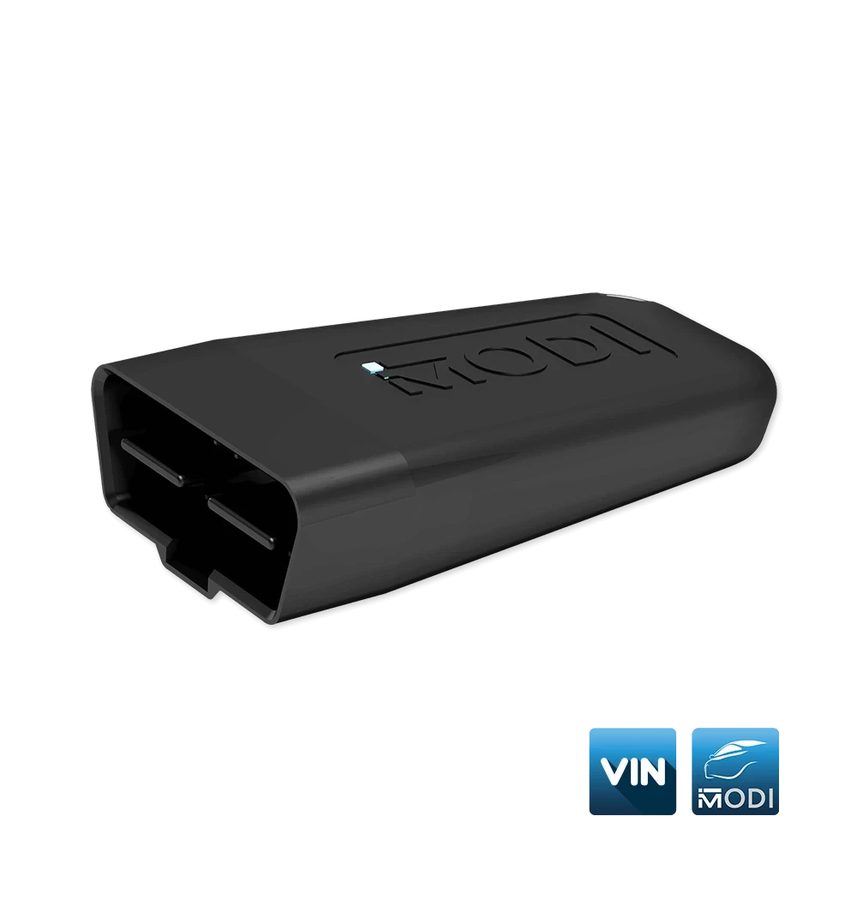
⚠ WarningThe MODI must stay powered from the OBDII port for the whole firmware update: do not unplug the device, do not switch off the ignition and do not close the app while the update is in progress.
Procedure
- Plug the MODI into the OBDII port and, if the vehicle requires it, turn the ignition to ON so the device stays powered steadily (permitted voltage 11-25V DC).
- Pair with the device from the app using "Connect" and check that the Bluetooth connection is stable and that the phone has internet, preferably over Wi-Fi.
- Open the "Settings" tab of the MODI Mobile Diagnostics app.
- From here you can change the application language, consult the legal documents and open the user manuals page.
- Select the firmware update entry to update the MODI and let the procedure complete without interrupting anything.
- When it is finished, unplug and re-plug the MODI if prompted and check that the LED flashes and that the app reconnects properly.
- If you find a malfunction, use the "Report an issue" function in the Settings tab to send the report via the contact form; alternatively email support@abrites.com.
- The Settings tab also has the links to the Abrites social channels for updates on new features.
Reference screenshots
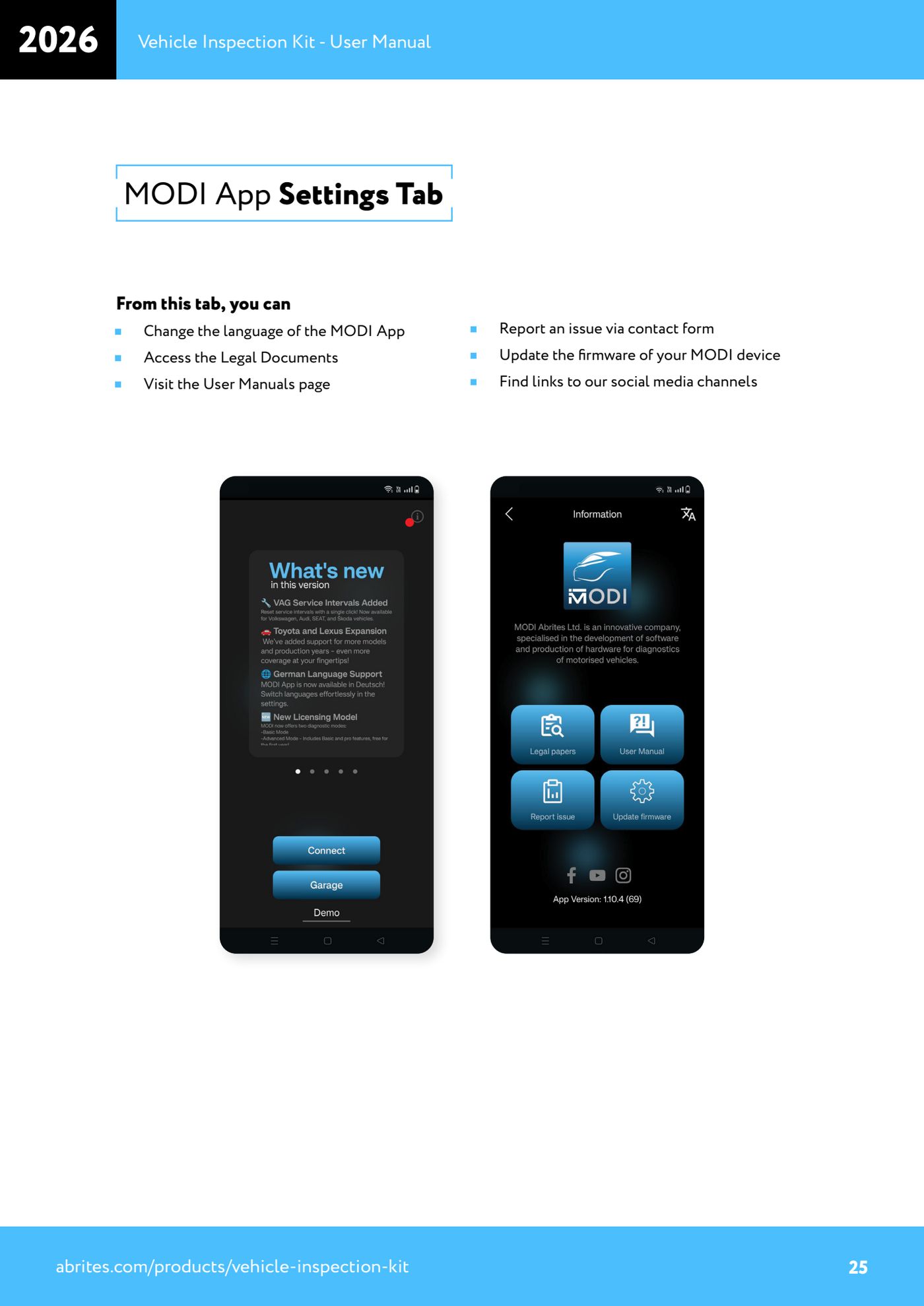
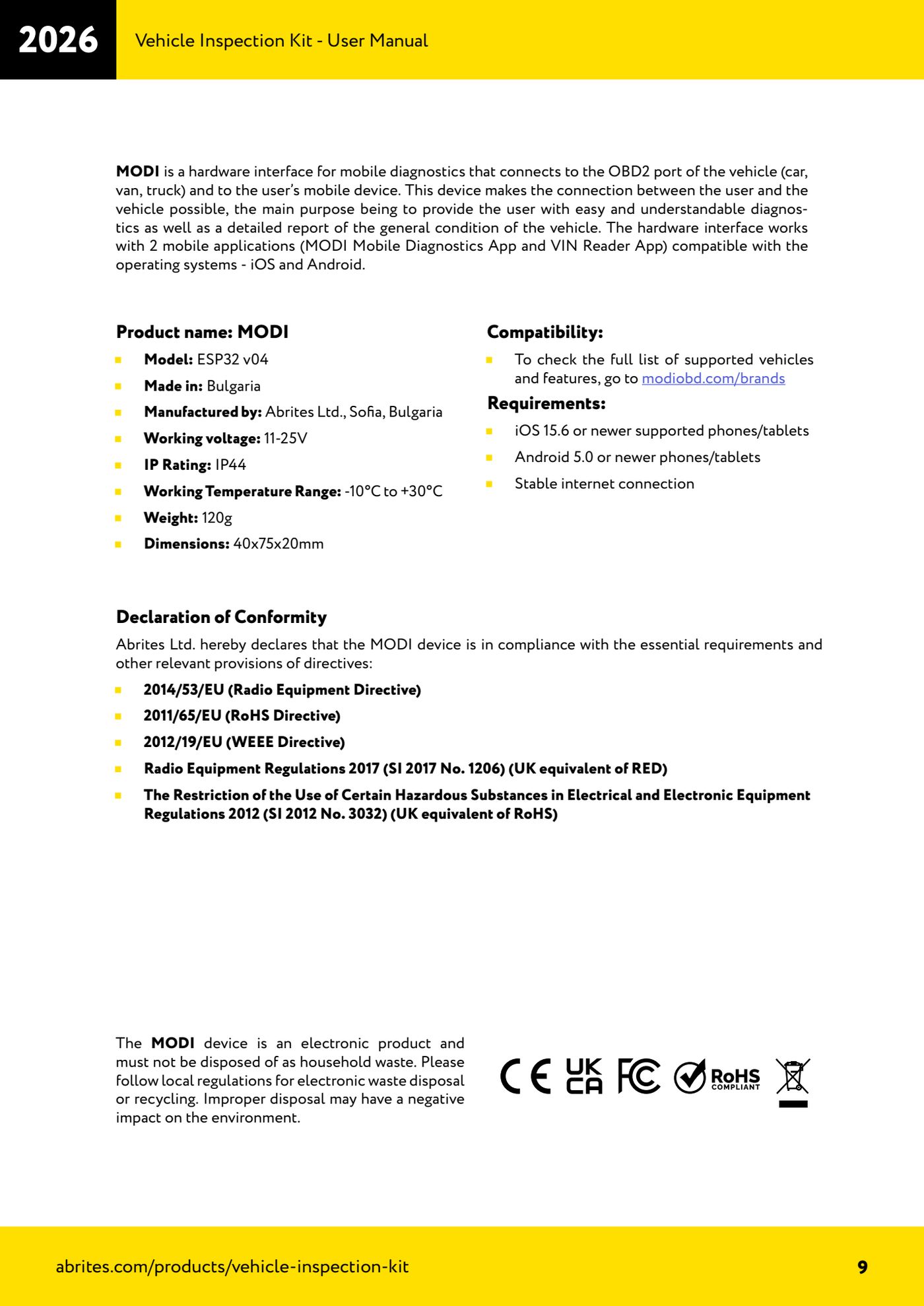
Source: Manuale Vehicle Inspection Kit, MODI App Settings Tab (p.25) e specifiche MODI (p.9) · ⏱ estimated time 10-20 min
← All Abrites guides Hardware catalogue
More guides Strumenti
- ABPROG ZN030: what's in the set, hooking it up to the AVDI and starting the Classic software
- Reading and writing SPI, I2C and Microwire EEPROMs with ABPROG and the ZN031/ZN035 adapter
- Erasing and reprogramming M35080VP / M35080V6 incremental EEPROMs with ABPROG
- Wiring an SPI EEPROM straight to the ABPROG DB25 without the ZN031 adapter
- Mercedes-Benz IR keys: reading the SSID, erasing and programming the NEC with ZN032 / ZN033
- Renewing used keys (HITAG/PCF) with the ZN046 adapter and ABPROG
- Solder points on key PCBs for the ZN046 and list of keys supported for renewal
- Reading the EWS3 dump on BMW E46/E39/E53 and others with the ZN055 adapter
- Reading the EEPROM on BMW F-Series FEM/BDC without desoldering, using the ZN057 extension
- Reading and writing NEC V850ES MCUs with the ZN078 adapter and ABPROG
- ABPROG DB25 pinout: building your own ZN046, ZN058, ZN078 and ZN086 adapters
- Reading the immobiliser from a Renault X95 BCM (and Audi BCM) with ABPROG and direct wiring