
Chip-Tools
MODI Advanced Diagnostics: Fast Coding, coding lists and Restore Coding
Strumenti
Interface Classic
Coding / Adaptations
Advanced
⏱ 30-60 min
11 steps
The Advanced mode of MODI Mobile Diagnostics opens up hundreds of coding and personalisation options: from folding mirrors to sounds and headlight settings, right through to factory hidden features. It covers both the "Fast Coding Options" available on the dashboard and the full coding lists inside the individual control units.
Required licences
- —
Hardware / cables
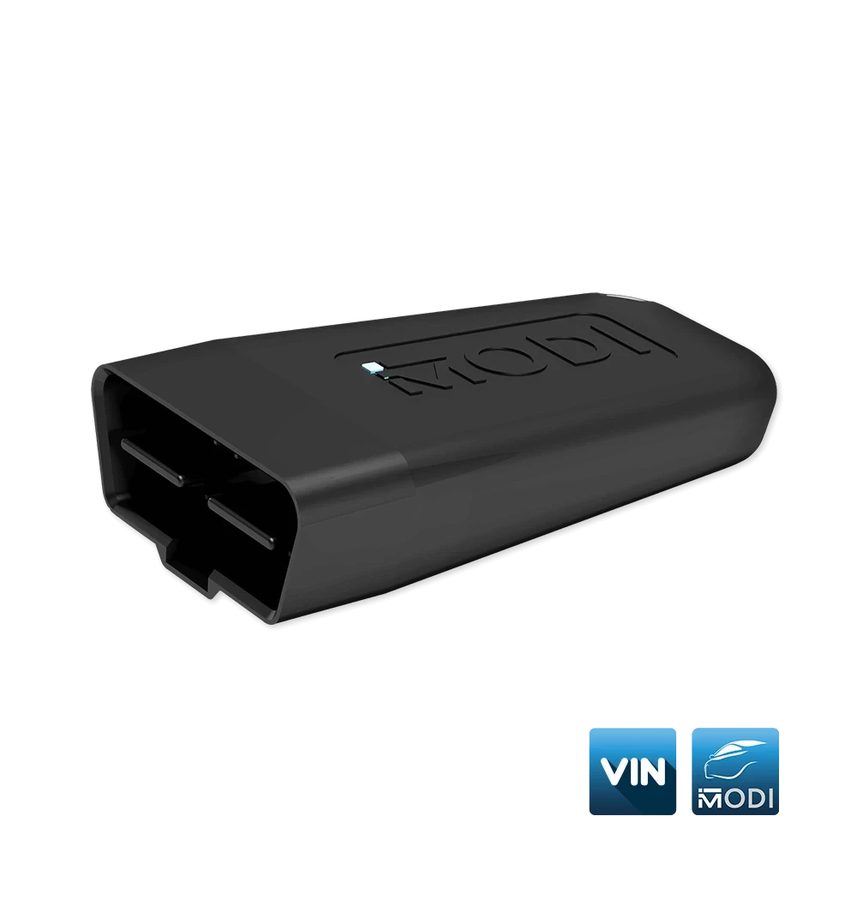
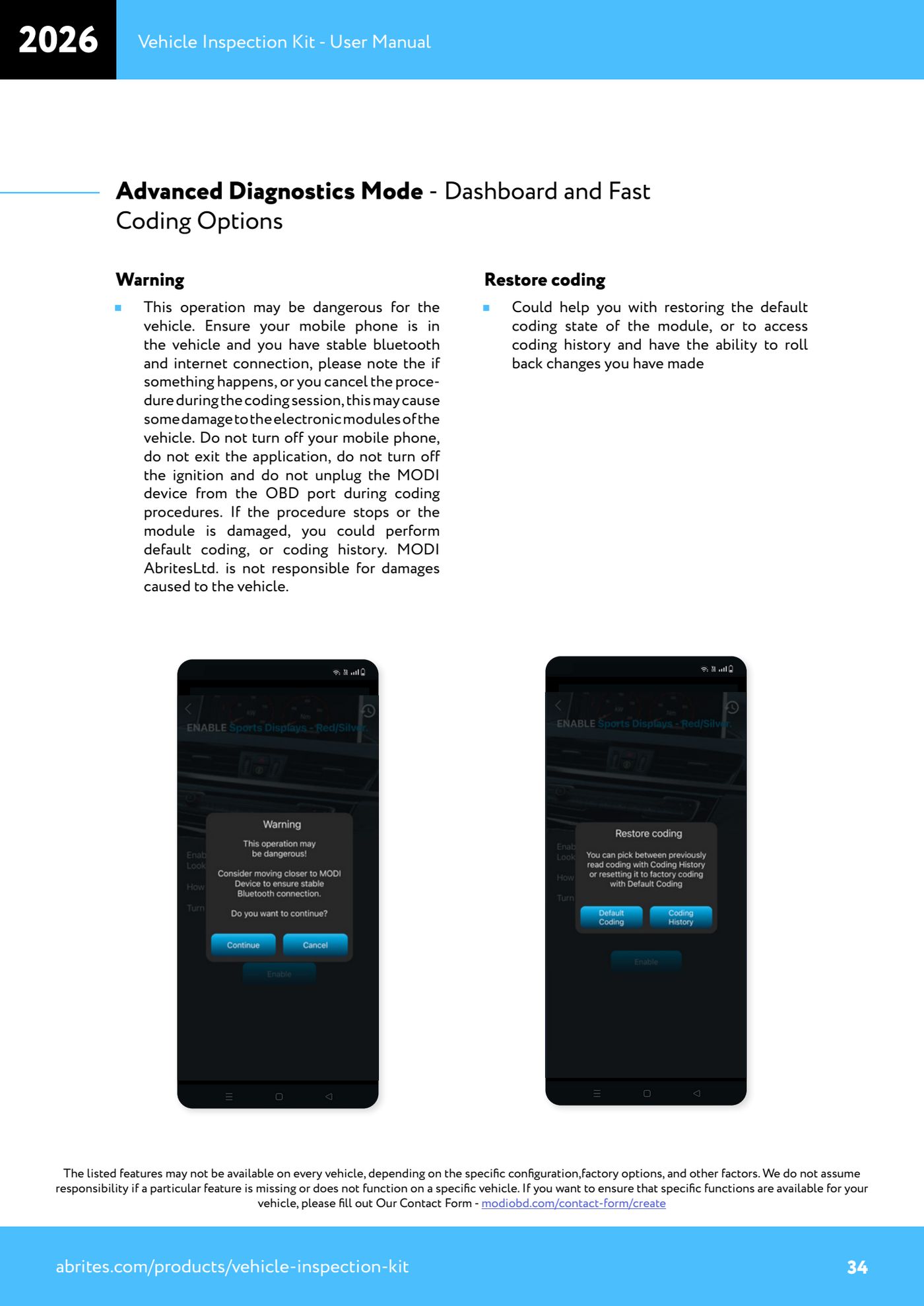
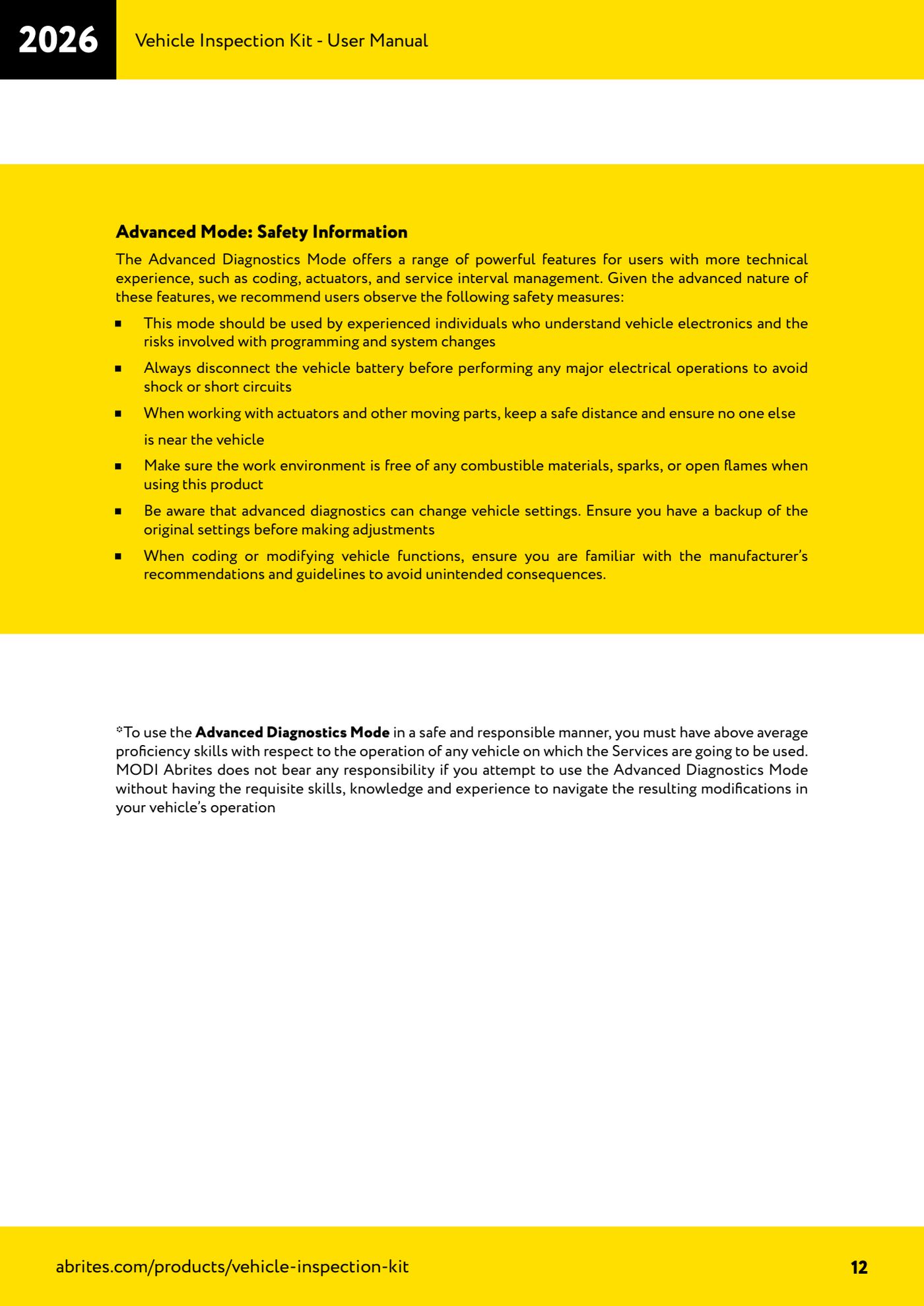
⚠ WarningPotentially dangerous operation for the vehicle. The phone must stay in the cabin with stable Bluetooth and internet: if something goes wrong or you cancel the procedure during the coding session, you can damage the control units. During coding do not switch off the phone, do not exit the application, do not switch off the ignition and do not unplug the MODI from the OBD port. Before making changes, make sure you have a backup of the original settings; if the procedure is interrupted or the module is damaged, use "Restore coding" or the coding history. This mode is for people who know vehicle electronics: you work at your own risk.
Procedure
- First check the compatibility of your vehicle and its modules in the Brands section of the modiobd.com website.
- Prepare the vehicle: parked on a level surface and made safe, area free of combustible materials, sparks or naked flames, nobody near moving parts.
- Plug the MODI into the OBDII port, pair with "Connect", select the make and let the automatic vehicle identification complete.
- Choose "Advanced Diagnostics": the app scans all the control units with DTC read/clear, module identification and real-time data.
- If your model supports them, the dashboard (the one with the model photo) shows the "Fast Coding Options": these are quick procedures performed with a single tap.
- If there are no fast coding options on the dashboard for your model, connect directly to the control unit concerned via the "Advanced diagnostics" button and check whether the special functions list is available.
- With the module selected, press "FastCoding" to see the full list of coding and personalisation options for that control unit.
- Before changing anything, note down or export the starting coding status and make sure you know the manufacturer's recommendations for the function you are about to change.
- Select the option you want from the list and press to enable or disable it, then let the procedure complete without touching anything.
- Check the operation on the vehicle. If the result is not what you expected, use "Restore coding" to return the module to default coding or go into the coding history to undo the changes made.
- Bear in mind that some of these functions can cause unwanted vehicle behaviour and that option availability varies with configuration, factory options and other factors.
Reference screenshots
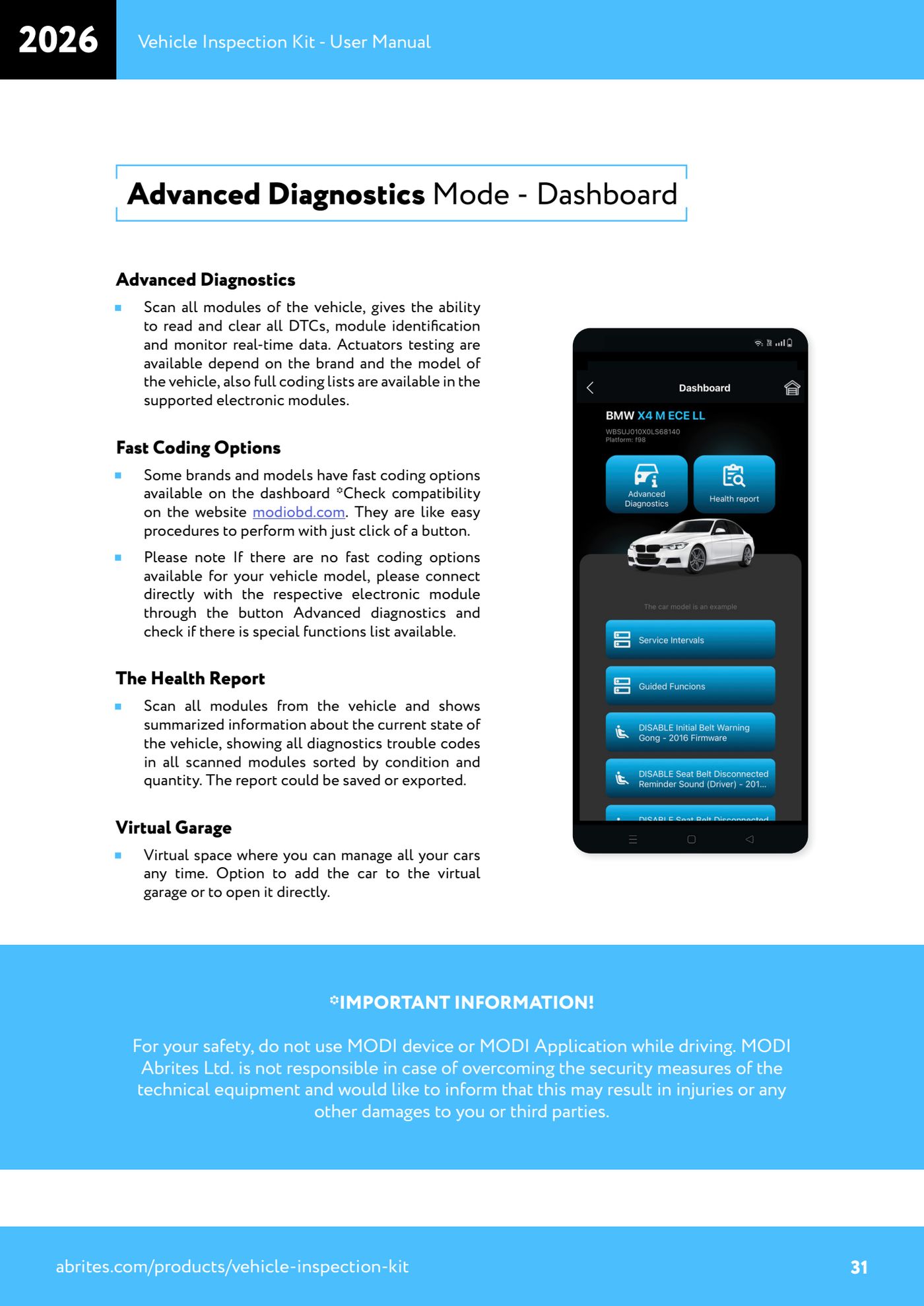
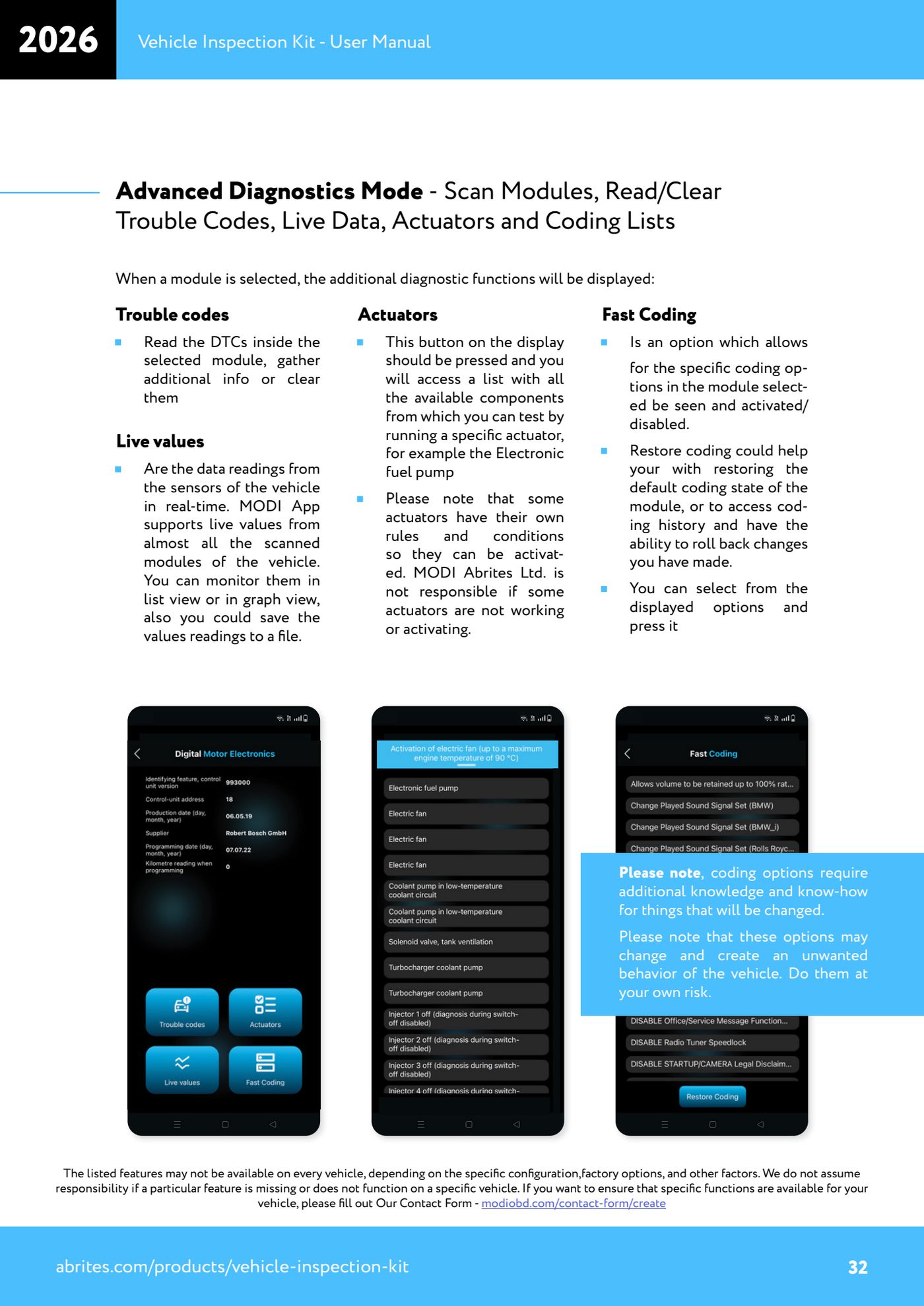
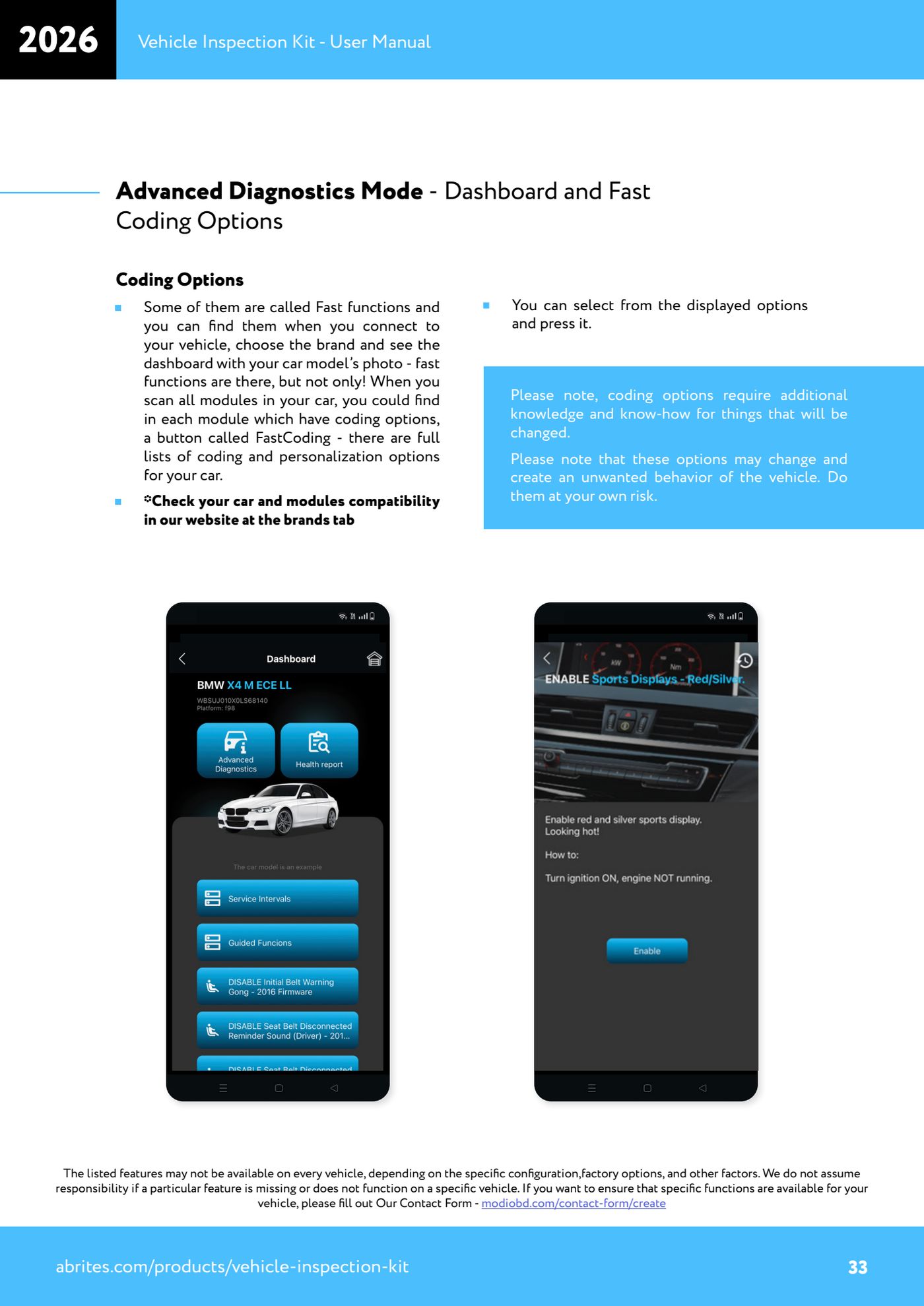
Source: Manuale Vehicle Inspection Kit, Advanced Diagnostics Mode e Fast Coding Options (p.31-34) con Advanced Mode: Safety Information (p.12) · ⏱ estimated time 30-60 min
← All Abrites guides Hardware catalogue
More guides Strumenti
- ABPROG ZN030: what's in the set, hooking it up to the AVDI and starting the Classic software
- Reading and writing SPI, I2C and Microwire EEPROMs with ABPROG and the ZN031/ZN035 adapter
- Erasing and reprogramming M35080VP / M35080V6 incremental EEPROMs with ABPROG
- Wiring an SPI EEPROM straight to the ABPROG DB25 without the ZN031 adapter
- Mercedes-Benz IR keys: reading the SSID, erasing and programming the NEC with ZN032 / ZN033
- Renewing used keys (HITAG/PCF) with the ZN046 adapter and ABPROG
- Solder points on key PCBs for the ZN046 and list of keys supported for renewal
- Reading the EWS3 dump on BMW E46/E39/E53 and others with the ZN055 adapter
- Reading the EEPROM on BMW F-Series FEM/BDC without desoldering, using the ZN057 extension
- Reading and writing NEC V850ES MCUs with the ZN078 adapter and ABPROG
- ABPROG DB25 pinout: building your own ZN046, ZN058, ZN078 and ZN086 adapters
- Reading the immobiliser from a Renault X95 BCM (and Audi BCM) with ABPROG and direct wiring