
Chip-Tools
Bench connection of a Mercedes truck MCM (engine ECU) with the ZN081 CAN Gateway and CB603
Strumenti
Interface Classic
Hardware / Connections
Medium
⏱ 15-30 min
8 steps
Wiring procedure for working off the vehicle on a Mercedes truck MCM (Master Control Module) via the CAN Gateway. Once the bench setup is done you can read, save the data, virginise and personalise the MCM from the Mercedes Trucks software.

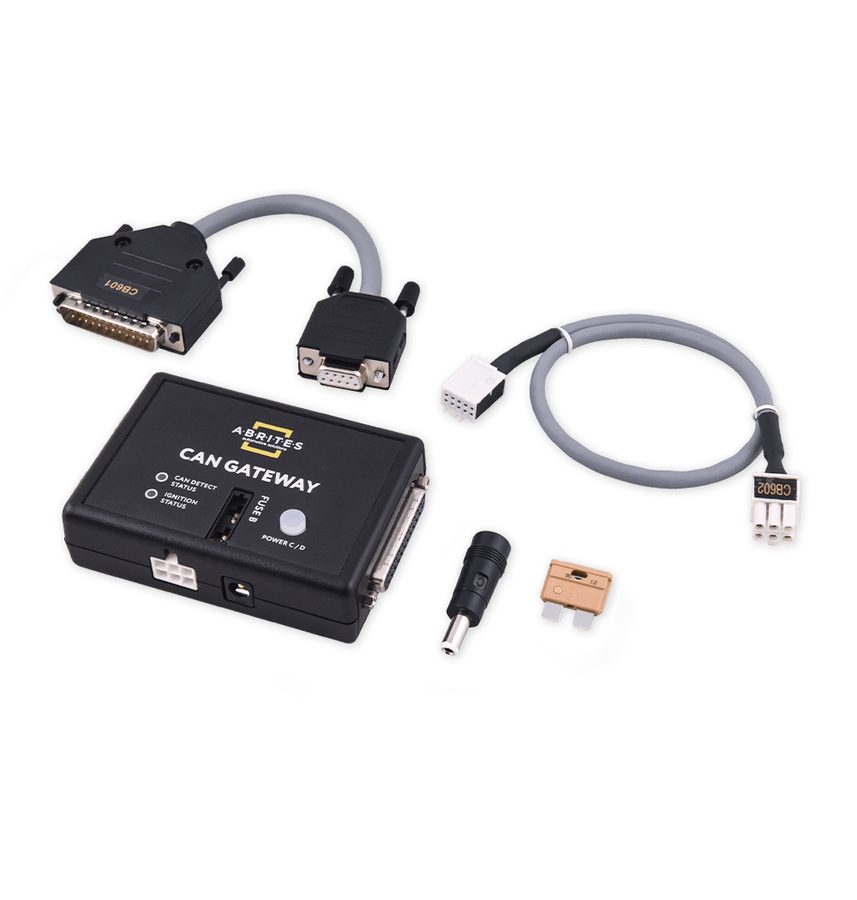
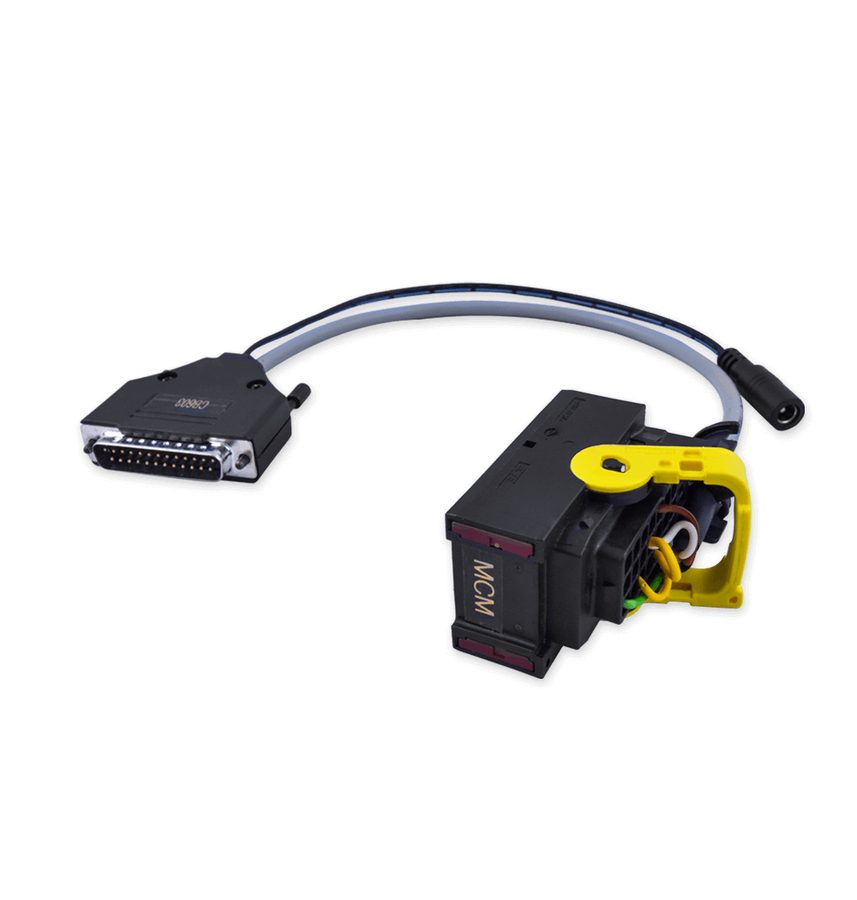
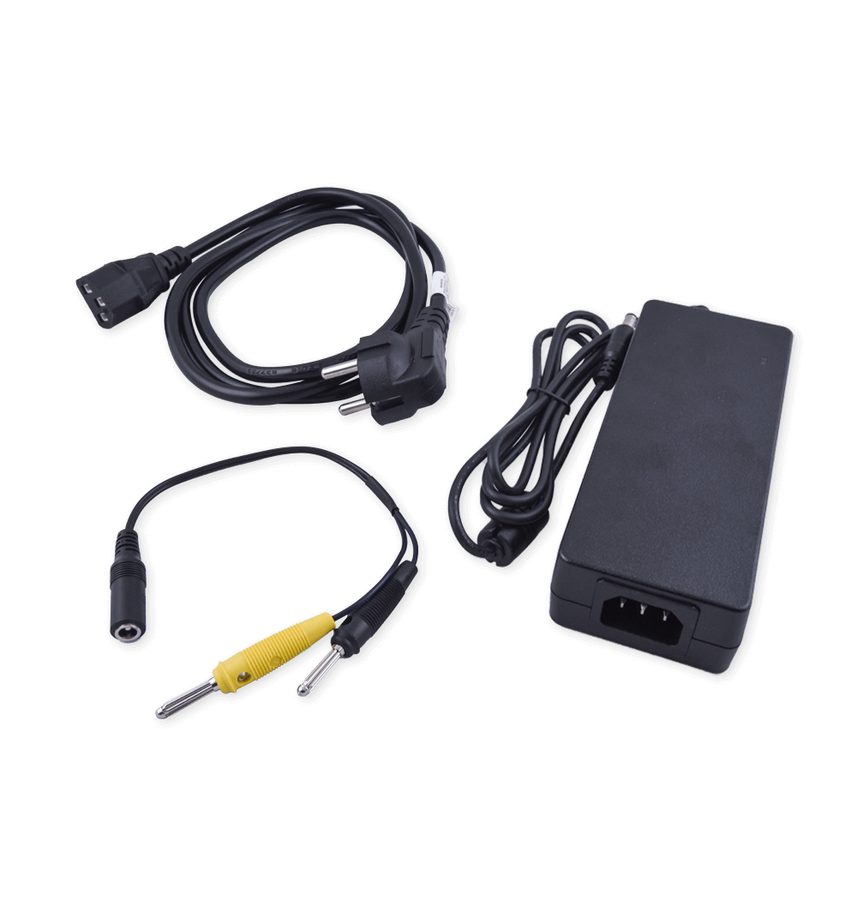
⚠ WarningFit the 5A fuse in its holder BEFORE connecting the DC jack of the 24V power supply: the sequence given in the manual is module cable, gateway, fuse, power, then AVDI. Chock the wheels if the vehicle is present and take care with the on-board voltages.
Procedure
- Take the CB603 cable and connect it to the small socket on the MCM.
- Connect the other end of the CB603 to the ZN081 CAN Gateway, on connector "C" or "D".
- Fit the 5A fuse in its dedicated holder on the CAN Gateway.
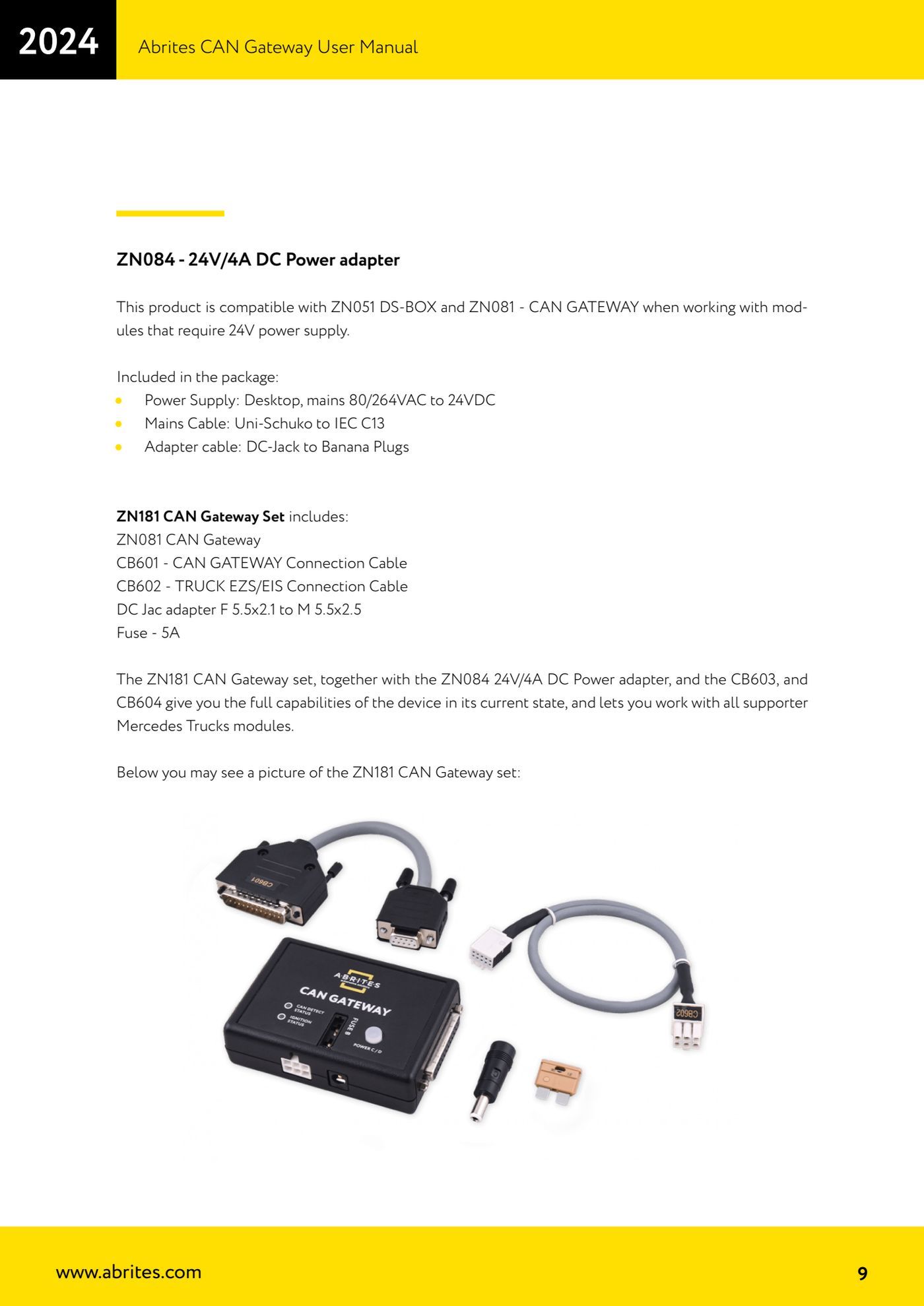
- Connect the DC jack of the 24V power supply (ZN084 24V/4A) to the gateway's power socket; if needed, use the DC Jack adapter F 5.5x2.1 to M 5.5x2.5 from the ZN181 set.
- Connect the AVDI interface to connector "A" of the CAN Gateway using the CB601 cable.
- Apply power and start the Abrites Diagnostics for Mercedes Trucks software (MN031 licence) on the PC.
- With the bench set up like this you can carry out the intended operations on the MCM: reading, saving the data, virginising (virgin state) and personalising the unit.
- Before any write operation always save the data read from the MCM: saving is part of the procedure the software expects.
Reference screenshots
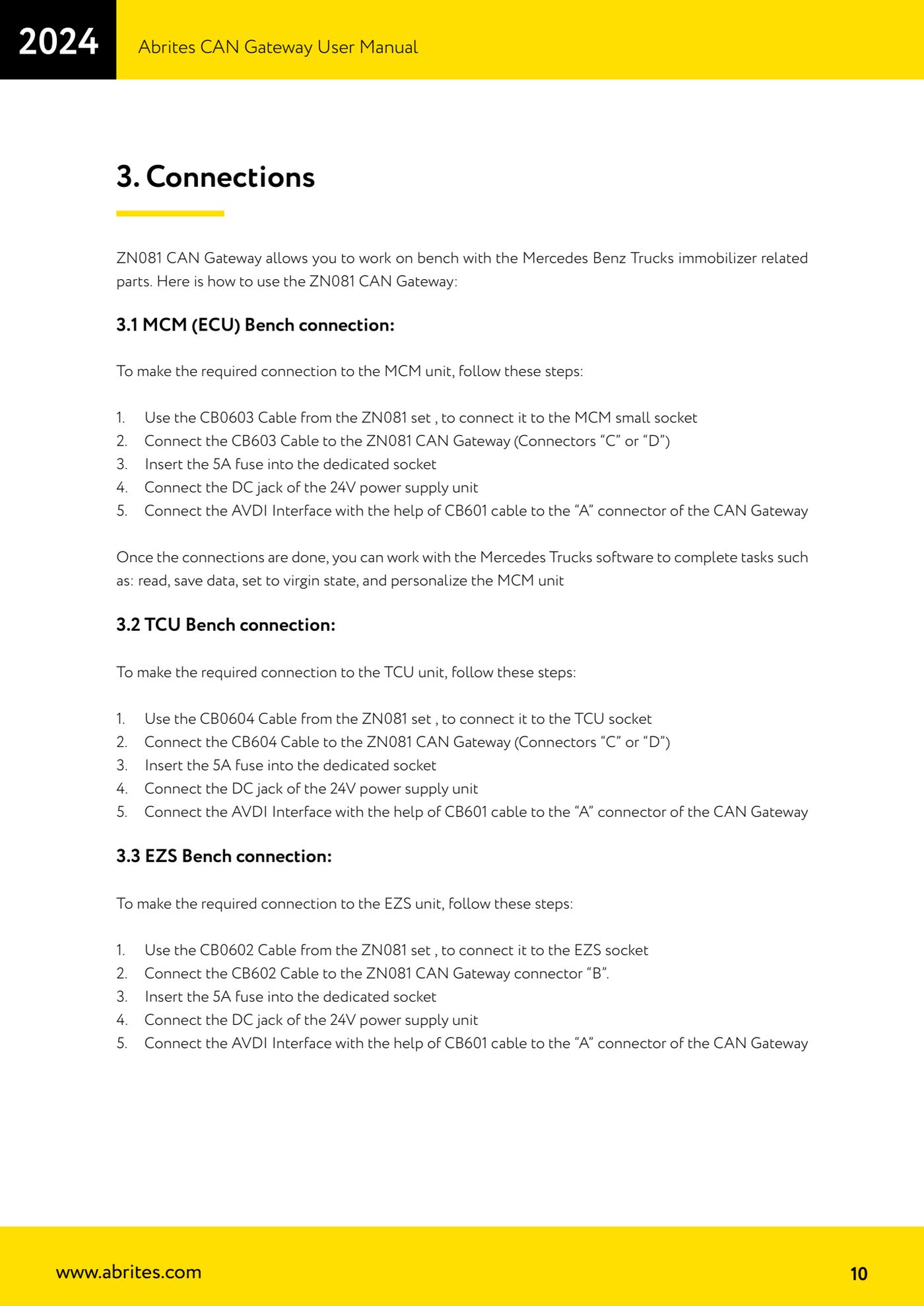
Source: Manuale Abrites CAN Gateway, cap. 3.1 (p.10) · ⏱ estimated time 15-30 min
← All Abrites guides Hardware catalogue
More guides Strumenti
- ABPROG ZN030: what's in the set, hooking it up to the AVDI and starting the Classic software
- Reading and writing SPI, I2C and Microwire EEPROMs with ABPROG and the ZN031/ZN035 adapter
- Erasing and reprogramming M35080VP / M35080V6 incremental EEPROMs with ABPROG
- Wiring an SPI EEPROM straight to the ABPROG DB25 without the ZN031 adapter
- Mercedes-Benz IR keys: reading the SSID, erasing and programming the NEC with ZN032 / ZN033
- Renewing used keys (HITAG/PCF) with the ZN046 adapter and ABPROG
- Solder points on key PCBs for the ZN046 and list of keys supported for renewal
- Reading the EWS3 dump on BMW E46/E39/E53 and others with the ZN055 adapter
- Reading the EEPROM on BMW F-Series FEM/BDC without desoldering, using the ZN057 extension
- Reading and writing NEC V850ES MCUs with the ZN078 adapter and ABPROG
- ABPROG DB25 pinout: building your own ZN046, ZN058, ZN078 and ZN086 adapters
- Reading the immobiliser from a Renault X95 BCM (and Audi BCM) with ABPROG and direct wiring