
Chip-Tools
MODI: plugging into the OBDII port and pairing over Bluetooth with a smartphone/tablet
Strumenti
Interface Classic
Hardware / Connections
Basic
⏱ 10 min
10 steps
MODI is a hardware interface that plugs into the vehicle's OBDII port (cars, vans, trucks) and talks to your smartphone or tablet over Bluetooth. This is the first-connection and pairing procedure, which also serves as the basis for every other function.
Required licences
- —
Hardware / cables
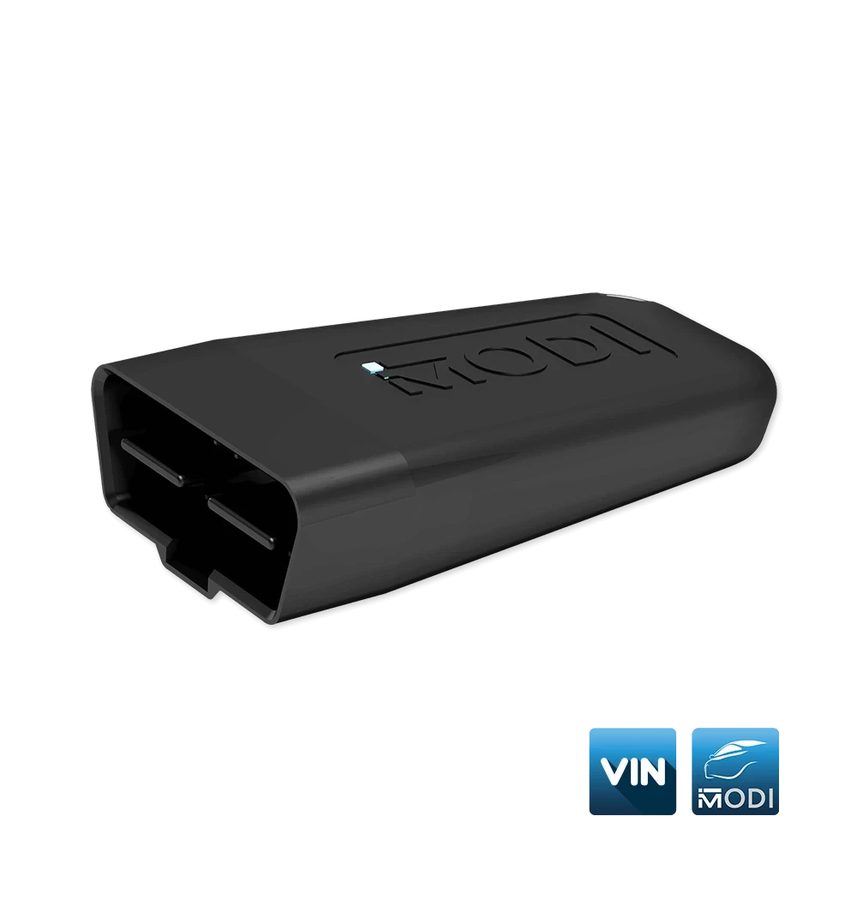 MODI (ESP32 v04)
- presa OBDII veicolo
- smartphone/tablet Android o iOS
- MODI Mobile Diagnostics App
⚠ WarningMODI is powered from the OBDII port only: with no power the app will not see it. On some vehicles the OBDII port is only live with the ignition on. Never use MODI or the app while the vehicle is moving.
Procedure
- Download the app from the store: open the Apple App Store or Google Play Store, search for "MODI Mobile Diagnostics" and install it. Minimum requirements: iOS 15.6 or later, Android 5.0 or later, plus a stable internet connection.
- Locate the vehicle's OBDII port: usually under the dash on the driver's side, near the driver's seat, near the glovebox or in the footwell area. If you have any doubt about its location or condition, check the model documentation.
- Plug the MODI into the OBDII port. The power LED should start flashing: that confirms the device has power.
- If necessary, turn the ignition ON: on some vehicles the OBDII port stays dead with the ignition off.
- On the phone/tablet turn Bluetooth on (Settings > Bluetooth > Enable) and open the MODI Mobile Diagnostics app.
- Press "Connect": the app automatically starts scanning for devices. From the list that appears, select your MODI (it shows up with a name like MODi_2541, the number varies).
- Once connected, select the make of vehicle you are working on: MODI starts the automatic vehicle identification.
- If you just want to see how the app works without a vehicle, use the "DEMO" button: it does not require MODI to be plugged into the OBDII port.
- If you do not have an active subscription, after connecting to MODI you can use the "Generic OBD2" option: it scans some of the vehicle's modules and lets you read and clear DTCs. Compatibility depends on the manufacturer and is not guaranteed on every vehicle.
- Working note: MODI runs on two separate apps (MODI Mobile Diagnostics and VinReader). If you switch from one to the other, close the first one completely before opening the second, otherwise the Bluetooth connection is not released.
Reference screenshots
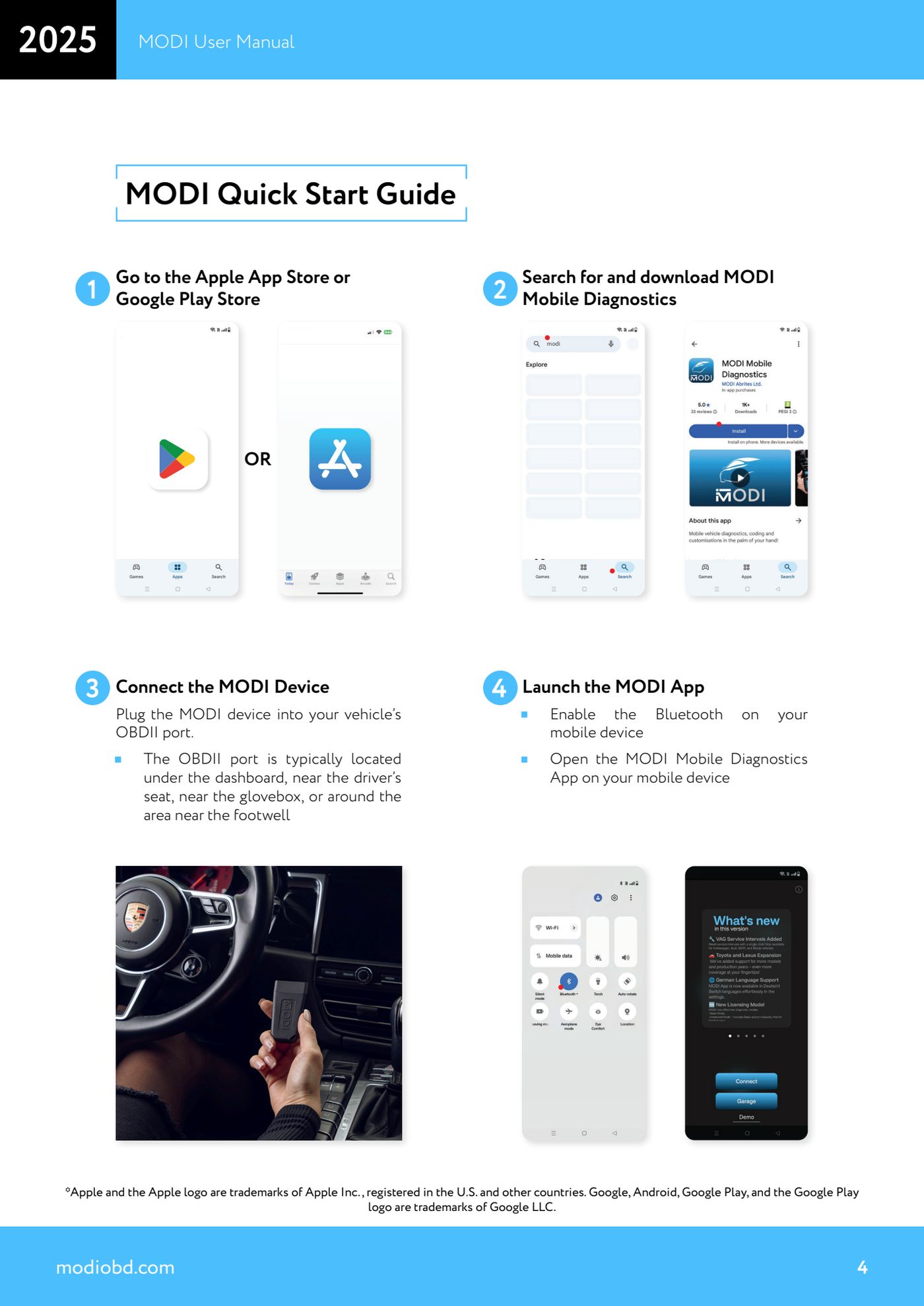
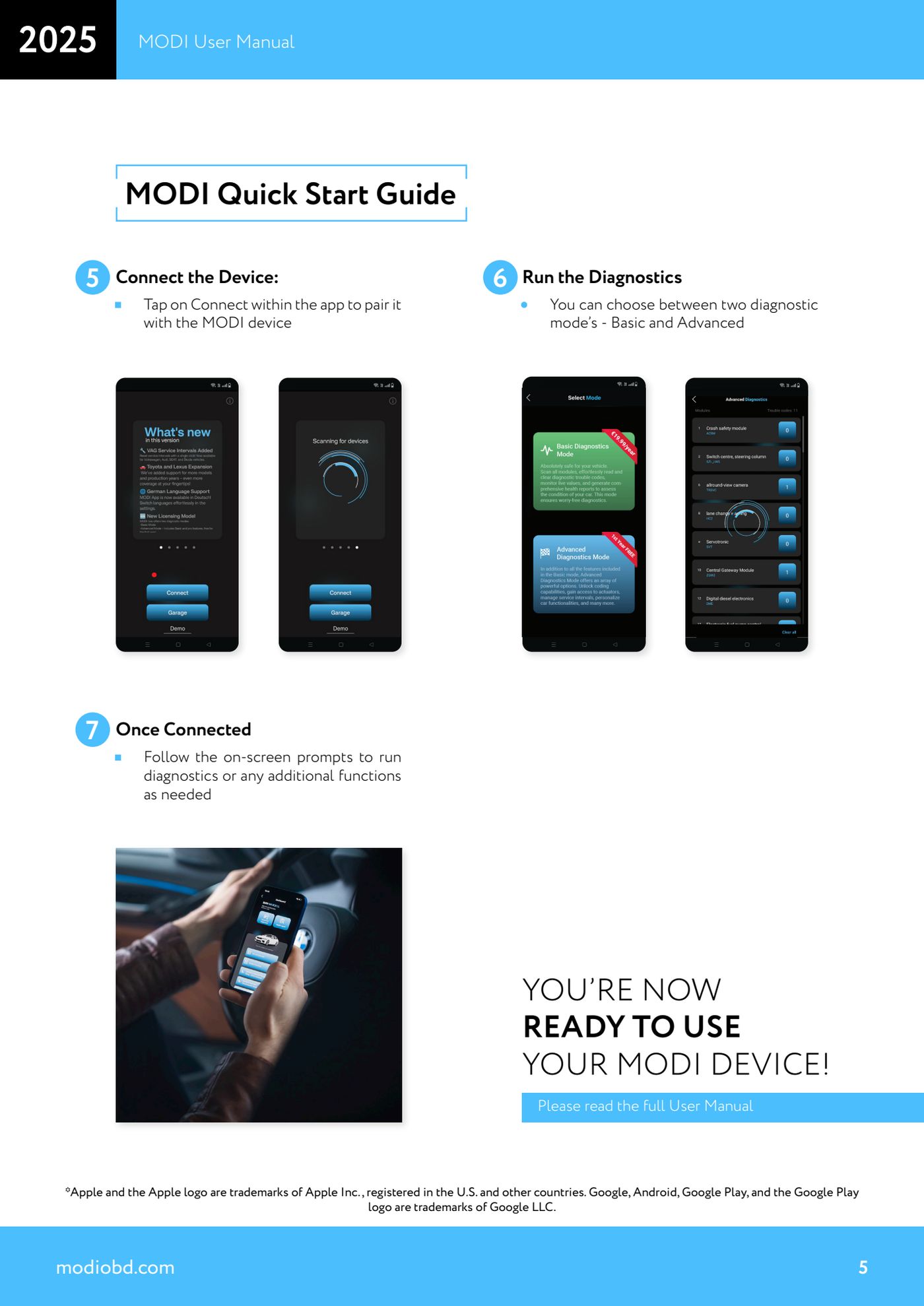
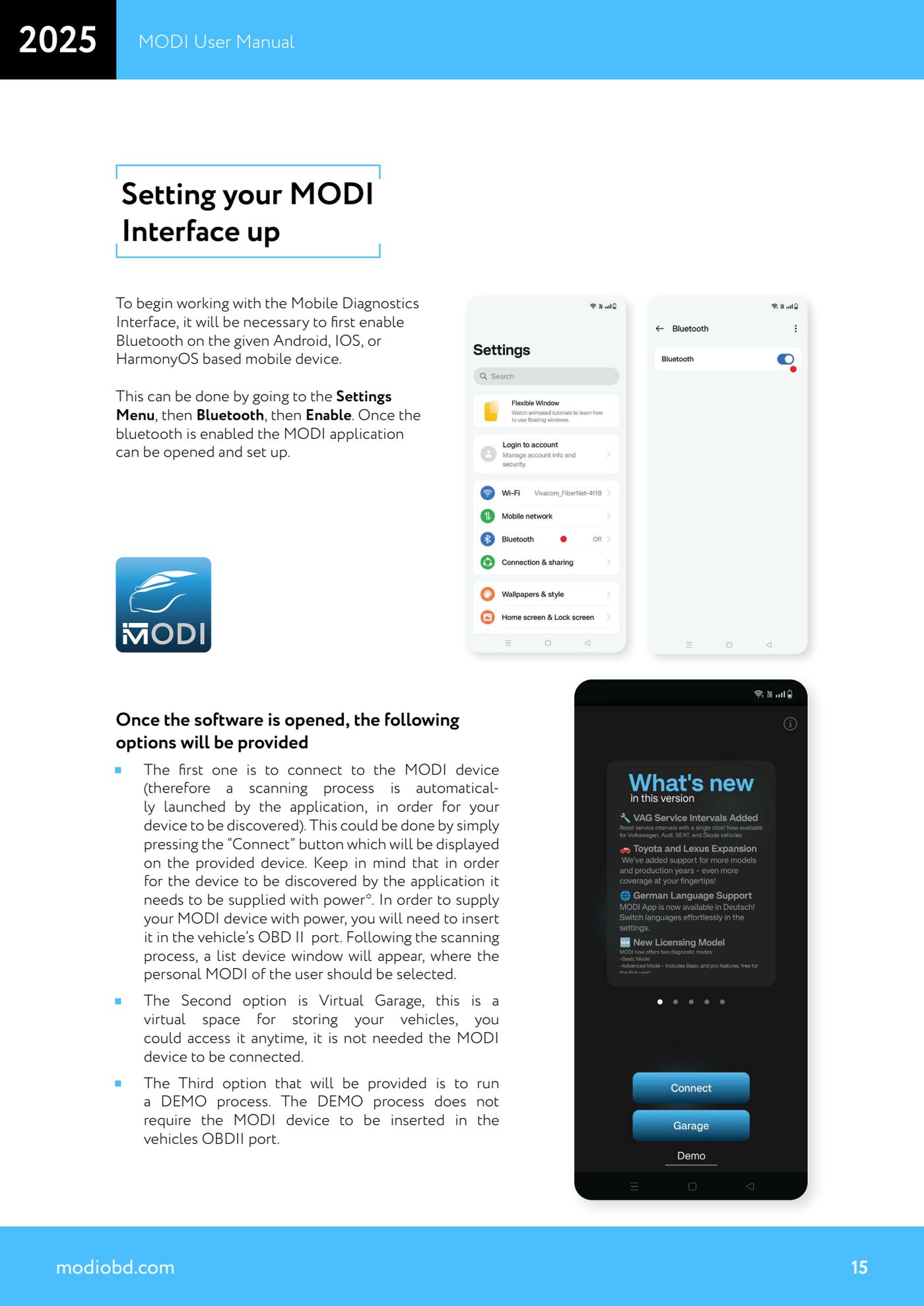
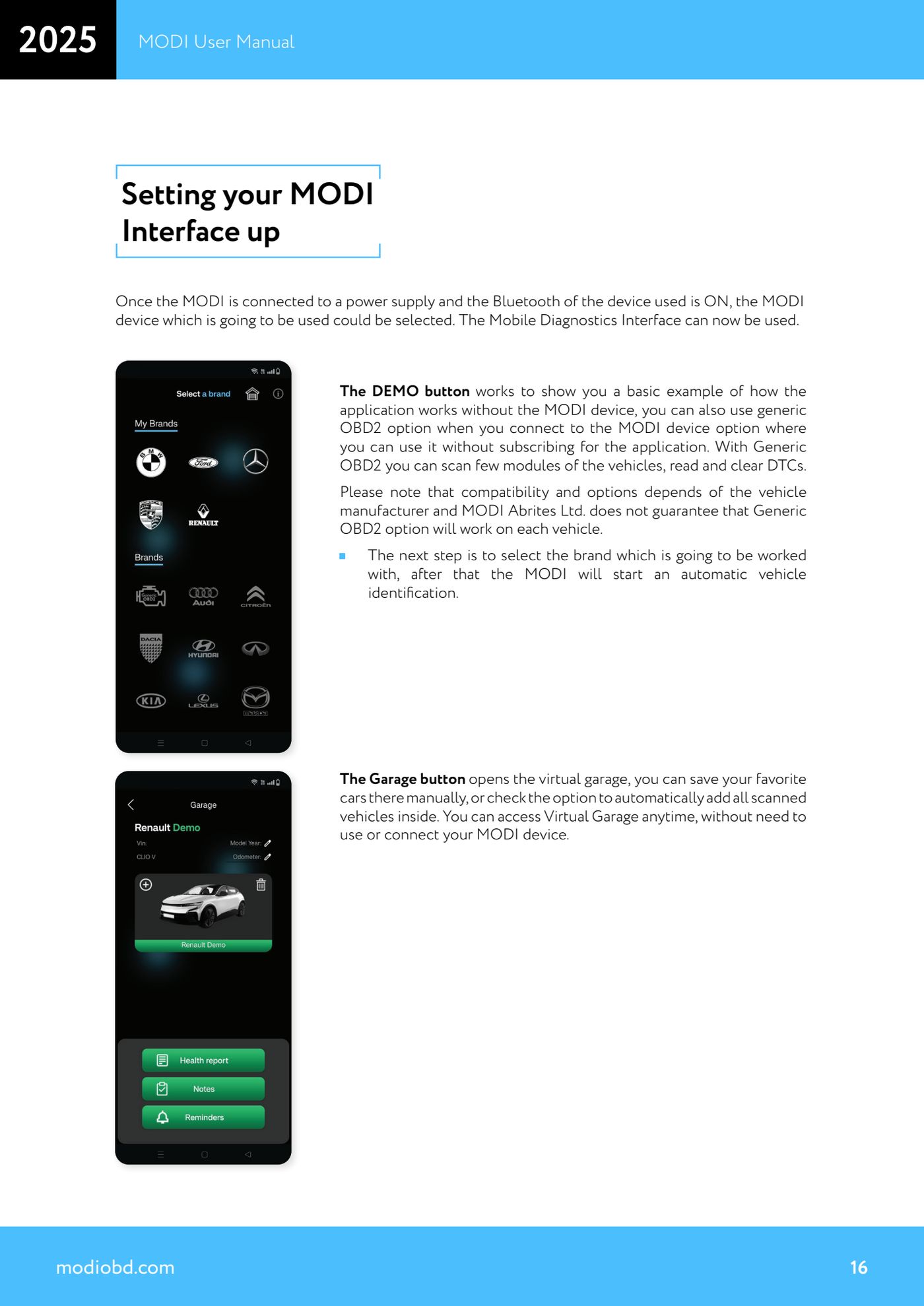
Source: Manuale MODI, "MODI Quick Start Guide" e "Setting your MODI Interface up" (p.4-5, 15-16) · ⏱ estimated time 10 min
← All Abrites guides Hardware catalogue
More guides Strumenti
- ABPROG ZN030: what's in the set, hooking it up to the AVDI and starting the Classic software
- Reading and writing SPI, I2C and Microwire EEPROMs with ABPROG and the ZN031/ZN035 adapter
- Erasing and reprogramming M35080VP / M35080V6 incremental EEPROMs with ABPROG
- Wiring an SPI EEPROM straight to the ABPROG DB25 without the ZN031 adapter
- Mercedes-Benz IR keys: reading the SSID, erasing and programming the NEC with ZN032 / ZN033
- Renewing used keys (HITAG/PCF) with the ZN046 adapter and ABPROG
- Solder points on key PCBs for the ZN046 and list of keys supported for renewal
- Reading the EWS3 dump on BMW E46/E39/E53 and others with the ZN055 adapter
- Reading the EEPROM on BMW F-Series FEM/BDC without desoldering, using the ZN057 extension
- Reading and writing NEC V850ES MCUs with the ZN078 adapter and ABPROG
- ABPROG DB25 pinout: building your own ZN046, ZN058, ZN078 and ZN086 adapters
- Reading the immobiliser from a Renault X95 BCM (and Audi BCM) with ABPROG and direct wiring