
Chip-Tools
MODI app settings: language, legal documents and device firmware update
Strumenti
Interface Classic
Configuration / MMI
Basic
⏱ 10-20 min
8 steps
The MODI app's settings tab holds the interface language, legal documents, manuals, problem reporting and, above all, the firmware update for the MODI device itself. It is the first thing to check when the device starts behaving oddly.
Required licences
- —
Hardware / cables
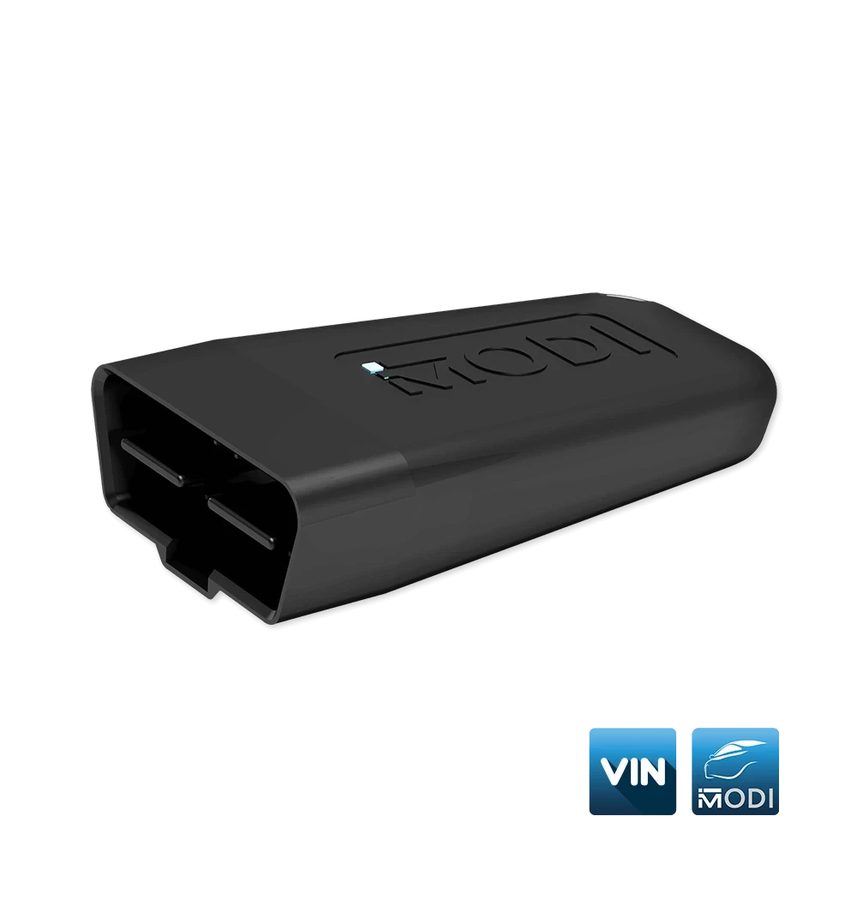
⚠ WarningMODI is powered from the OBDII port: during a firmware update do not unplug the device from the OBDII port, do not switch the phone off and do not leave the application.
Procedure
- Plug the MODI into the vehicle's OBDII port and pair it over Bluetooth with "Connect" in the MODI Mobile Diagnostics app.
- Make sure the phone/tablet has a stable internet connection: with no network the firmware update cannot be downloaded.
- Open the app's "Settings" tab.
- To change the interface language, use the language option on the same tab.
- To update the device, choose the firmware update option ("Update the firmware of your MODI device") and let the procedure run to completion without closing the app.
- From the same tab you can open the legal documents ("Legal Documents") and the user manuals page ("User Manuals").
- If you hit a fault, use the report-a-problem option, which opens the contact form: modiobd.com/contact-form/create.
- The tab also holds the links to the official social channels.
Reference screenshots
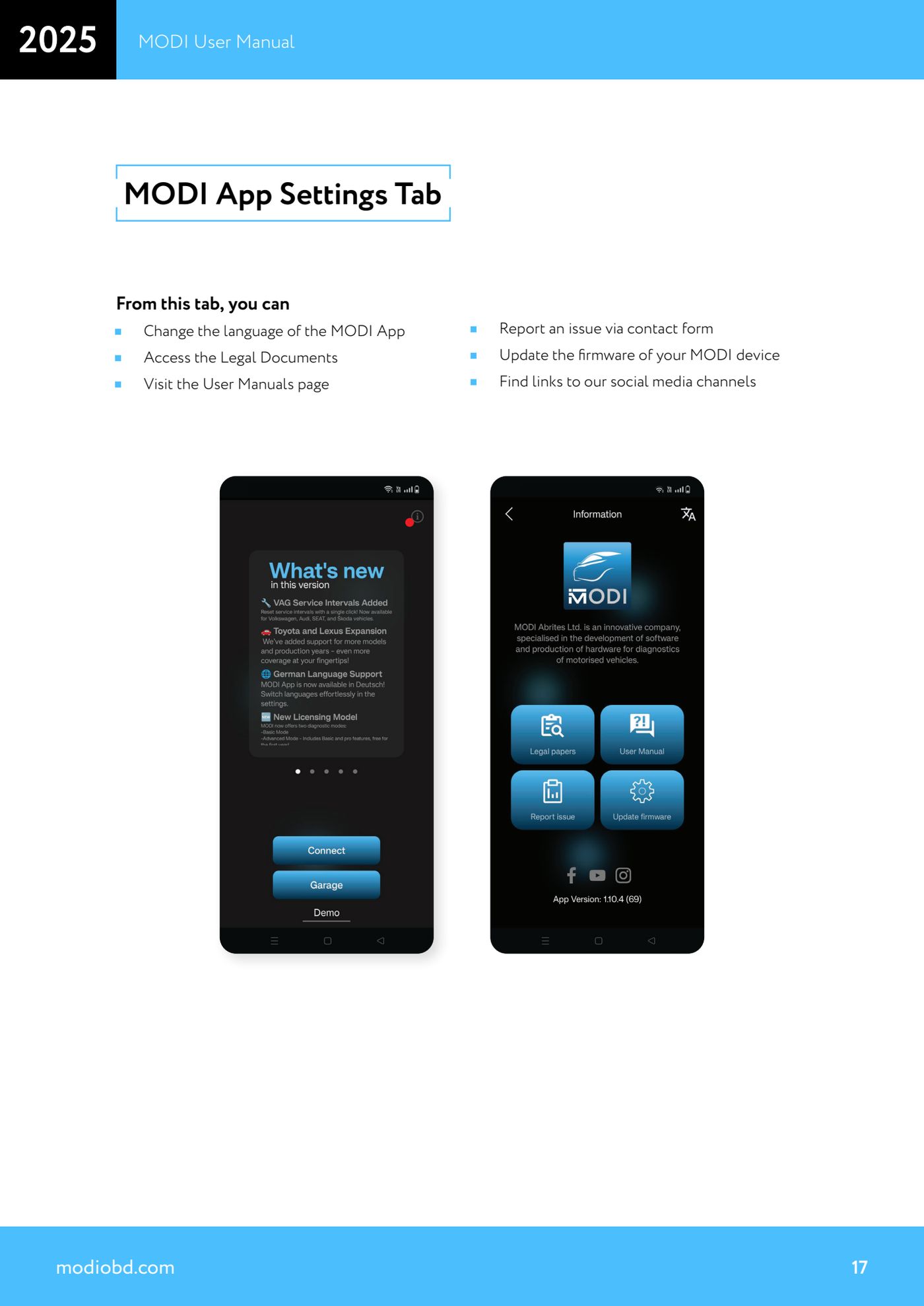
Source: Manuale MODI, "MODI App Settings Tab" (p.17) · ⏱ estimated time 10-20 min
← All Abrites guides Hardware catalogue
More guides Strumenti
- ABPROG ZN030: what's in the set, hooking it up to the AVDI and starting the Classic software
- Reading and writing SPI, I2C and Microwire EEPROMs with ABPROG and the ZN031/ZN035 adapter
- Erasing and reprogramming M35080VP / M35080V6 incremental EEPROMs with ABPROG
- Wiring an SPI EEPROM straight to the ABPROG DB25 without the ZN031 adapter
- Mercedes-Benz IR keys: reading the SSID, erasing and programming the NEC with ZN032 / ZN033
- Renewing used keys (HITAG/PCF) with the ZN046 adapter and ABPROG
- Solder points on key PCBs for the ZN046 and list of keys supported for renewal
- Reading the EWS3 dump on BMW E46/E39/E53 and others with the ZN055 adapter
- Reading the EEPROM on BMW F-Series FEM/BDC without desoldering, using the ZN057 extension
- Reading and writing NEC V850ES MCUs with the ZN078 adapter and ABPROG
- ABPROG DB25 pinout: building your own ZN046, ZN058, ZN078 and ZN086 adapters
- Reading the immobiliser from a Renault X95 BCM (and Audi BCM) with ABPROG and direct wiring