
Chip-Tools
Module scan and DTC read/clear on Nissan/Infiniti with the AVDI
Nissan/Infiniti
Interface Classic
Diagnostics
Basic
⏱ 15-30 min
12 steps
This is the basic function of the Abrites Diagnostics for Nissan/Infiniti software: it identifies the modules fitted to the vehicle, reads the fault codes and clears them, either module by module or across the whole car. Use it as the first step of every diagnosis, before any special function.
Required licences
- —
Hardware / cables
 AVDI
AVDI- cavo OBDII
⚠ WarningChock all the vehicle's wheels during testing and work in a well ventilated area, with the exhaust gases ducted towards the workshop exit. Do not ignore the risk of electric shock from the voltages present on the vehicle and in the workshop supply; do not smoke and keep sparks or naked flames away from the fuel system and the batteries.
Procedure
- Check the prerequisites: AVDI interface, Windows 7 or later PC, active AMS and a stable Internet connection. It is always advisable to have the latest software version installed.
- Connect the AVDI to the vehicle's OBDII socket and to the PC. Nissan/Infiniti diagnostics are carried out through the OBDII connector.
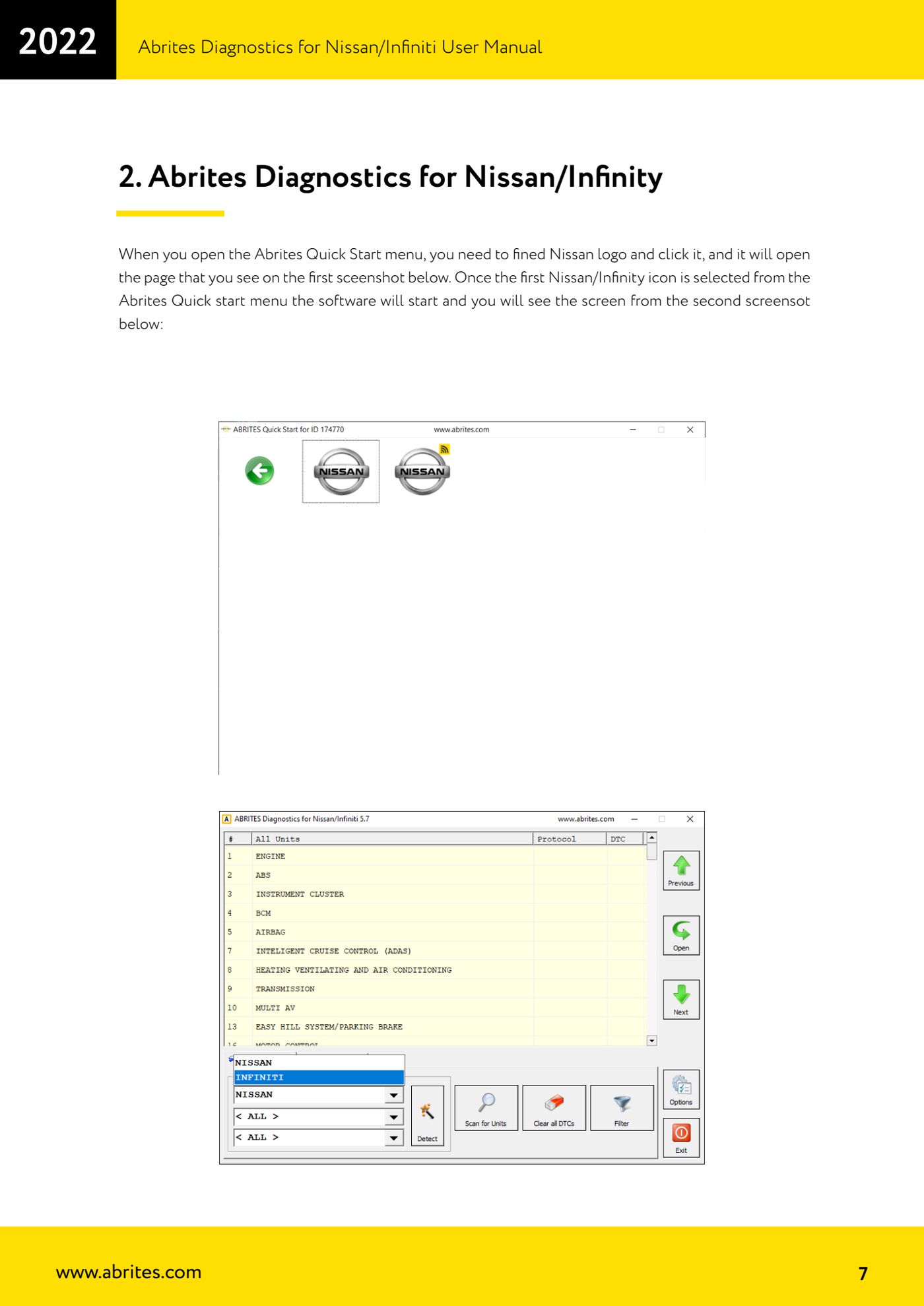
- Open the "Abrites Quick Start" menu, find the Nissan logo and click it: the Nissan/Infiniti line page opens.
- Select the first Nissan/Infinity icon from Quick Start: the software launches and the main screen appears with the list of modules fitted to the car.
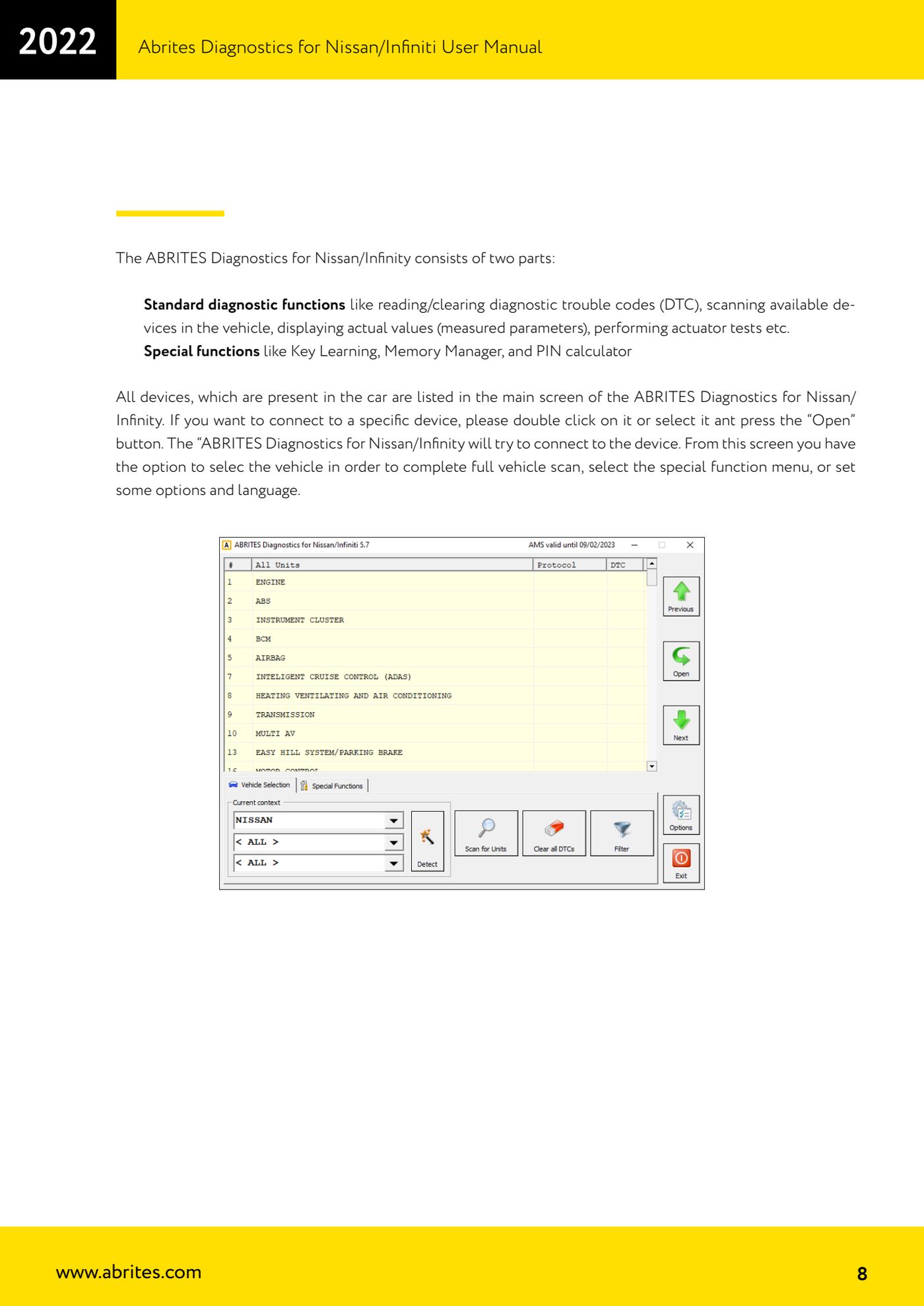
- From the main screen select the vehicle you are working on; from here you can also enter the special functions menu and the options and language sub-menu.
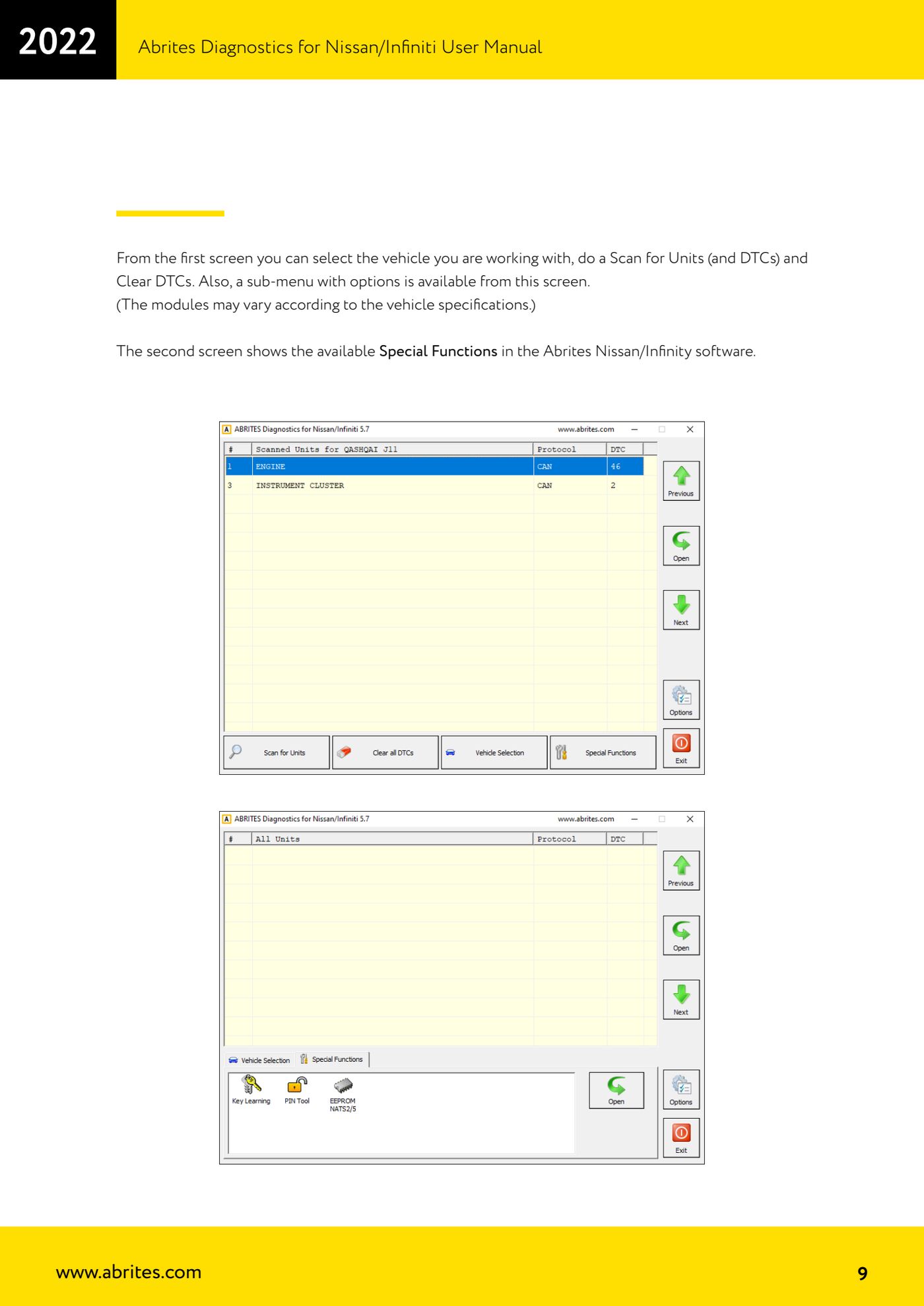
- Press "Scan for Units" to run a full vehicle scan and find the modules and DTCs. The list of modules varies according to the vehicle specification.
- To connect to an individual module double-click on the entry, or select it and press the "Open" button: the software attempts to connect to the module.
- On the module screen the first entry is the identification of the selected unit: use it to read the identification data before you start work.
- Press "Read DTCs" to display all the fault codes in the module you have opened.
- Press "Clear DTCs" to clear the temporary or already-fixed codes in the selected module only.
- If you need to clear the codes in all the vehicle's modules, go back to the main screen and press "Clear All DTCs".
- If communication with some module fails, remember that the software handles three separate protocols (K-Line, CAN and UDS) and that Nissan/Infiniti often fits modules with different protocols to the same vehicle: repeat the scan and check you have selected the correct vehicle.
Reference screenshots
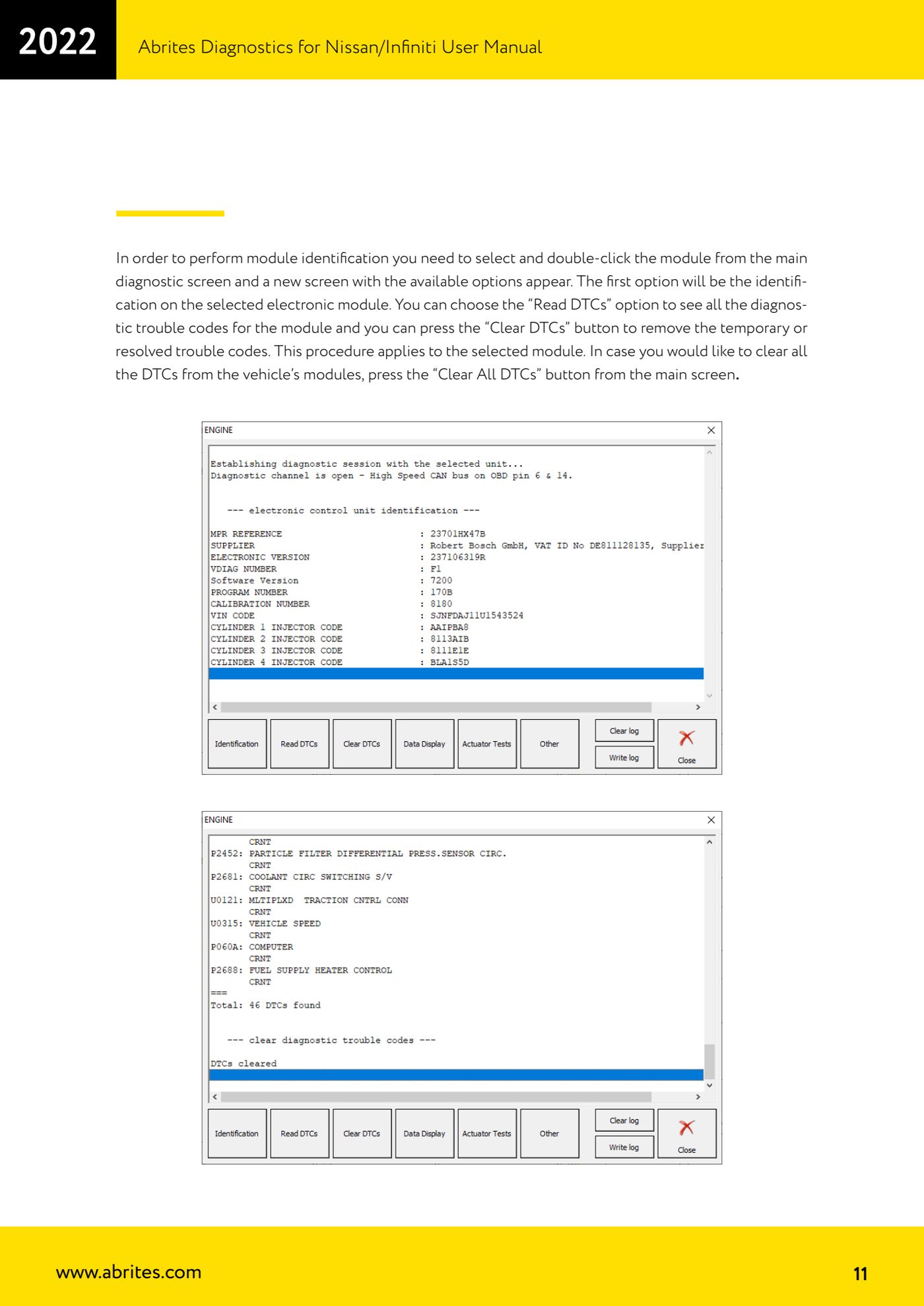
Source: Manuale Nissan/Infiniti, cap. 1-2.1 (p.6-11) · ⏱ estimated time 15-30 min
← All Abrites guides Hardware catalogue
More guides Nissan/Infiniti
- Reading live parameters (list and graph) and actuator testing on Nissan/Infiniti
- Calculating and extracting the Nissan/Infiniti PIN Code (ICU, SEC, BCM, OBDII, glovebox label)
- Nissan key programming with NATS-2, NATS-4, NATS-5 and NATS-5+ immobiliser
- EEPROM NATS2/5 Memory Manager: reading, saving and writing NATS configuration data
- Pinout of NATS 2, NATS 4 and NATS-5/5+ Siemens immobiliser units for bench work
- EM002 ESL/steering lock emulator for Renault/Nissan: 6-pin and 8-pin connection diagrams
- Starting Abrites Nissan/Infiniti Online and selecting the vehicle
- Module scan and DTC read/clear on Nissan and Infiniti
- Real-time parameter monitoring (Live Values) on Nissan and Infiniti
- Actuator Testing on Nissan and Infiniti
- Dealer-level advanced functions: the "procedures" menu of Nissan/Infiniti modules
- Nissan/Infiniti key programming via OBDII (Key Learning, including all keys lost)