
Chip-Tools
Connections for F series BDC: ENET cable CB015 or OBDII CB100/CB106
BMW
Interface New
Keys / Immo
Basic
⏱ 10 min
6 steps
How to connect the AVDI to BMW F series vehicles with BDC when programming keys with the BMW Online software. There are two connection methods, with very different working times.
Required licences
- —
Hardware / cables
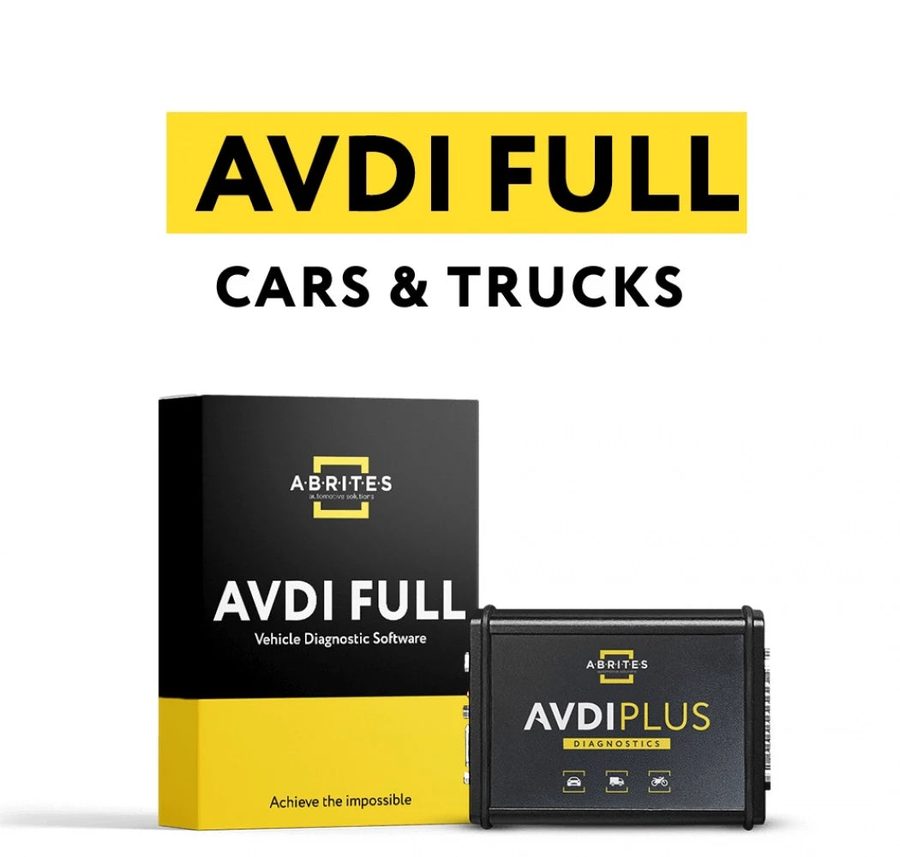 AVDI
AVDI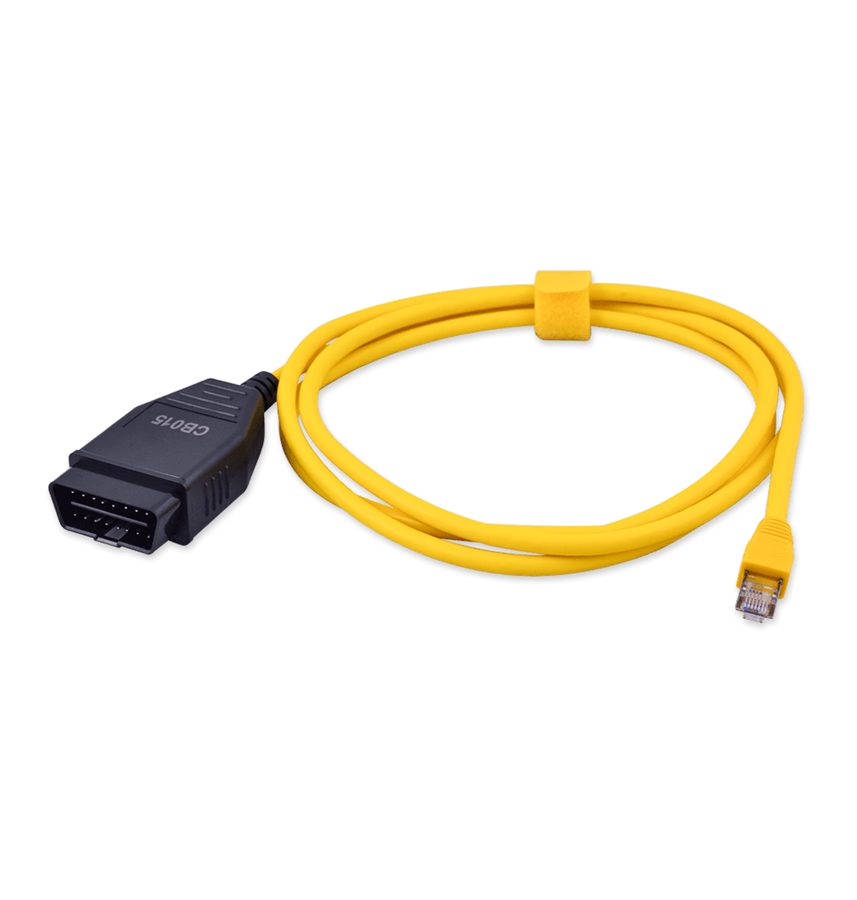 CB015 ENET
- CB100
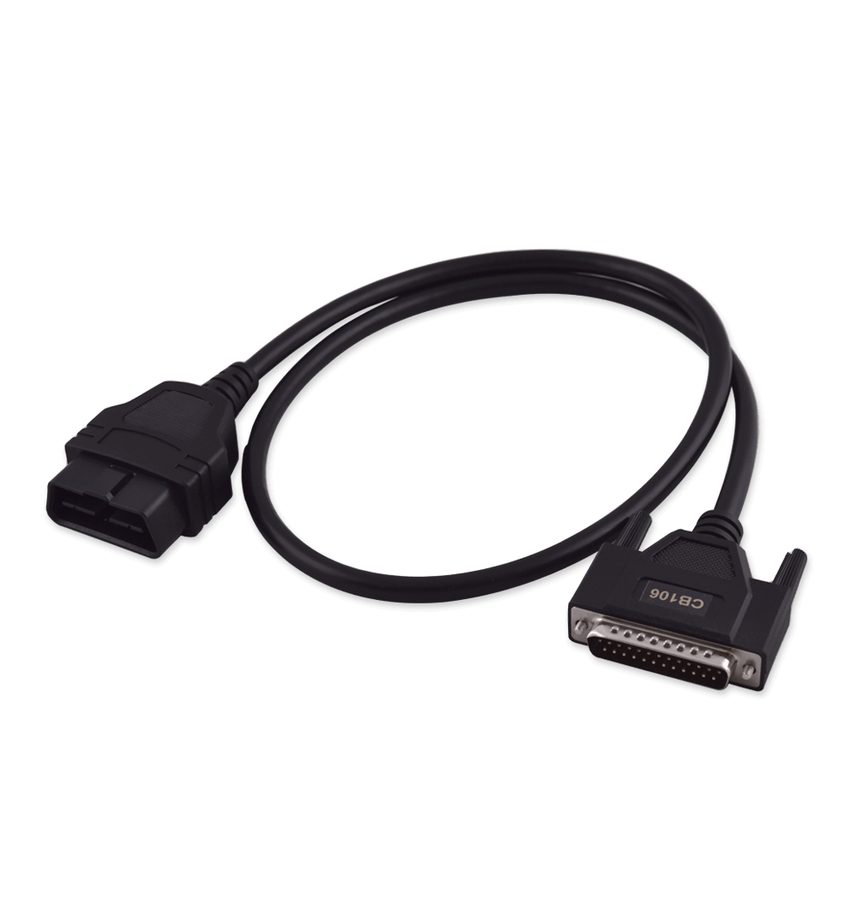 CB106
CB106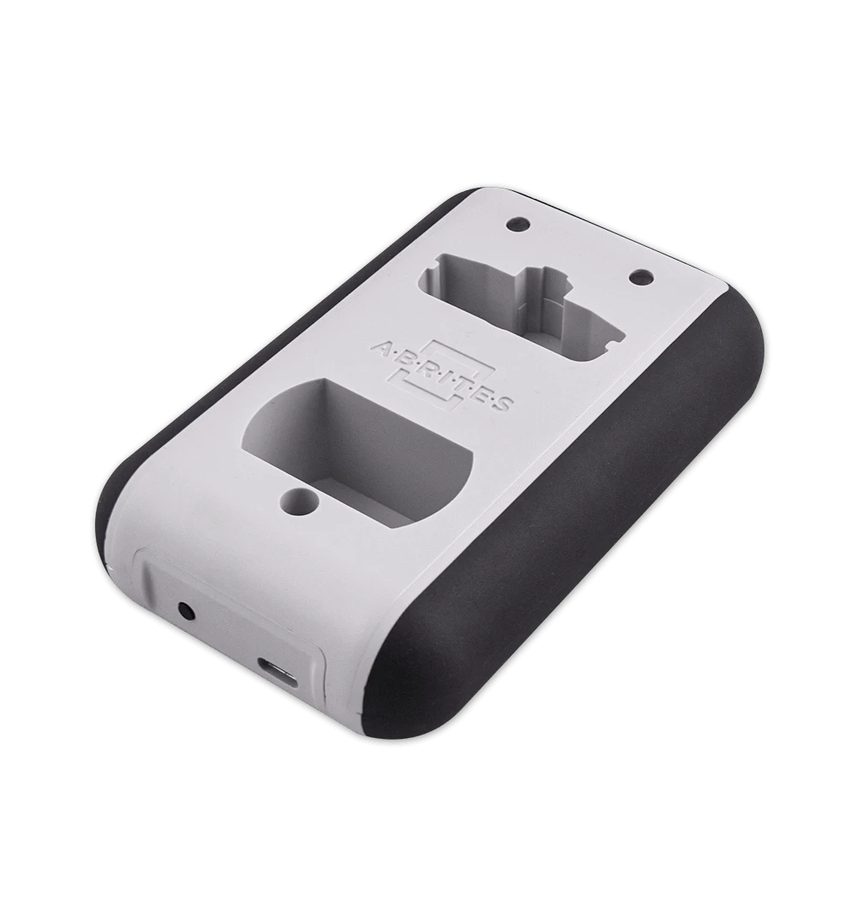 PROTAG
- alimentatore esterno
⚠ WarningIf you use the ENET cable CB015, the AVDI must NOT be plugged into the vehicle's OBD socket (the CB015 occupies it). Keep a stable power supply on the vehicle for the whole procedure.
Procedure
- OPTION 1 - CB015 ENET CABLE (Ethernet over OBD): plug the CB015 into the vehicle's OBDII socket and the other end into the PC's dedicated LAN port.
- Connect the AVDI to the PC anyway (the software needs it), but make sure the AVDI is not plugged into the vehicle's OBD socket.
- OPTION 2 - OBDII CABLE CB100 or CB106: connect the AVDI to the computer, then connect the CB106 or the CB100 to the AVDI at one end and to the vehicle's OBD socket at the other.
- In both cases connect the PROTAG to the PC: it is required for key programming.
- Connect an external power supply to the vehicle and check that the voltage stays steady for the whole procedure.
- Allow for the timings: with the CB015 ENET, BDC key programming takes about 5-10 minutes; with the standard OBDII cable the same procedure takes almost 30 minutes.
Reference screenshots
Source: Manuale BMW/Mini, seconda parte, "BDC Connections" (p.32) · ⏱ estimated time 10 min
← All Abrites guides Hardware catalogue
More guides BMW
- Module scan and fault code (DTC) clearing on BMW/Mini E series and F series
- Reading real-time parameters ("Live values") with graphing and file comparison
- Actuator tests with simultaneous reading of measured values
- Reading and writing the VIN in control units ("Program IDs")
- Central coding and Vehicle Order: adding or removing options and retrofits
- Programming (flashing) control unit firmware with free choice of version
- MD/MG engine control unit replacement on BMW G series (DME Exchange with DFlash)
- CAS1/CAS2/CAS3/CAS3+ key programming (BMW E series) via OBDII
- FEM/BDC key programming (BMW F series) with EWS Manager
- FEM/BDC key programming over OBDII (BMW F series) - all keys lost and spare key
- Preparing FEM and BDC units (software above version 85) with M95256 EEPROM reading
- EWS Functions menu on a prepared FEM/BDC: keys, mileage reset, backup and virginize