
Chip-Tools
Full Ford vehicle scan and module reading with "Scan All"
Ford/Mazda
Interface New
Diagnostics
Basic
⏱ 10-20 min
6 steps
The full scan finds every module fitted to the Ford and the DTCs stored in each of them. It is the first step of any diagnosis: it tells you which modules the vehicle answers on and where the faults are.
Required licences
- —
Hardware / cables
Procedure
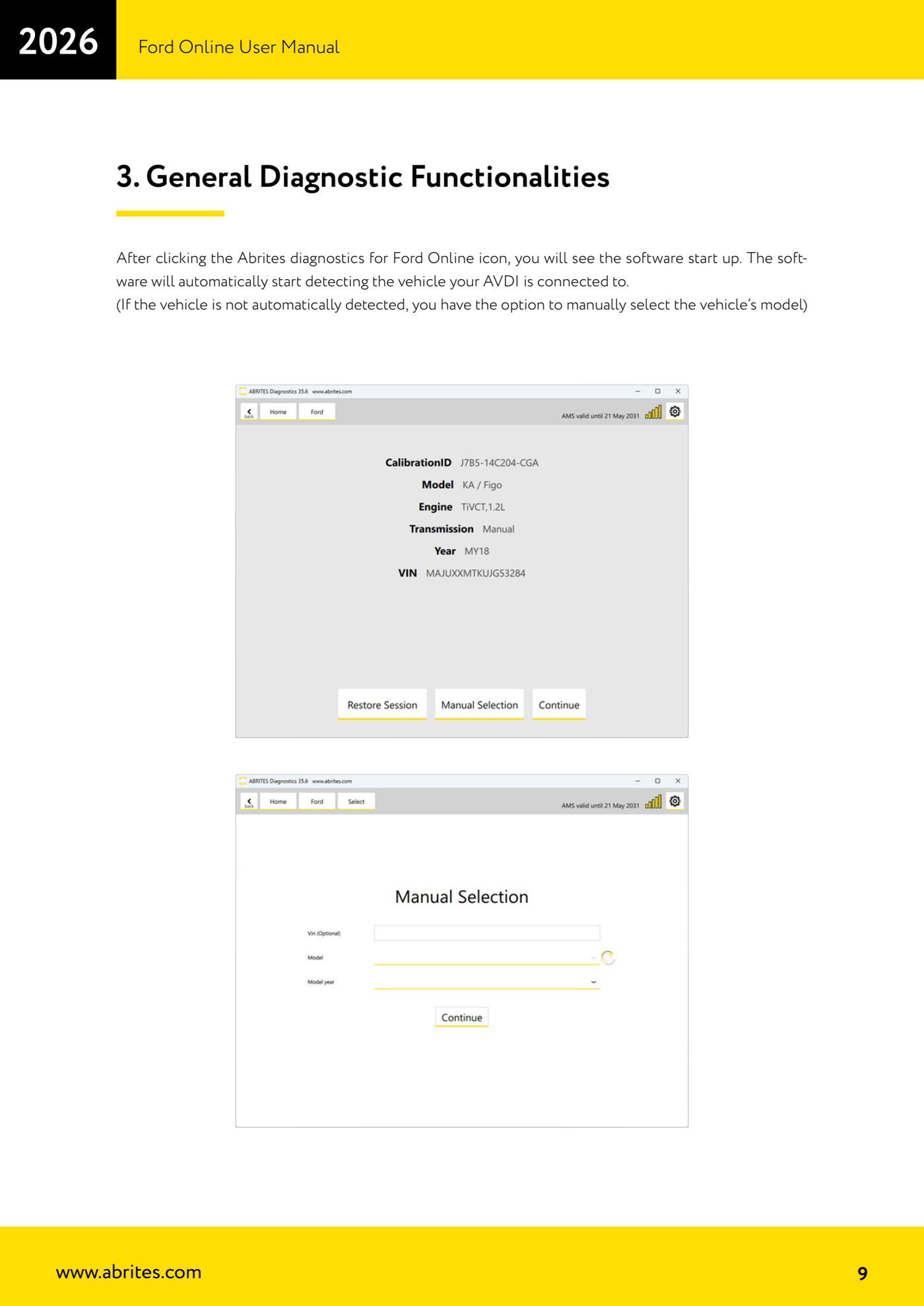
- Connect the AVDI to the OBDII socket, start "Abrites diagnostics for Ford Online" and wait for vehicle detection (or select the vehicle manually if it is not recognised).
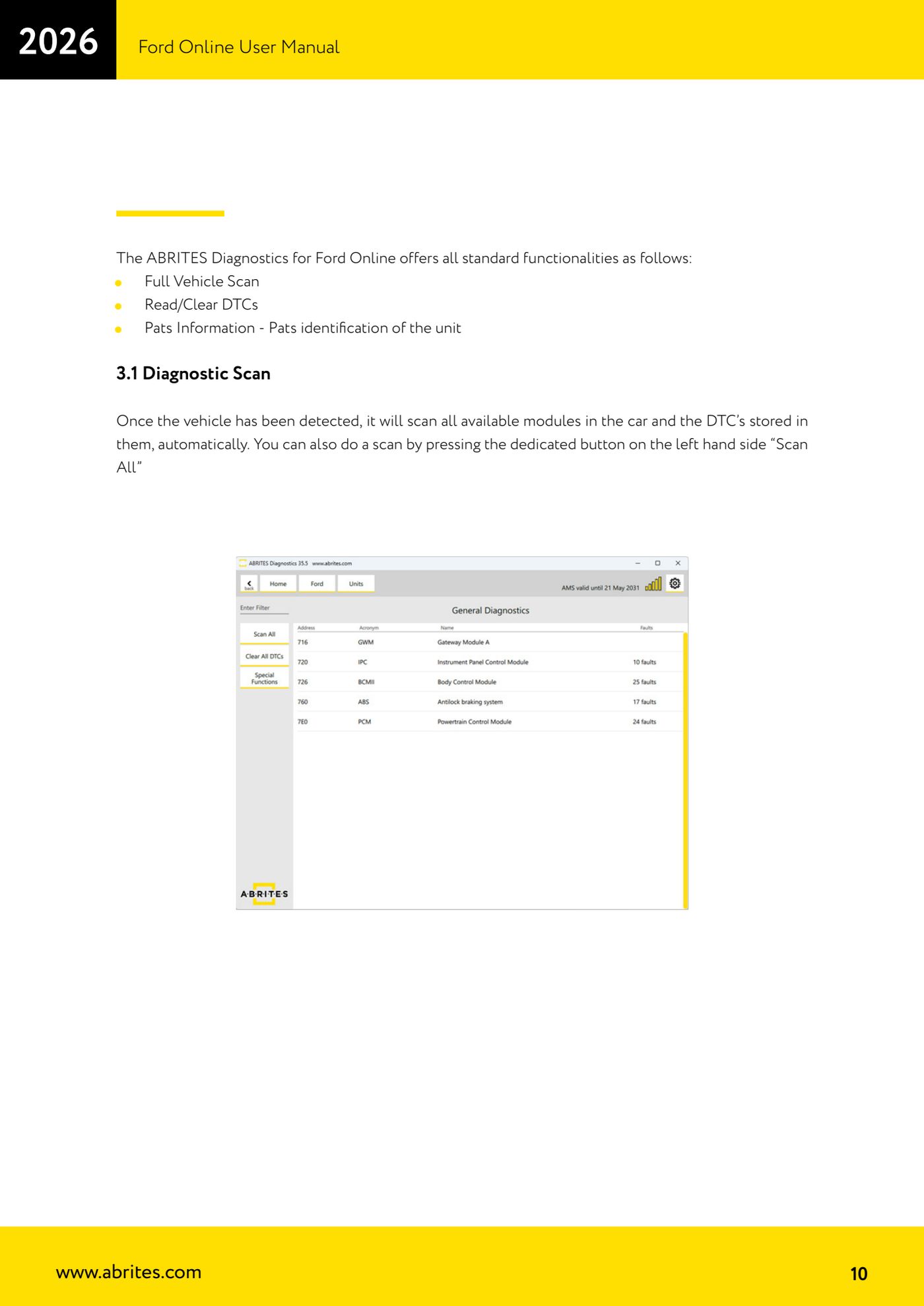
- Once the vehicle is detected the software automatically scans all available modules and the DTCs stored in them: let the procedure finish without breaking the connection.
- If you want to repeat the scan, or if it did not start by itself, press the dedicated "Scan All" button on the left-hand side of the screen.
- When it finishes, go through the list of modules found: the software provides the standard "Full Vehicle Scan", "Read/Clear DTCs" and "Pats Information" (PATS identification of the unit) functions.
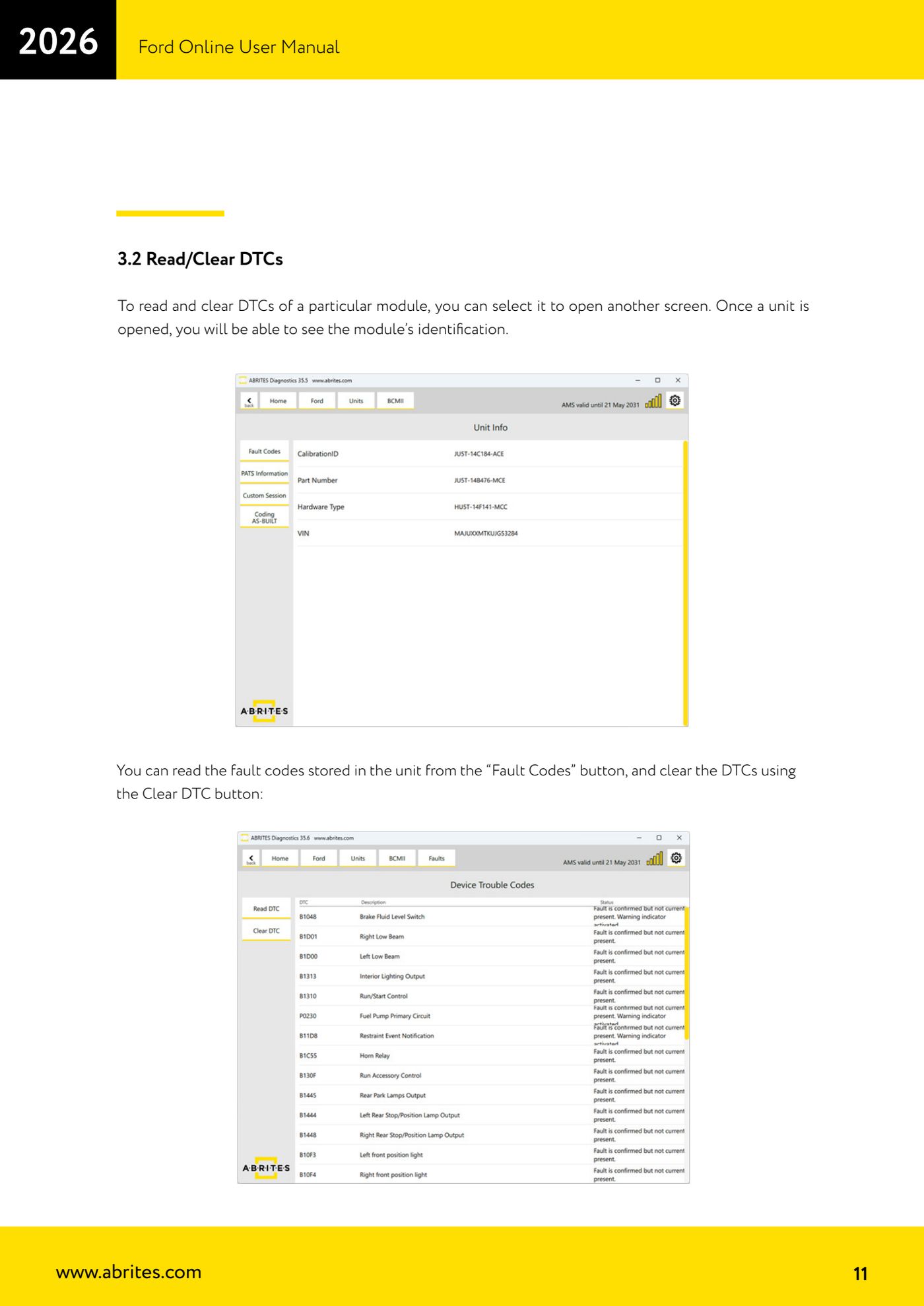
- Select a module from the list to open its dedicated screen: here you see the module identification (module data) and from here you can carry on with reading and clearing fault codes.
- Note down the modules that do not answer or that report faults, so you can go deeper into the individual module afterwards.
Reference screenshots
Source: Manuale Ford Online, cap. 3 e 3.1 (p.9-11) · ⏱ estimated time 10-20 min
← All Abrites guides Hardware catalogue
More guides Ford/Mazda
- Starting Abrites Diagnostics for Ford/Mazda: vehicle context and ECU scanning ("Scan all")
- ECU identification, DTC read/clear and Live Data on Ford/Mazda
- Getting to the Ford/Mazda "Special Functions": Memory Read/Write and Key Learning
- PATS Key Learning: adding keys on Ford/Mazda (including with the alarm triggered)
- Key programming on Mazda CX-30 and Mazda 3 from 2019 with special function MZ001
- Ford key programming from 2021 (F-150, Maverick, Mustang Mach-E, Transit): incode from the outcode or bench read of the BCM with the ZN085
- PATS Erase All Keys: erasing all keys from the Ford/Mazda PATS memory
- PATS Initialization: matching the PCM to the instrument cluster (IPC/HEC), BCM or FIP on Ford/Mazda
- Spare Key Programming and Unlimited Key Mode: enabling/disabling Ford/Mazda key programming
- PATS OUT/IN code calculator for Ford/Mazda IDS (SINGLE xx40 and DOUBLE xx44 outcodes)
- VID block (Vehicle Identification Data) in the Ford/Mazda PCM: reading and configuring parameters
- Supported protocols and OBDII pins on Ford/Mazda: HS-CAN, MS-CAN, K-Line and J1850 PWM