
Chip-Tools
Adapting and personalizing the ESL emulator on W204, W207 and W212
Mercedes
Interface Classic
Keys / Immo
Advanced
⏱ 60-90 min
11 steps
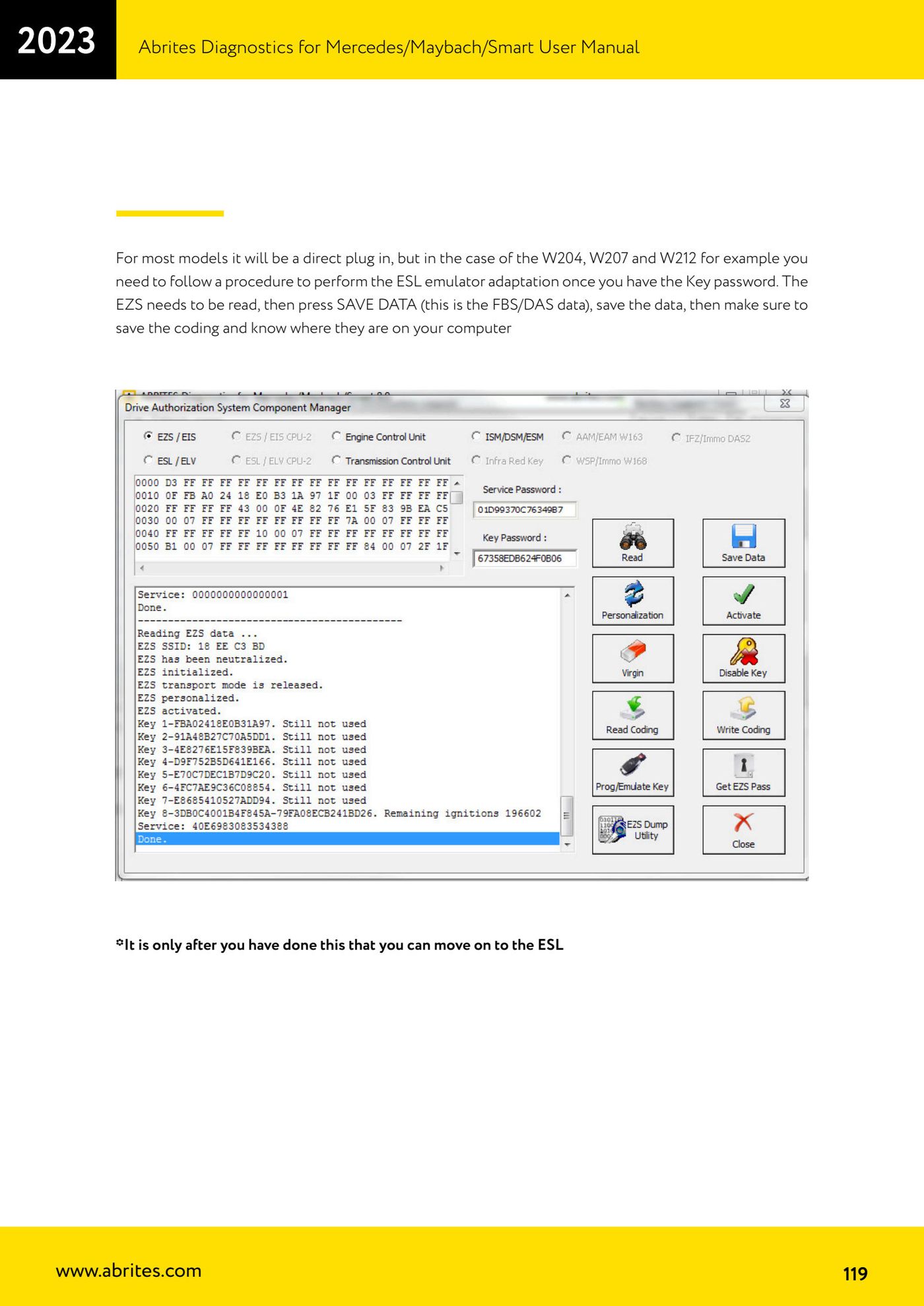
On most models the emulator plugs straight in, but on W204, W207 and W212 an adaptation procedure is required: you read the data from the EZS and use it to personalize the ESL emulator.
Required licences
- —
Hardware / cables
⚠ WarningThe car's original ESL MUST be disconnected when adapting an Abrites emulator. During personalization there must be no key in the EZS and the EZS must not go into stand-by.
Procedure
- Get the key password first: only then can you carry on.
- Read the EZS.
- Press "SAVE DATA" to save the FBS/DAS data and make a note of the file path on the computer.
- Save the coding as well and make sure you know where it is on the computer: only once that is done can you move on to the ESL.
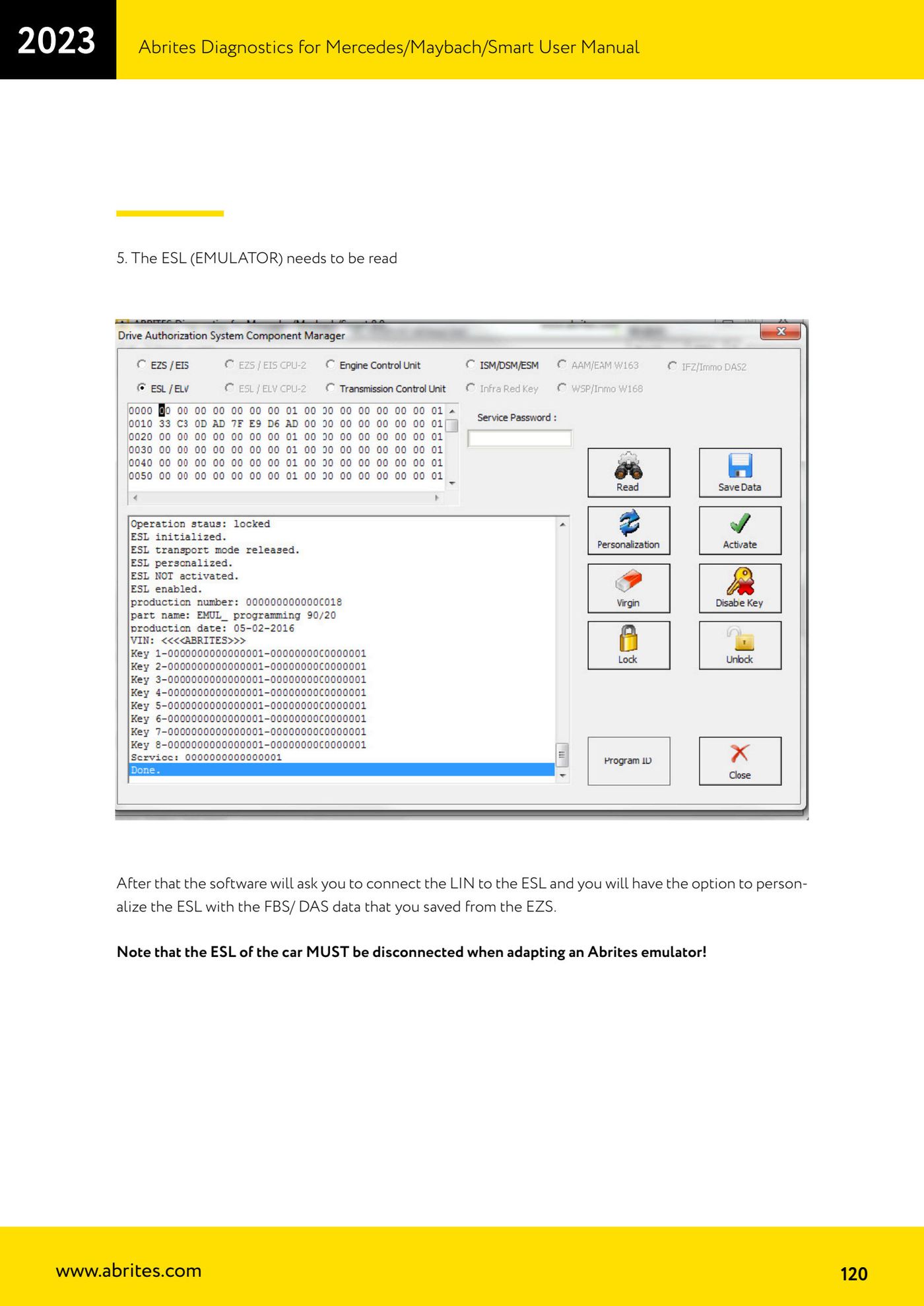
- Disconnect the vehicle's original ESL.
- Read the ESL (the emulator).
- When the software asks for it, connect the LIN to the ESL: at that point you get the option to personalize the ESL with the FBS/DAS data saved from the EZS.
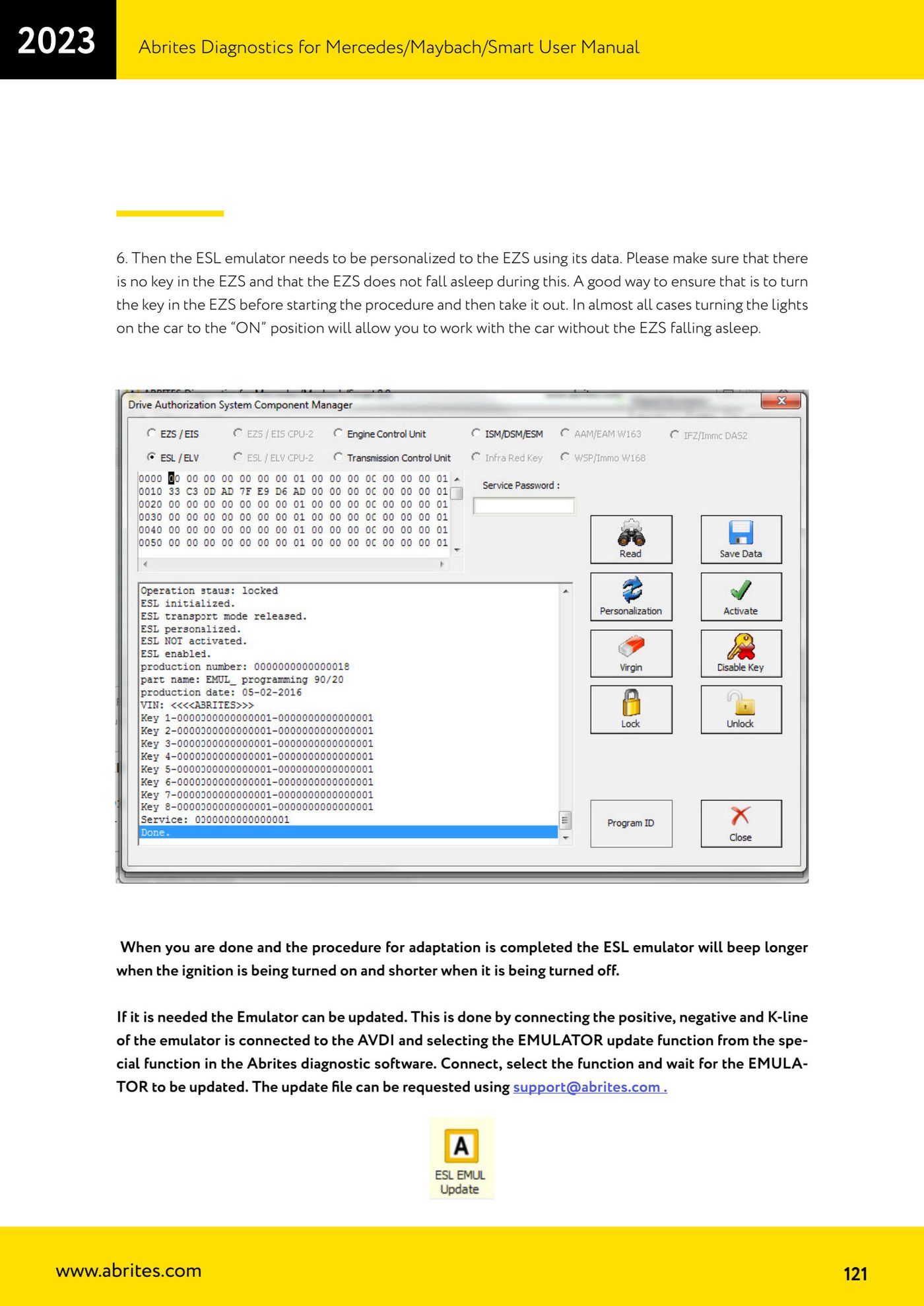
- Personalize the ESL emulator to the EZS using the EZS data, checking that no key is inserted in the EZS.
- To keep the EZS from going into stand-by, turn the key in the EZS before starting the procedure and then pull it out; in almost every case switching the vehicle lights to the "ON" position keeps the car awake while you work.
- Once the adaptation is finished, check it works: the ESL emulator gives a longer beep when the ignition is switched on and a shorter one when it is switched off.
- If the emulator needs updating, connect the emulator's positive, negative and K-Line to the AVDI, select the "EMULATOR" update function among the special functions in the Abrites software and wait for it to finish; the update file can be requested from support@abrites.com.
Reference screenshots
Source: Manuale Mercedes (Offline), cap. 5.17.5 (p.119-121) · ⏱ estimated time 60-90 min
← All Abrites guides Hardware catalogue
More guides Mercedes
- Diagnostics and vehicle selection (VIN, chassis, over 1300 modules)
- Mercedes-Benz bus and truck diagnostics
- Mercedes Coding (VMAX, side sensors, parameters)
- Mercedes ECU Flashing (CFF files)
- Mercedes FBS4 Manager (722.9 and CRD3 renew, VIN change)
- Smart Functions (DPF mileage reset, DPF ash, VIM, seat belt alarm, sun roof, 360° cameras)
- FBS4 odometer correction with MN030 + emulators (EM008/EM014/EM018)
- Exhaust flaps — exhaust valve control
- CPC Torque limiter — torque limit
- VMax calibration — speed limiter
- Speed Limit Calibration — eVito 447 (electric)
- Mercedes AdBlue Reset: resetting the AdBlue system after component replacement or the remaining mileage warning