
Chip-Tools
ECU Recovery with FBS4 Manager: recovering an engine ECU by loading the software from the Abrites server
Mercedes
Interface New
Flashing / Programming
Advanced
⏱ varies
7 steps
FBS4 Manager function for recovering an engine ECU by reloading the correct software downloaded from the Abrites server. The same section also gives you the read-only information screens for the EIS and the Car Key.
Required licences
- —
Hardware / cables
⚠ WarningOn the loading screen you have to type in the number of the software you want to program by hand: make sure you know exactly what you need to restore before you press "Program".
Procedure
- Connect the AVDI and open the FBS4 Manager.
- Press "Info" to establish the connection with the unit.
- Check the status reported and decide whether to go ahead with programming.
- Confirm exactly which software you need to restore, then press "Program".
- On the next screen select "Load file from server".
- In the window that opens, type in the number of the software you need to update/restore and start the procedure.
- For reference, from the same menu: EIS selection > "Info" shows the module identifier, whether the unit is personalised and activated and whether engine start is enabled; Car Key selection > "Info" shows the unit identifier and the number of keys programmed to the car.
Reference screenshots
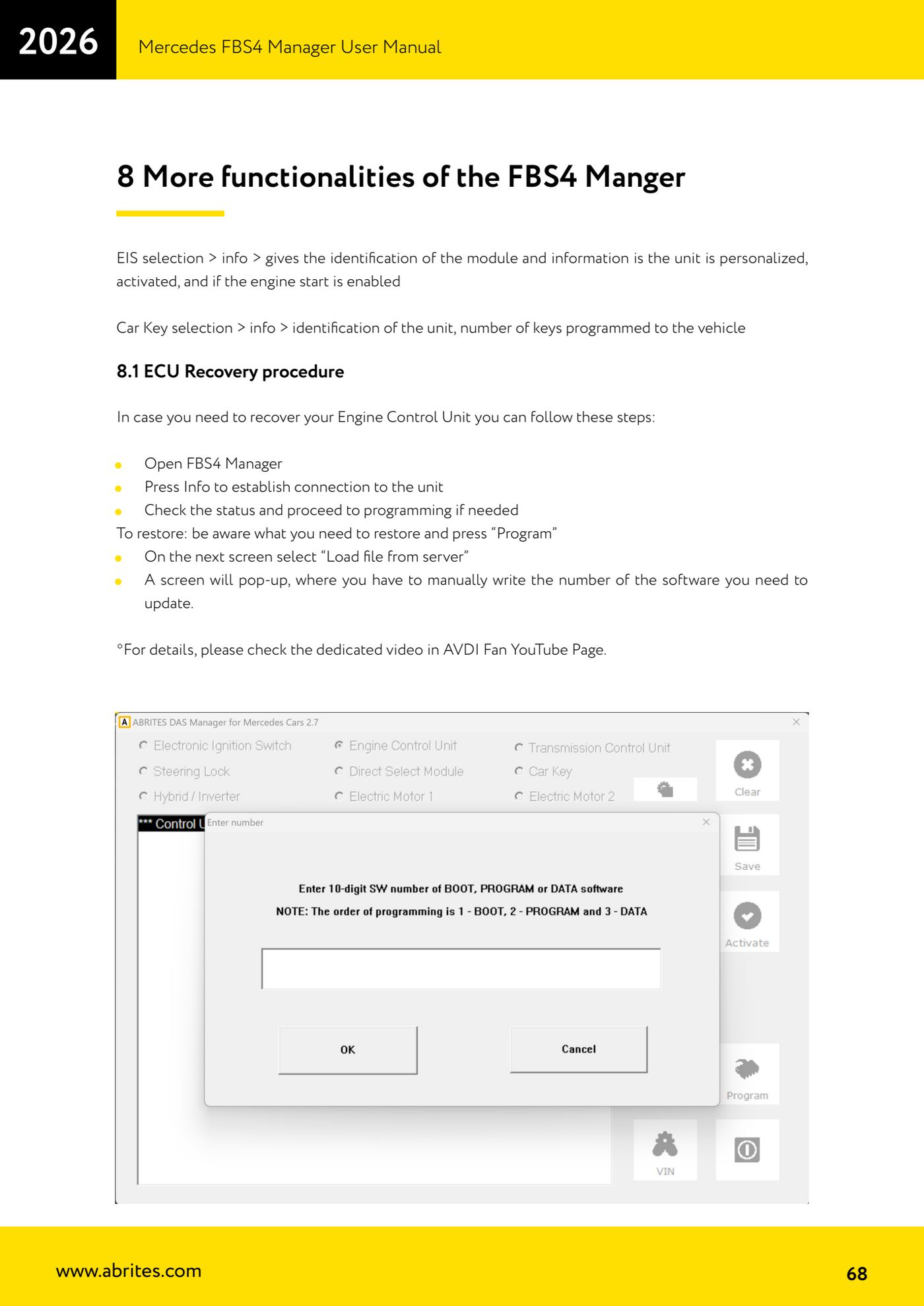
Source: Manuale Mercedes FBS4 Manager, parte 2 di 2, cap. 8 e 8.1 (p.68) · ⏱ estimated time varies
← All Abrites guides Hardware catalogue
More guides Mercedes
- Diagnostics and vehicle selection (VIN, chassis, over 1300 modules)
- Mercedes-Benz bus and truck diagnostics
- Mercedes Coding (VMAX, side sensors, parameters)
- Mercedes ECU Flashing (CFF files)
- Mercedes FBS4 Manager (722.9 and CRD3 renew, VIN change)
- Smart Functions (DPF mileage reset, DPF ash, VIM, seat belt alarm, sun roof, 360° cameras)
- FBS4 odometer correction with MN030 + emulators (EM008/EM014/EM018)
- Exhaust flaps — exhaust valve control
- CPC Torque limiter — torque limit
- VMax calibration — speed limiter
- Speed Limit Calibration — eVito 447 (electric)
- Mercedes AdBlue Reset: resetting the AdBlue system after component replacement or the remaining mileage warning