
Chip-Tools
Tesla Model 3/S/X diagnostics: module scan, reading faults from the "Alerts" menu and "Live values"
Tesla
Interface Classic
Diagnostics
Basic
⏱ 20-40 min
10 steps
On a Tesla, diagnostics do not work like on a conventional car: classic DTCs are not always meaningful and there is no fault clearing as we know it. The real faults are read in the "Alerts" menu, which works as live monitoring. This guide explains how to run the scan and read the "Alerts" and "Live values".

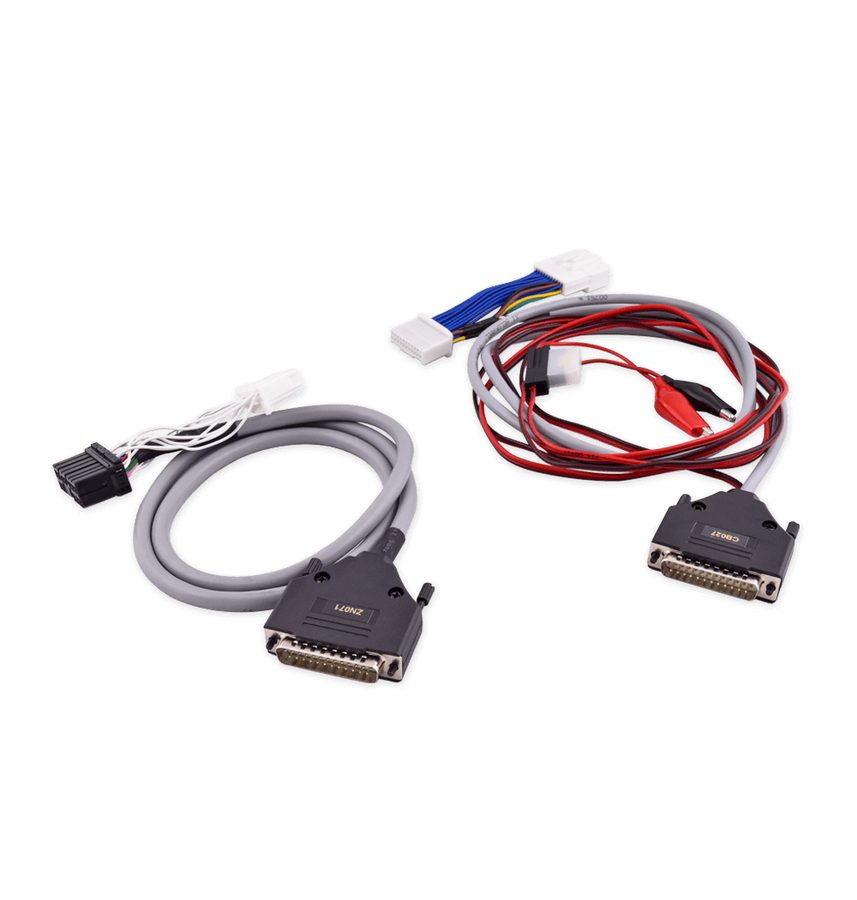
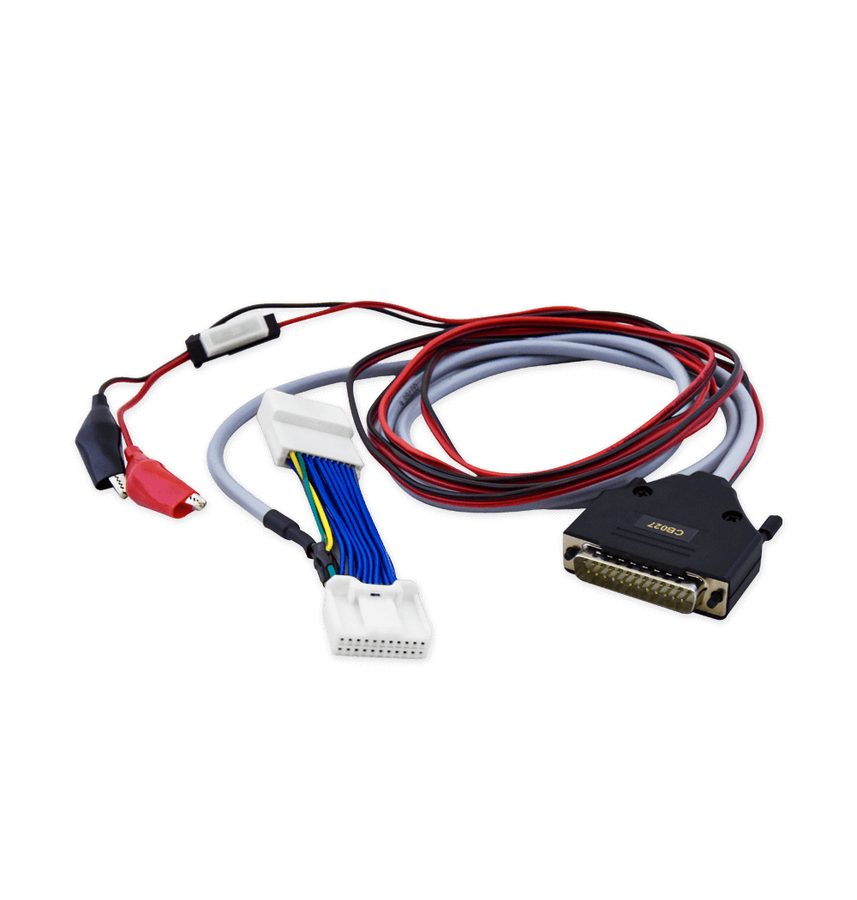
⚠ WarningBefore connecting, follow the connection procedure in chapter 3 of the manual in full (making the Model 3 safe and using the ZN087 set): a wrong connection can damage the vehicle, the AVDI and the PC.
Procedure
- Connect the AVDI to the vehicle following the ZN087 procedure (CB027 on the BCM for Model 3, ZN071 on the diagnostic socket for Model S/X) and make sure you have a stable internet connection: the software is server-based.
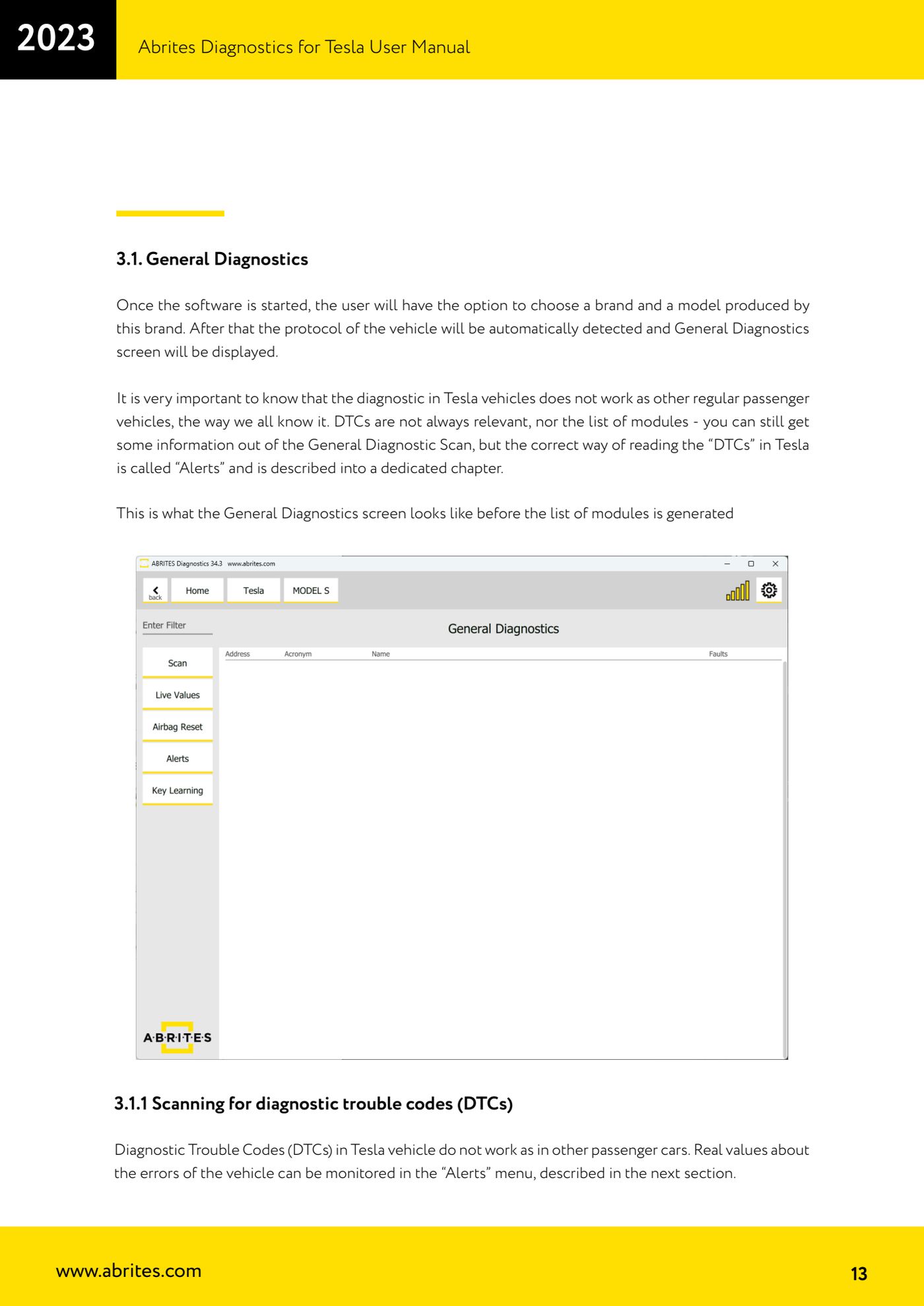
- Start "Abrites Diagnostics for Tesla": at startup choose the make and model (Model 3, Model S or Model X). The vehicle protocol is detected automatically and the "General Diagnostics" screen opens.
- Run the scan from the "General Diagnostics" screen to build the list of modules present on the vehicle (Module Identification). Use it to identify the modules you want to work on.
- Bear in mind that on Teslas the information in the module list and in the "DTC" read this way is not always reliable: it is there to point you in the right direction, not to close the diagnosis.
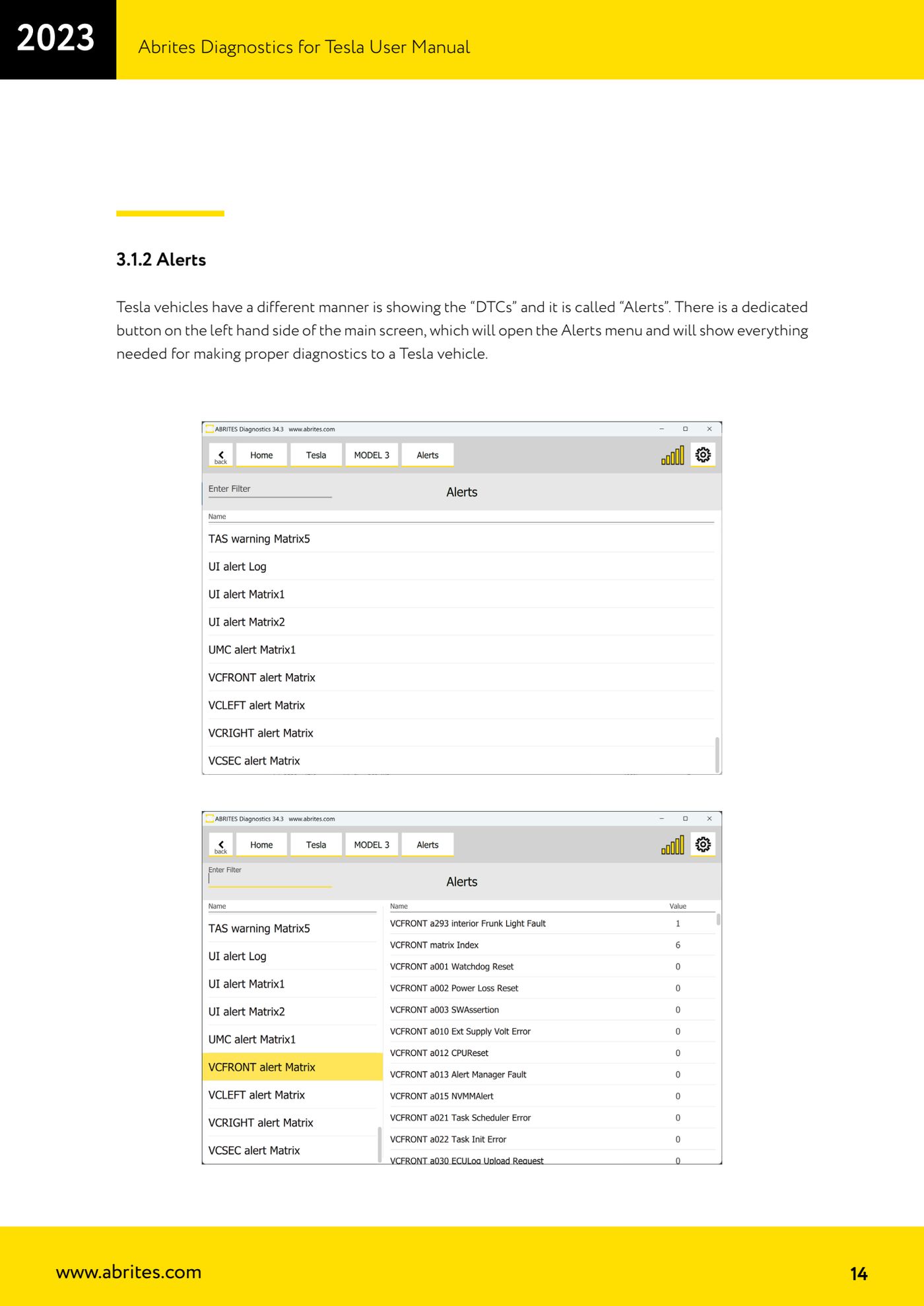
- To read the real faults press the "Alerts" button on the left-hand side of the main screen: that is the correct way to "read DTCs" on a Tesla.
- In the "Alerts" menu select the module you want on the left: all the parameters monitored for that module appear on the right.
- Read the values: "0" means no fault on the monitored parameter, "1" means there is a problem. The values are dynamic, so if for example you are monitoring a blown bulb (value 1) and you replace it, the value goes to 0 on its own.
- Do not look for a fault clearing function: on Teslas it does not exist the way it does on other cars. Faults disappear automatically as soon as the problem is fixed, so there is nothing to clear.
- Tesla does not provide the text description of the codes in diagnostics: note the fault code down and then look it up in the Tesla fault code database on their site.
- For live data press "Live values" and then select the module whose parameters you want to see: use them to check sensors and actuators during the repair.
Reference screenshots
Source: Manuale Abrites Diagnostics for Tesla v1.3, cap. 3.1 (p.13-15) · ⏱ estimated time 20-40 min
← All Abrites guides Hardware catalogue
More guides Tesla
- Connecting the AVDI to a Tesla with the ZN087 cable set: CB027 on Model 3 (BCM) and ZN071 on Model S/X
- Tesla Service Functions: brake bleeding, parking brake service mode, 12V Reset and calibrations
- Programming a spare Tesla Model S key over OBD ("Key Learning")
- Tesla Airbag Reset on Bosch modules: crash data clearing, VIN read/write and module replacement
- Tesla Delphi airbag module on the bench: EEPROM reading with CB106 and crash data clearing with a PCB jumper