
Chip-Tools
Starting Abrites Diagnostics for Honda Online: AVDI connection, internet connection and port 8443
Honda
Interface New
Hardware / Connections
Basic
⏱ 10 min
7 steps
Abrites Diagnostics for Honda Online is dealer-level diagnostic software that only works with the AVDI interface and an active internet connection. This procedure explains how to start it properly and what to check when the software cannot connect.
Required licences
- —
Hardware / cables
⚠ WarningThe software is online: if your internet provider keeps port 8443 closed the program cannot connect and diagnostics will not start. Check port 8443 is open before starting the job.
Procedure
- Check the PC requirements: the software runs on any Windows system newer than XP and the AVDI interface is mandatory for it to work.
- Install Abrites Diagnostics for Honda on the computer. It is normally installed together with the rest of the Abrites software, from the links you received by e-mail at the time of purchase.
- Make sure the PC has a working internet connection and that your provider has port 8443 open: without that port the software cannot connect.
- If the workshop network blocks port 8443, use your phone hotspot on 3G or 4G instead: mobile operators almost never disable port 8443.
- Connect the AVDI to the Honda's OBDII socket and to the PC, then turn the ignition ON.
- Open the "Abrites Quick Start" menu and click the Honda icon to launch the diagnostics.
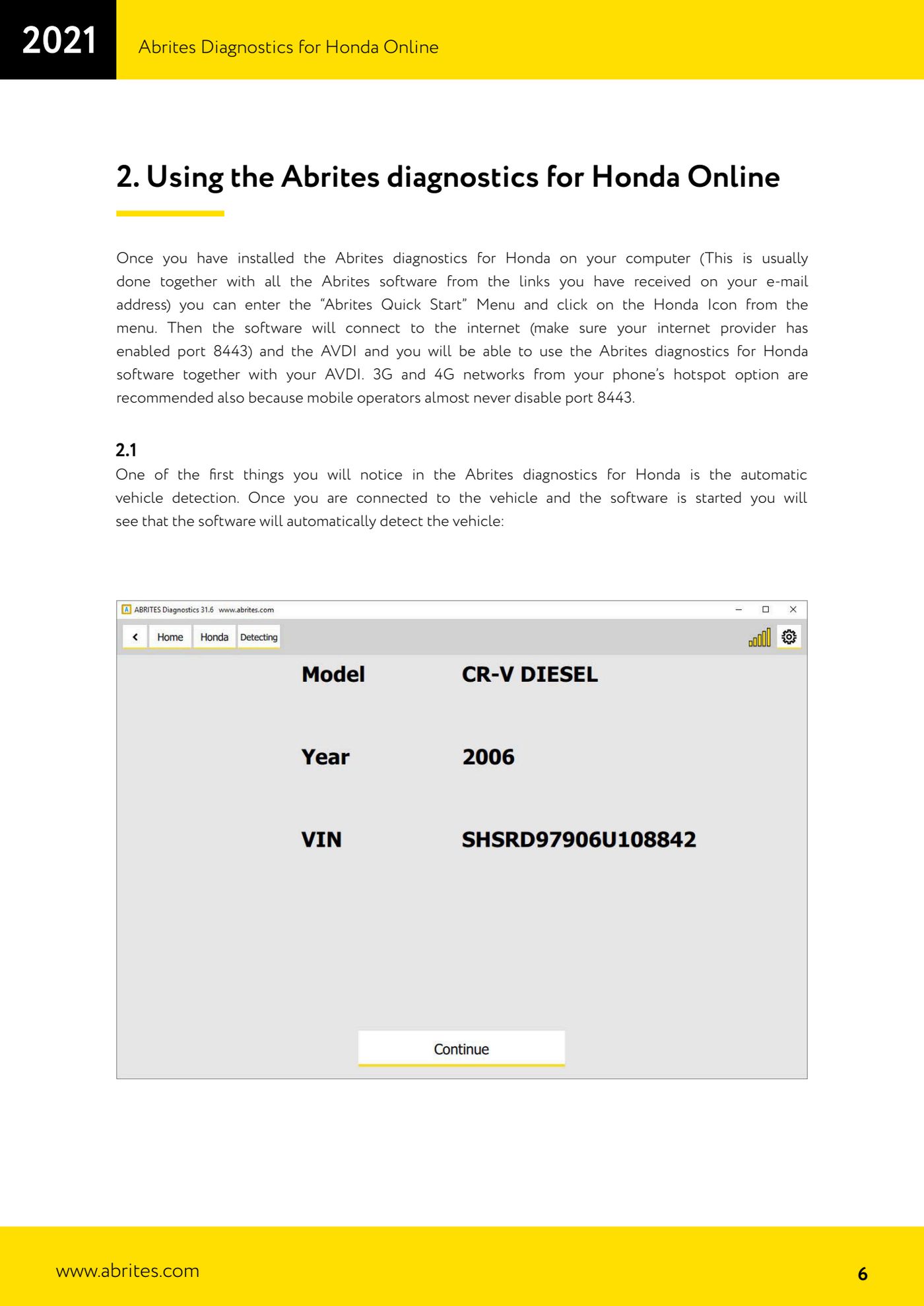
- Wait for the software to connect to the internet and to the AVDI: from this point you can use Abrites Diagnostics for Honda with the AVDI on the vehicle.
Reference screenshots
Source: Manuale Abrites Diagnostics for Honda Online, cap. 1-2 (p.5-6) · ⏱ estimated time 10 min
← All Abrites guides Hardware catalogue